

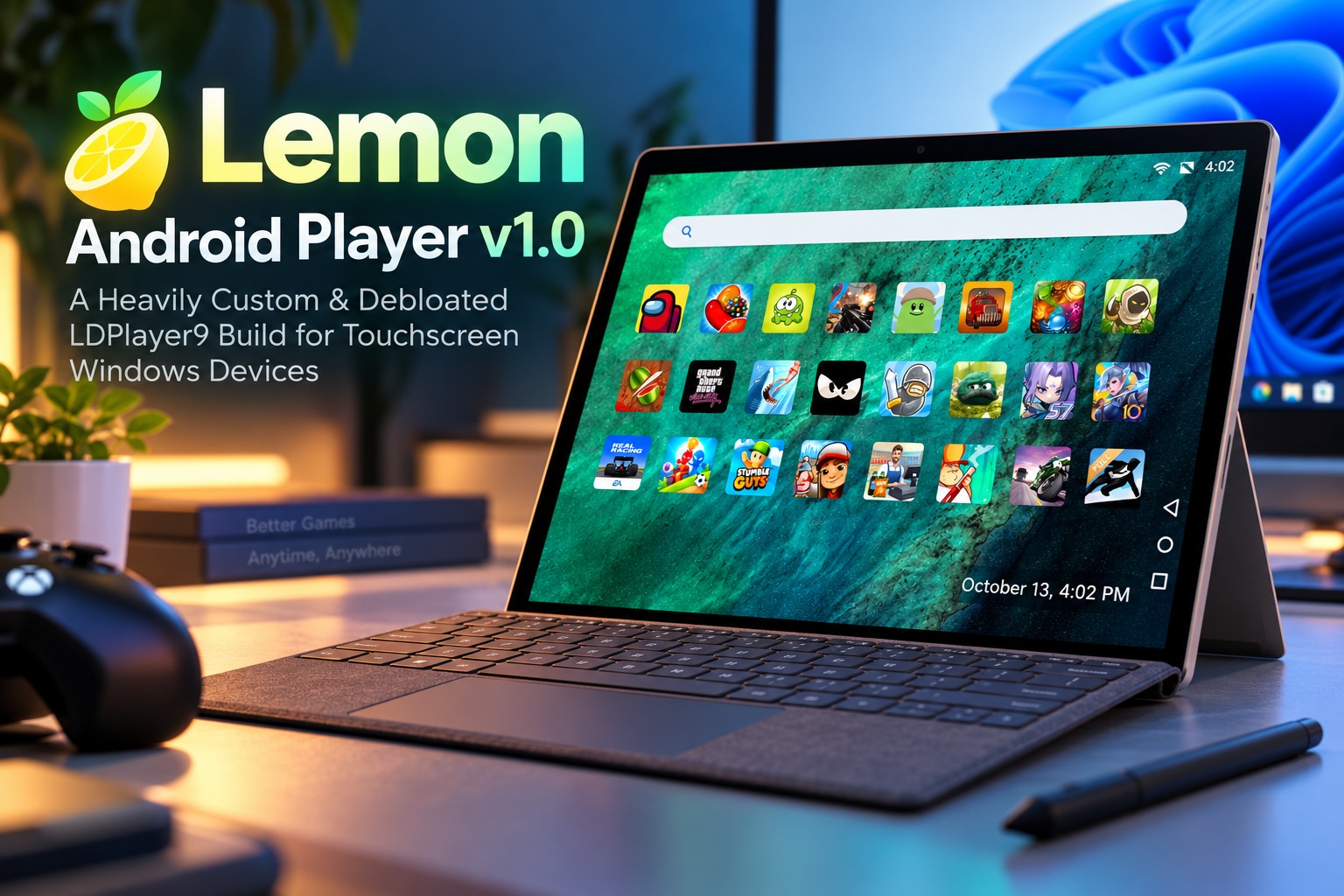
Running Android on a Windows device is useful, but I wanted the experience to feel less like operating an emulator and more like opening a dedicated Android gaming environment. On a touchscreen device, especially a Surface Pro or a Windows 2-in-1, the priorities are slightly different: a clean interface, comfortable touch controls, straightforward typing, and an easy way to leave when you are finished. That became the starting point for Lemon Android Player v1.0, my heavily customised and modded build based on LDPlayer9. Rather than simply changing its wallpaper or replacing a few shortcuts, I reworked the Android environment, removed unnecessary components, adjusted its resource configuration, and developed a native C++ companion to handle the Windows-facing startup and exit experience.
Starting With Eight CPU Cores and 4GB of RAM
One of the changes in my Android configuration was unlocking the use of eight virtual CPU cores instead of the previous four-core configuration, alongside a fixed 4GB RAM allocation. The intention was to provide more processing headroom while keeping the memory configuration predictable. This is the resource profile I chose for the build, rather than something users need to configure every time they launch it.
Those settings should not be mistaken for a performance benchmark. Assigning eight virtual CPU cores does not automatically mean that every game becomes twice as fast, and the 4GB Android memory allocation is not a measurement of the entire Windows-side memory footprint. The more important part of this project was combining that configuration with a substantially cleaner environment, rather than increasing resource allocations and leaving everything else untouched.
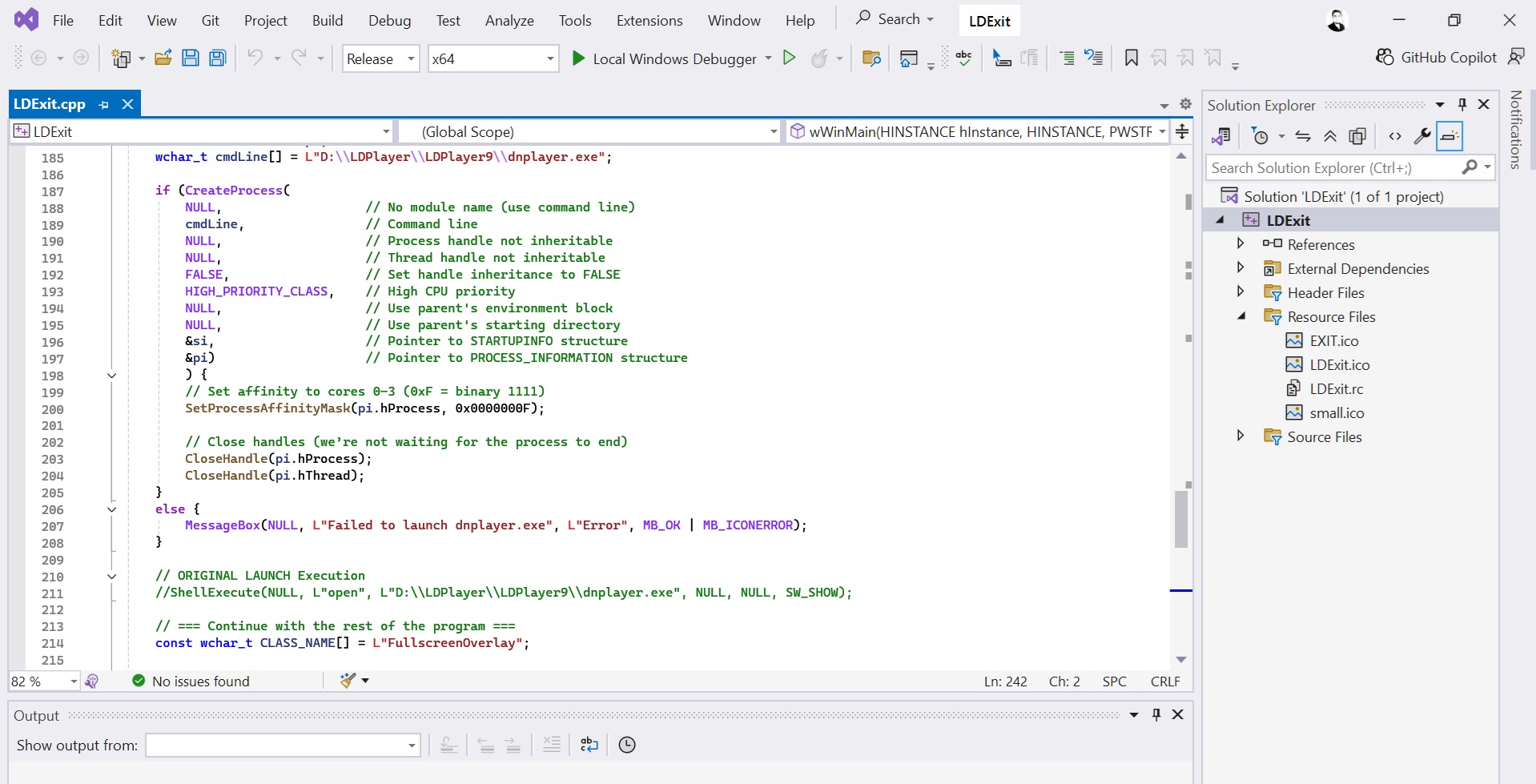
There is one technical detail worth highlighting in the accompanying launcher source: it currently uses SetProcessAffinityMask(pi.hProcess, 0x0000000F), which selects four Windows logical processors for the launched dnplayer.exe process. That is a separate host-side setting from the eight-core Android configuration. The launcher's affinity setting therefore needs to be reconciled with the eight-core target before treating the complete launch configuration as unrestricted across eight Windows logical processors. LDExit
Removing the Bloat, Not Just Hiding It
The biggest part of the transformation was debloating the environment. I did not want the original collection of LDPlayer-related Android apps and interfaces sitting underneath a different launcher, still shaping how the system behaved. The objective was to retain the underlying emulator functionality while removing the bundled components and front-end experience that were unnecessary for this particular build.
The main changes include:
• A custom Android launcher with a cleaner, touch-friendly presentation.
• A customised settings experience rather than relying on the original LDPlayer interface.
• Removal of LDPlayer-related bundled Android apps from the environment.
• A preconfigured setup with the intended resource profile and customisations already applied.
• A replacement Google Apps configuration selected for compatibility and performance within this build.
This distinction matters because a visual redesign and a debloated environment are not the same thing. A different home screen can make an installation look cleaner, but my objective also involved reducing the components operating behind that interface. In my own use, the combined changes produced a substantial reduction in resource usage and a more responsive overall experience.
It is still important to be clear about the foundation. Lemon Android Player is based on a modified LDPlayer9 environment; it is not an Android emulator engine written entirely from scratch. The custom work is in how that environment is configured, stripped down, presented, and integrated into everyday Windows use.
A Touch-First Interface for Surface Pro and Windows 2-in-1s
The interface was designed around the way I wanted to use Android on a touchscreen Windows device. Instead of keeping the original emulator presentation at the centre of the experience, I wanted a clean home screen that puts games and applications within easy reach. The screenshots show that direction: a game-focused layout with large icons, alongside a separate app drawer with search and clearly labelled applications.
The home screen deliberately avoids turning every available area into a control panel. There is room for the wallpaper, a consistent arrangement of app icons, and very little competing for attention. The app drawer provides the more functional view when browsing the wider collection of installed applications.
I also added a custom navigation bar at the bottom right, keeping Android's Back, Home, and recent-app controls accessible without making them dominate the display. This positioning fits the landscape layout of the build and keeps navigation close to the edge of the screen. It is a small detail, but it supports the larger objective of making the environment comfortable to operate directly by touch.
Typing was another important part of that integration. The customised setup triggers the Windows touch keyboard instead of using Android's built-in on-screen keyboard, so entering text stays closer to the surrounding Windows experience. That is particularly relevant when using a Surface Pro without its physical keyboard attached, or when folding a convertible laptop into tablet mode.
The result is still Android running through an emulator, not Android applications becoming native Windows applications. However, the visual presentation, navigation placement, and keyboard behaviour are all intended to make the transition feel less disjointed. That is why touchscreen Windows devices are the primary audience for this build, rather than simply an additional use case.
Updating Google Apps for the Custom Environment
Debloating did not mean removing every component that makes Android useful. I also updated the Google Apps environment and switched to a different GAPPS package/version, chosen with compatibility and performance in mind. The aim was to retain the Google functionality needed by the setup without simply accepting the original bundled configuration.
This part of the project sits within the customised Android environment, rather than inside the C++ companion application. The Google Apps changes and startup optimisations are separate from the Windows code responsible for launching the player and displaying its loading screen. Keeping that distinction clear helps explain why the build has a deliberate startup sequence rather than immediately exposing whatever happens to be visible during boot.
The intention is a better-fitting Google Apps configuration for this particular environment, not a claim that one package is universally best for every emulator or Android application. Compatibility remains something to evaluate against the apps and games actually being used. For Lemon Android Player, the priority was finding a configuration that worked well with the rest of the customisations.
Blocking Unwanted Endpoints With a Hosts-Based Blocklist
The debloating work also extends to network destinations. Alongside removing unwanted components, I applied a hosts-based blocklist targeting identified LDPlayer-related servers and other endpoints associated with the original environment. The supplied list includes LDPlayer advertising, API, store, and other hostnames, rather than focusing only on what appears on the home screen. hostfileLDPlayerDebloat
A short extract from the blocklist looks like this
0.0.0.0 ad.ldplayer.net
0.0.0.0 apien.ldmnq.com
0.0.0.0 storeen.ldmnq.com
0.0.0.0 usersdk.ldmnq.com
0.0.0.0 advertise.ldplayer.net
0.0.0.0 middledata.ldplayer.net
The purpose is to restrict access to the listed destinations as another layer of the customised setup. However, this should not be described as proof that every possible LDPlayer connection or server is blocked. It is a defined hostname list, not a complete network-isolation system.
There is also an important compatibility consideration: not every entry in the full list is an LDPlayer-owned hostname. It includes destinations such as graph.facebook.com, android.bugly.qq.com, and several CDN hostnames. Blocking shared third-party endpoints could affect applications that depend on them, so this is a build-specific configuration rather than a universal blocklist to apply indiscriminately to every Android environment. hostfileLDPlayerDebloat
No Original LDPlayer Settings Panel to Get in the Way
Another deliberate decision is that Lemon Android Player does not provide a route into the original LDPlayer settings page. The intended configuration is already baked into the build, together with the debloating and interface changes. Users are not expected to open an emulator control panel and work through configuration options before using the environment.
This does not mean that every Android-facing setting disappears. The customised settings experience is separate from exposing the original emulator's Windows-side configuration interface. The distinction is between providing the controls needed within the environment and bringing back the full LDPlayer settings experience that this project is intended to move away from.
There is an obvious trade-off here: a fixed configuration offers less convenient on-the-fly tweaking. Someone who enjoys constantly changing emulator resource settings may prefer a more conventional setup. My priority with this build was a consistent, appliance-like experience: launch it, use Android, and exit without managing the emulator underneath.
A Native C++ Companion for Launching and Loading
To tie the Windows side together, I developed a small native C++ companion application. In the supplied source, it launches dnplayer.exe through the Windows process API and creates a full-screen loading overlay. This provides a controlled presentation while the customised Android environment starts, rather than immediately exposing the boot process. LDExit LDExit
The companion also distinguishes between the first launch of the day and subsequent launches. It does this by checking a locally stored date in last_launch_date.txt and comparing it with the current date. This is a simple date-based startup rule, not a measurement of whether Android is performing a cold boot. LDExit
The relevant timer logic is compact:
isFirstLaunchToday = CheckFirstLaunchToday();
int initialTimerDuration =
isFirstLaunchToday ? 80 * 1000 : 45 * 1000;
SetTimer(hWnd, 3, initialTimerDuration, NULL);
In this reference, the overlay remains visible for 80 seconds on the first launch of the day and 45 seconds on later launches. When that timer expires, the wrapper hides the overlay and restores the mouse cursor. These are fixed waiting periods chosen for the startup experience, not measured boot-time results or a live confirmation that every Android service has finished loading. LDExit LDExit
The loading screen includes a moving bar and different text for the first daily launch. The bar is an activity indicator rather than a percentage-based progress meter, which is an important distinction when describing how the loader works. Its role is to communicate that the launch sequence is underway while providing a consistent screen during the waiting period. LDExit
A Windows Tray Icon That Makes Quitting Straightforward
Starting the environment is only half of the experience. I also wanted an obvious Windows-side way to quit without navigating back through the original LDPlayer interface. The companion therefore creates a notification-area icon in the Windows taskbar, giving the build a dedicated exit control outside the Android screen. LDExit
In the supplied implementation, clicking that icon executes the shutdown command, removes the notification icon, and exits the companion's message loop. The shutdown request is sent through LDPlayer's console utility rather than through its settings page. This keeps the everyday exit action aligned with the stripped-down interface. LDExit LDExit
The command used in the reference is:
ShellExecute(
NULL,
L"open",
L"D:\\LDPlayer\\LDPlayer9\\dnconsole.exe",
L"quitall",
NULL,
SW_HIDE
);
One detail worth noting is the use of quitall, which requests shutdown of all LDPlayer instances rather than selecting a single named instance. That fits the intended single-environment workflow, but it matters when considering a setup that also runs other LDPlayer instances. The installation path shown here is also specific to my development setup, rather than a universal path for every computer. LDExit
Lower Resource Usage, With the Focus on Everyday Responsiveness
The most meaningful result of the project is the reduction in resource usage after the combined changes. In my own setup, removing unwanted components and refining the environment made the player feel noticeably lighter and more responsive. The improvement is about the overall experience, not just a larger CPU number in a configuration file.
That matters because the Windows device still needs to remain useful outside the Android environment. My objective was not to make the emulator the centre of the entire computer, but to create a focused Android space that is comfortable to enter and leave. A cleaner interface, fewer unnecessary components, Windows keyboard integration, and a straightforward exit control all contribute to that goal.
These improvements should be understood as my experience with the custom build rather than a quantified performance guarantee for every machine. I am not attaching a percentage speed increase or claiming that every game will run equally well. Hardware suitability, available resources, and the requirements of individual applications still need to be considered.
Although the design is particularly suited to Surface Pro devices and other touchscreen Windows 2-in-1s, touch support alone does not establish compatibility. The device must still be suitable for the underlying LDPlayer9 environment and the chosen resource profile. The focus here is the interaction design and custom configuration, rather than a promise of support for every device carrying a touchscreen.
Final Thoughts
Lemon Android Player v1.0 is my attempt to turn a heavily modified LDPlayer9 installation into a more focused Android experience for Windows. The work goes beyond appearance: it includes a customised launcher and settings environment, removal of bundled apps, a revised Google Apps configuration, targeted endpoint blocking, Windows keyboard integration, and a native C++ companion for startup and exit control. Together, those changes create something much closer to the way I wanted Android to behave on a touchscreen Windows device.
The guiding idea is straightforward: keep the Android experience I actually use, remove the surrounding clutter, and make the Windows interaction feel more natural. There are still implementation details and compatibility trade-offs to account for, particularly around CPU affinity, fixed startup timers, and the scope of the network blocklist. But the direction is clear—a cleaner, lighter, touch-first Android environment built around everyday use rather than the original emulator interface.









Comments 0