

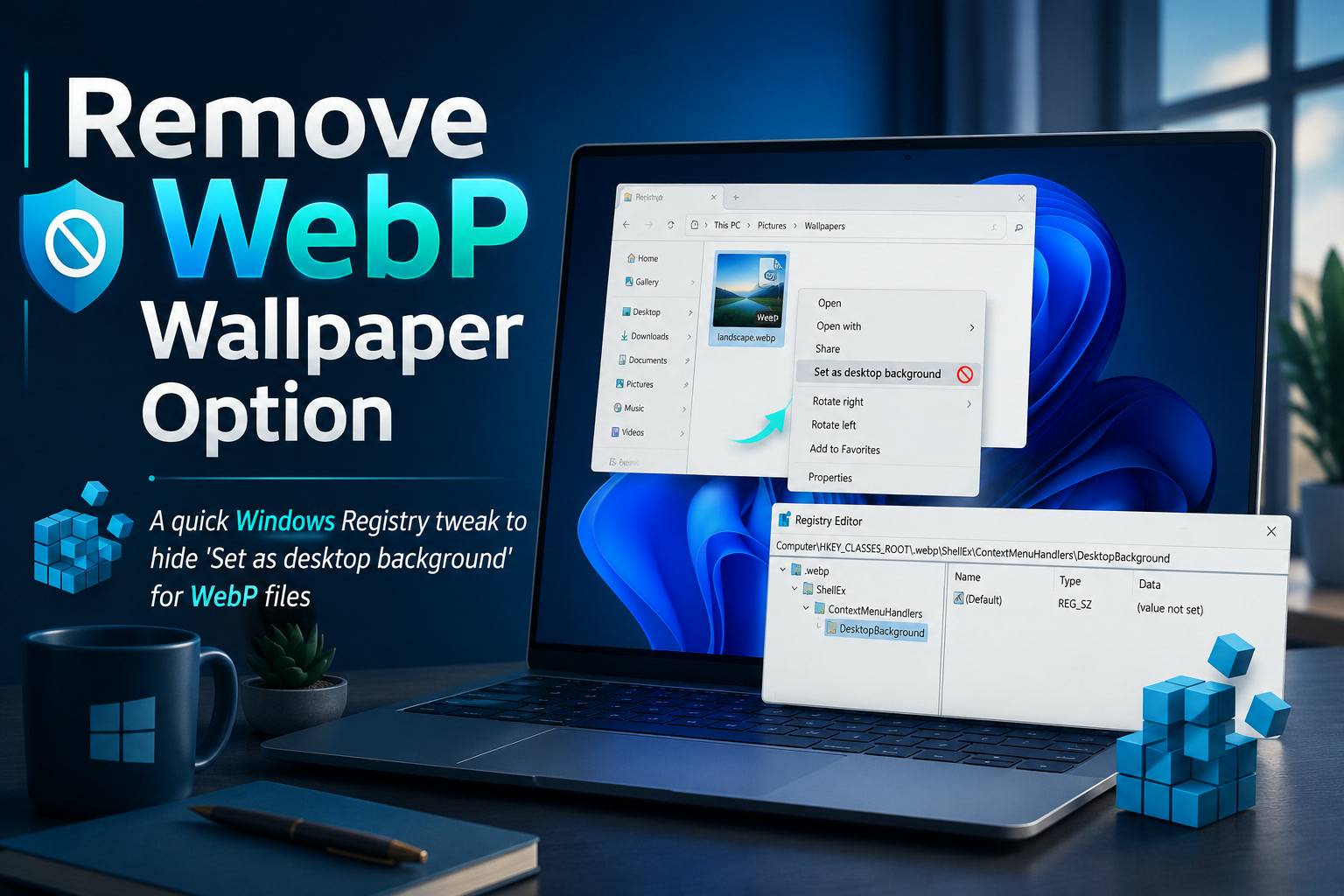
WebP has become increasingly common across websites because it can deliver good image quality at a smaller file size. But once you start saving WebP files to your Windows PC, you may notice something slightly annoying in File Explorer: Windows treats them much like normal JPG or PNG images and may show the "Set as desktop background" option in the right-click menu.
For most people, this is harmless. But if you frequently work with WebP files, especially downloaded website assets, screenshots, thumbnails, or compressed graphics, you may prefer to remove that option specifically for WebP files while leaving it available for JPG, PNG, and other image formats.
The good news is that Windows allows this behaviour to be adjusted through the Registry.
Why Does Windows Show "Set as Desktop Background" for WebP?
Windows File Explorer uses file associations to determine which commands should appear when you right-click a particular file type.
WebP files can be recognised as image files, which means Windows may automatically give them several image-related context menu options, including:
This behaviour is generally useful, but not every image format needs every command.
If you mainly use WebP files for web development or website content, there is probably little reason to accidentally set one as your Windows wallpaper.
Remove the Desktop Background Option for WebP Only
The safest approach is to remove the WebP-specific shell command rather than changing how Windows recognises WebP files entirely.
Open Notepad and paste the following:
Windows Registry Editor Version 5.00 [-HKEY_CLASSES_ROOT\SystemFileAssociations\.webp\Shell\setdesktopwallpaper]Save the file as:
Remove-WebP-Desktop-Background.regMake sure the file is saved with the .reg extension rather than .txt.
Double-click the file and accept the Windows Registry confirmation prompt.
After applying the change, restart Windows Explorer, sign out and sign back in, or simply restart your computer.
The "Set as desktop background" option should then disappear when right-clicking WebP files.
You Can Also Do It Through Command Prompt
If you prefer using Command Prompt, you can perform the same Registry change without creating a .reg file.
Open Command Prompt as Administrator and run:
reg delete "HKCR\SystemFileAssociations\.webp\Shell\setdesktopwallpaper" /fThe /f parameter tells Windows to perform the deletion without asking for another confirmation.
Once completed, restart Windows Explorer.
A quick way to restart Explorer is through Task Manager. Find Windows Explorer, right-click it, and choose Restart.
What If the Option Is Still There?
There is another reason Windows may continue showing image-related commands for WebP files.
Windows can assign something called a PerceivedType to file extensions. In the case of WebP, Windows may classify it as:
PerceivedType = imageThis tells Explorer that WebP behaves like other image formats and allows it to inherit general image-related context menu commands.
You can check this Registry location:
HKEY_CLASSES_ROOT\.webpIf you see:
PerceivedType REG_SZ imagethen WebP is being treated as a general image type.
It is possible to remove that value using:
reg delete "HKCR\.webp" /v PerceivedType /fHowever, this should normally be considered a secondary option.
Removing the PerceivedType value may affect more than just the wallpaper command. Windows Explorer could also change how it handles previews, image-related actions, grouping, or other behaviour associated with WebP files.
For that reason, removing only the setdesktopwallpaper shell entry is the better starting point.
Why I Prefer Removing Only the Specific Command
Registry modifications are usually better when they are as targeted as possible.
Instead of telling Windows that WebP is no longer an image, we are simply telling Explorer:
JPG files can still be used as wallpapers.
PNG files can still be used as wallpapers.
Your normal Windows image functionality remains intact.
Only WebP loses the unnecessary context menu option.
This makes the change cleaner and reduces the likelihood of creating unexpected behaviour elsewhere in File Explorer.
Before Editing the Registry
As with any Windows Registry modification, it is a good idea to create a backup first.
You can open Registry Editor, navigate to the key you are modifying, right-click it, and select Export.
That gives you a .reg backup that can be imported again later if needed.
Registry changes like this are relatively small, but having a backup is always worthwhile when customising Windows shell behaviour.
Final Thoughts
Windows has gradually improved its support for WebP, which is great considering how widely the format is now used across the web. However, treating every WebP file exactly like a traditional desktop photo is not always desirable.
If you frequently download or work with WebP assets, removing "Set as desktop background" can make the right-click menu a little cleaner and reduce accidental wallpaper changes.
The best approach is to remove only the WebP-specific setdesktopwallpaper Registry entry first. It keeps the modification targeted while allowing Windows to continue recognising WebP normally as an image format.
It is a small Windows tweak, but for anyone regularly working with web graphics, it makes File Explorer just that little bit cleaner.











Comments 0