


Google Chrome updates tend to attract attention when they introduce another AI feature, security change or performance improvement, but some of the browser's most useful additions are much less dramatic. Chrome has recently gained several practical features aimed at people who spend much of their day working inside the browser, including vertical tabs, built-in PDF annotation and expanded Google Wallet autofill support. None of these fundamentally changes how Chrome works, but together they make everyday browsing noticeably more convenient.
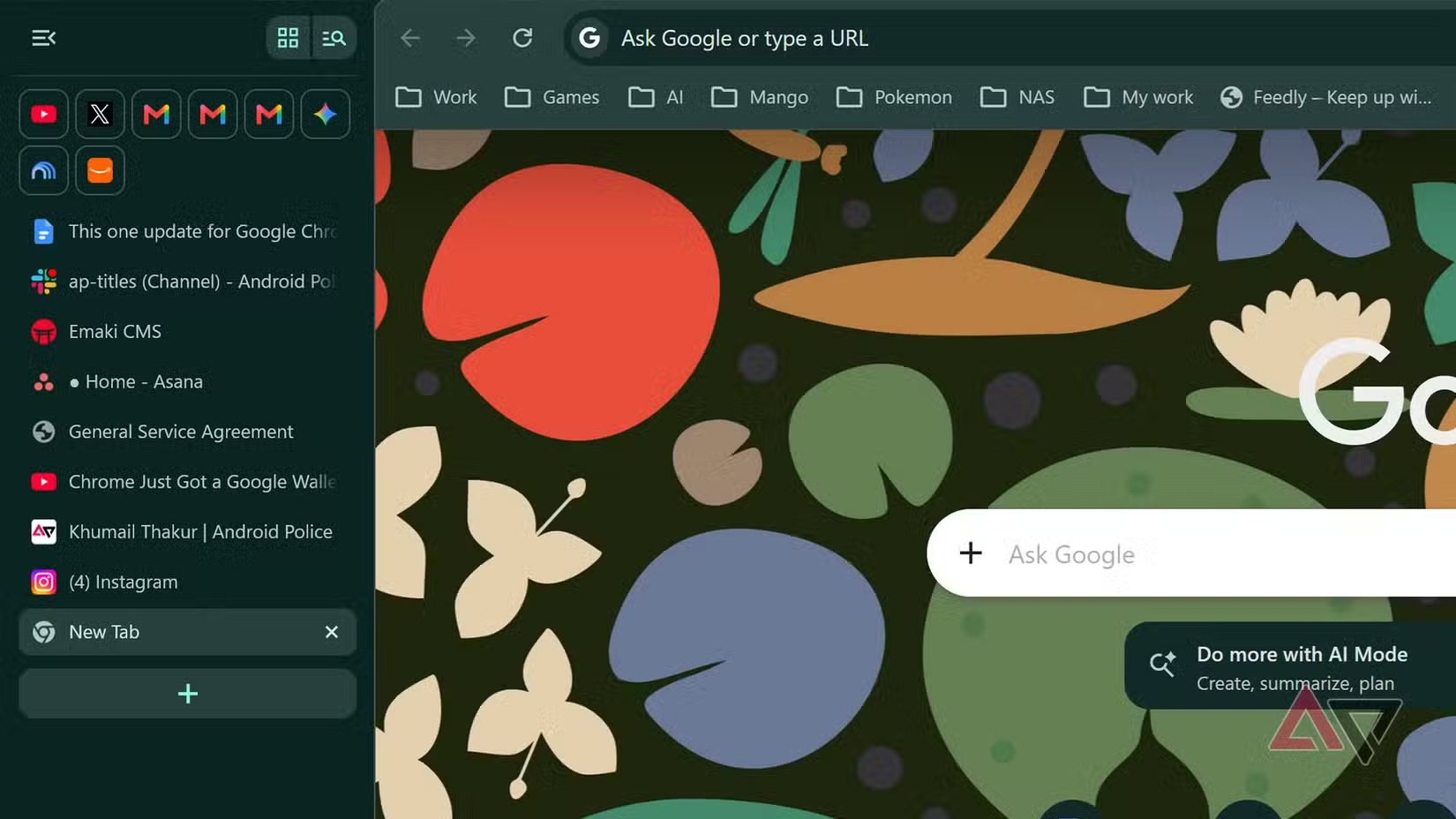
Vertical tabs are easily the standout addition for anyone who regularly keeps dozens of pages open at once. Chrome has relied on horizontal tabs for years, which works perfectly well until the tab bar becomes so crowded that titles disappear and every tab turns into a tiny icon with an equally tiny close button. Moving those tabs into a vertical sidebar gives them considerably more room and makes large browsing sessions much easier to manage.
Vertical Tabs Finally Arrive in Chrome
The feature has been gradually rolling out to Windows and macOS users after spending time in testing, so some people may already have it without realising. Once enabled, the traditional row of tabs across the top of Chrome moves to the side of the browser, freeing horizontal space at the top while using vertical screen space more effectively.
For people who keep 20 or 30 tabs open while researching, writing or working across several projects, this can make an immediate difference. Instead of watching every tab shrink until the title becomes unreadable, the sidebar can display considerably more information about each page. Finding the right tab becomes a matter of scanning a list rather than repeatedly clicking tiny icons and hoping you picked the correct one.
There is an adjustment period, especially for anyone who has used Chrome's traditional layout for more than a decade. Muscle memory naturally sends your eyes toward the top of the browser whenever you want to switch pages. After a while, though, the vertical arrangement begins to feel surprisingly natural, particularly on laptops where horizontal tab space disappears very quickly.
How to Enable Vertical Tabs
Chrome makes the option fairly easy to find. Users can open Settings > Appearance > Tab Position and switch the layout from horizontal to vertical. There is also a faster method: right-click the top bar and choose Show tabs vertically to change the orientation immediately.
The sidebar can be expanded when users want more information about each tab. Right-clicking the tab area and selecting Expand tabs provides more room for page titles, making it much easier to identify open websites without repeatedly hovering over them. The expanded layout naturally occupies more screen width, but users can collapse it again whenever they need additional space for the webpage itself.
Pinned tabs also become much easier to use in this arrangement because they can appear as larger, more obvious buttons. Chrome also allows users to scroll through the vertical tab list with a mouse wheel, which is particularly convenient when a research session gets completely out of hand and the number of open tabs starts approaching the absurd.
Why Vertical Tabs Work Better for Heavy Browsing
Horizontal tabs made sense when people typically kept only a handful of pages open. Modern browsing is very different. Research, cloud applications, messaging tools, dashboards, documents, video calls and entertainment can all remain open simultaneously, turning the browser into something closer to an operating environment than a simple webpage viewer.
The problem is that horizontal space is limited. Adding more tabs simply compresses the existing ones until useful information disappears, while vertical space is generally much easier to scroll. A sidebar can therefore scale much more gracefully as the number of tabs increases.
This is hardly a revolutionary concept, and several competing browsers have offered vertical tabs for some time. That actually makes Chrome's long delay slightly surprising considering how useful the feature is for multitaskers. Still, it is better late than never, and for some users it may become one of those features that makes returning to horizontal tabs feel immediately uncomfortable.
Chrome Is Becoming a Better PDF Tool
Vertical tabs are not the only practical improvement. Chrome has also expanded its built-in PDF capabilities, giving users more reasons to avoid opening a separate application for relatively simple document tasks. The browser could already display PDFs quickly, but its functionality was traditionally limited compared with dedicated applications such as Adobe Acrobat.
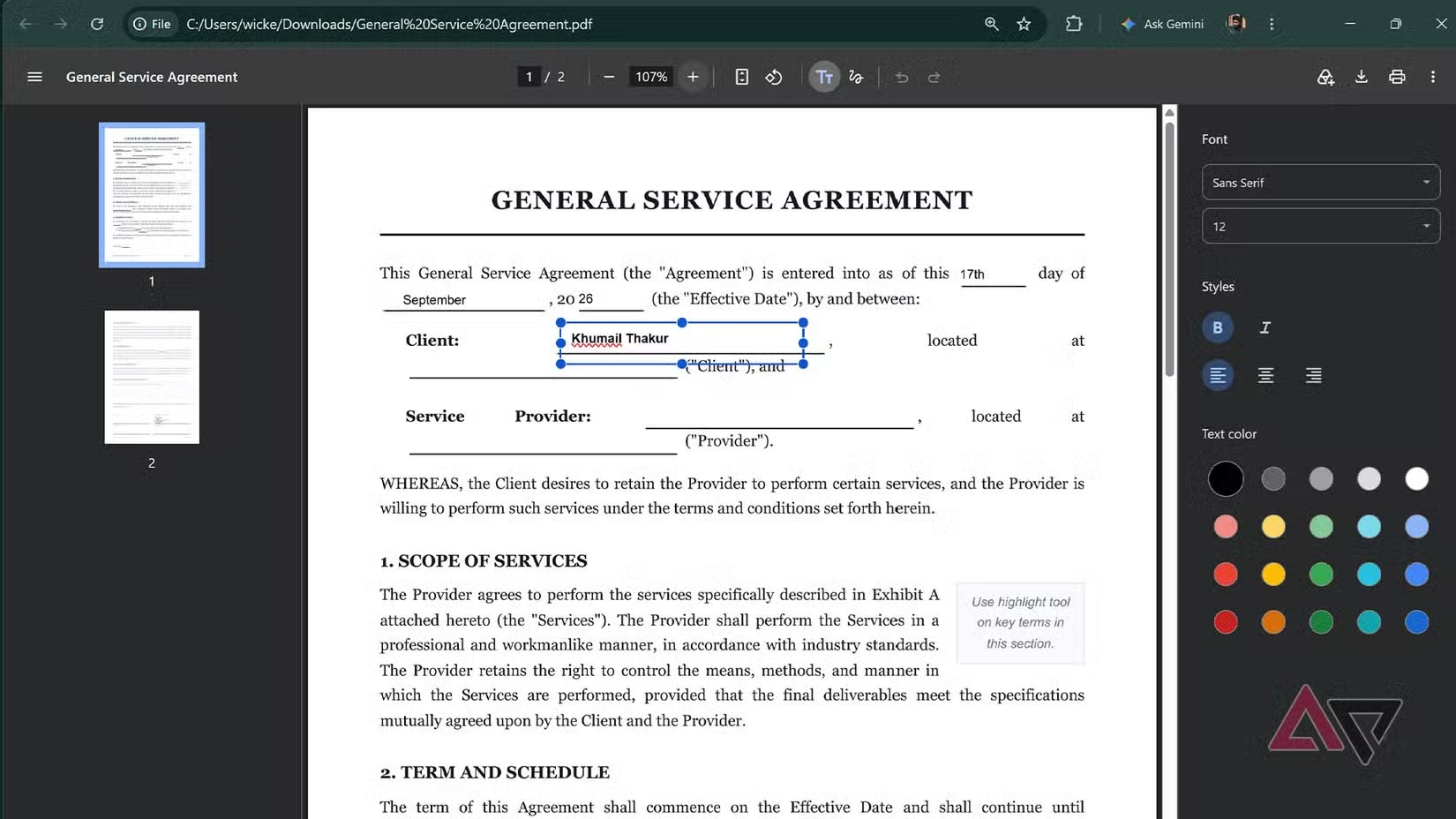
Users can now perform basic PDF annotation, including inserting text boxes into documents and using drawing tools for signatures or handwritten marks. That makes Chrome perfectly adequate for straightforward tasks such as entering names, dates or short pieces of information into a form.
The drawing tool will not replace a serious digital-signature platform, particularly when identity verification or legally recognised signatures are required. For everyday forms, approval documents or simple acknowledgement letters, however, being able to complete the task directly inside the browser is far more convenient than launching another application.
Sometimes the Browser Is All the PDF Software You Need
Dedicated PDF software remains far more powerful, but many users simply do not need most of those advanced capabilities. If the goal is reading a document, filling in several fields and adding a basic signature, installing or opening a heavyweight PDF suite can feel excessive.
Chrome already handles documents quickly because the browser is usually open anyway. Clicking a PDF immediately displays it in another tab, and adding lightweight editing tools turns that same experience into a more complete workflow. For users who deal primarily with straightforward PDFs, the browser increasingly covers the majority of what they actually need.
This is another example of Chrome quietly becoming more useful rather than dramatically different. There is no flashy new interface or complicated feature to learn; the browser simply removes another reason to leave the environment people are already working in.
Google Wallet Autofill Expands Beyond Payment Cards
Chrome is also broadening its autofill capabilities through Google Wallet. Traditionally, browser autofill has focused heavily on passwords, addresses and payment cards, but Google is extending that idea to additional pieces of personal information.
Inside Settings > Autofill and passwords, users can store information including driver's licence details, passport information, vehicle numbers and credit or debit cards. Chrome can then use that information to automatically fill compatible online forms, reducing the amount of repetitive typing required when booking services or completing registrations.
The convenience is obvious, particularly for information people repeatedly enter but rarely remember exactly. At the same time, the feature requires users to become comfortable storing even more sensitive information inside Google's ecosystem, which may be a trade-off some people are unwilling to make.
Convenience and Privacy Are Still Pulling in Opposite Directions
Google's increasingly capable autofill system highlights the broader tension surrounding Chrome. The browser keeps becoming more convenient precisely because Google knows more about the user and can connect more information across its services. For some people, that integration is enormously useful. For others, it reinforces concerns about how much personal information one company should hold.
Documents such as passport details and driver's licences are clearly more sensitive than an ordinary postal address. Users therefore need to decide whether saving a few minutes during form completion is worth placing that information inside another cloud-connected service.
This issue extends well beyond autofill. Chrome has been receiving a growing number of AI capabilities, integrations and personalised features, many of which depend on additional data processing. Some users appreciate having everything connected, while others are increasingly moving toward browsers that collect less information or place stronger boundaries around personal data.
There Is Still Room for More Useful Autofill
If Google wants to make Wallet-based autofill genuinely comprehensive, there are plenty of less sensitive pieces of information it could support as well. Frequent-flyer numbers are an obvious example. People who travel regularly may have memberships across several airlines and alliances, yet those details are still commonly buried inside email confirmations or separate airline applications.
Loyalty programme information would fit naturally into the same convenience-focused model without necessarily carrying the same level of sensitivity as identity documents. Hotel membership numbers, reward programmes and similar travel credentials could also benefit from centralised autofill support.
The broader idea is simple: autofill is most valuable when it handles the repetitive information people constantly need but rarely want to memorise. There is still plenty of room for Chrome to expand in that direction.
A Rare Update Focused on Everyday Browser Work
What makes these features refreshing is how ordinary they are. Chrome has recently spent considerable attention on AI, Gemini integration and increasingly intelligent browsing features, but not every improvement needs to involve machine learning. Sometimes users simply need better ways to manage tabs, fill a document or complete a form.
Vertical tabs in particular solve a very old problem without introducing much complexity. Anyone who regularly works across a large number of pages immediately understands the benefit, and nothing about the feature requires learning a completely new workflow.
PDF annotation offers similar practicality. It does not attempt to replace professional document software, but it handles the small tasks that previously forced people to open another application. Together, these additions make Chrome feel more polished for people who actually spend their working day inside it.
Final Thoughts
Chrome's latest power-user improvements are not the kind of features that will dominate technology headlines, but they may have a greater impact on everyday browsing than many larger announcements. Vertical tabs finally make large browsing sessions manageable, particularly on laptops where horizontal space is limited, while PDF annotation reduces the need for separate software during basic document work.
Google Wallet autofill is more complicated. Expanding autofill into passports, driving licences and other personal documents can save time, but it also asks users to entrust Google with an even larger collection of sensitive information. Whether that convenience feels worthwhile will depend heavily on how comfortable someone already is with the broader Google ecosystem.
Still, it is encouraging to see Chrome receiving improvements that focus on straightforward usability instead of simply adding another AI button. Power users do not always need the browser to become smarter; sometimes they just need it to stop making 30 open tabs impossible to manage.
After years of horizontal tab chaos, vertical tabs alone may be enough to make this one of Chrome's quieter but genuinely useful updates.











Comments 0