

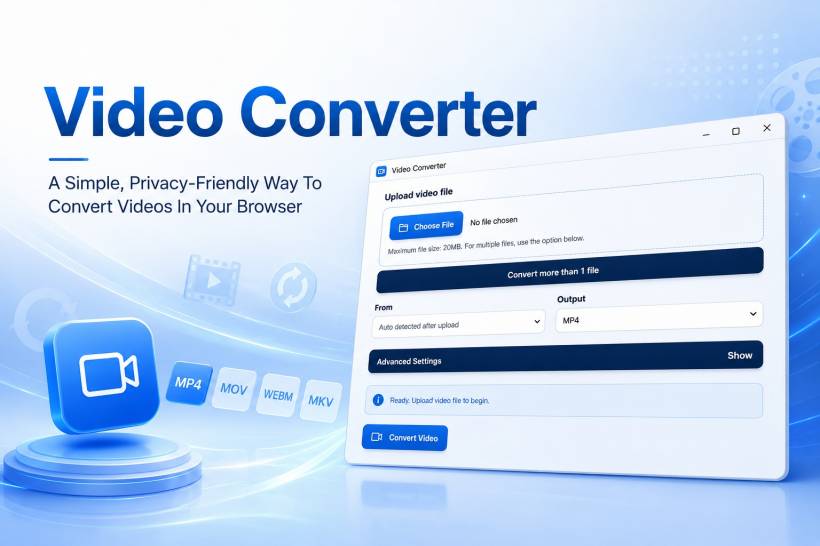
Video files are everywhere now. We record them on phones, receive them through messaging apps, download them from different platforms, edit them for work, and upload them to websites, social media pages, learning portals, or internal systems. The problem is that not every video file works nicely everywhere. Some are too large, some are in the wrong format, and some simply refuse to play properly on certain devices or applications.
That is where a simple Video Converter app becomes useful. Instead of installing heavy desktop software just to change a video format, this app is designed to make the process easier, cleaner, and more approachable. It gives users a straightforward way to convert video files such as MP4, MKV, MOV, AVI, WEBM, FLV, WMV and MPEG into a format that better suits their needs.
Why Video Conversion Still Matters
Even though MP4 has become the most common video format today, it is not the only format people deal with. Older video files may come in AVI, WMV or MPEG. Web-based videos may use WEBM. Some phones and cameras may produce MOV files. Downloaded or archived media may come in MKV. Each format has its own strengths, but compatibility can still become annoying when a device, browser, editing app or website does not support the file properly.
Video conversion helps solve that problem by changing the file into a format that is easier to use. For example, converting a MOV file to MP4 can make it easier to share with Windows users. Converting a large MKV file into a smaller MP4 can make it easier to upload. Changing a WEBM file to MP4 can help when a platform does not accept WEBM. These are simple everyday problems, but they happen often enough that having a quick converter can save a lot of time.
The idea behind this Video Converter app is not to overwhelm users with complicated tools. It focuses on giving people a clean conversion process first, while still offering advanced options for users who want more control over the final result.
A Cleaner Way To Convert Video Files
Many video converter tools can feel cluttered. Some are filled with ads, pop-ups, confusing buttons, or unnecessary steps. Others require installation, registration, or subscription prompts before users can even begin. For casual users, that can make a simple task feel more complicated than it should be.
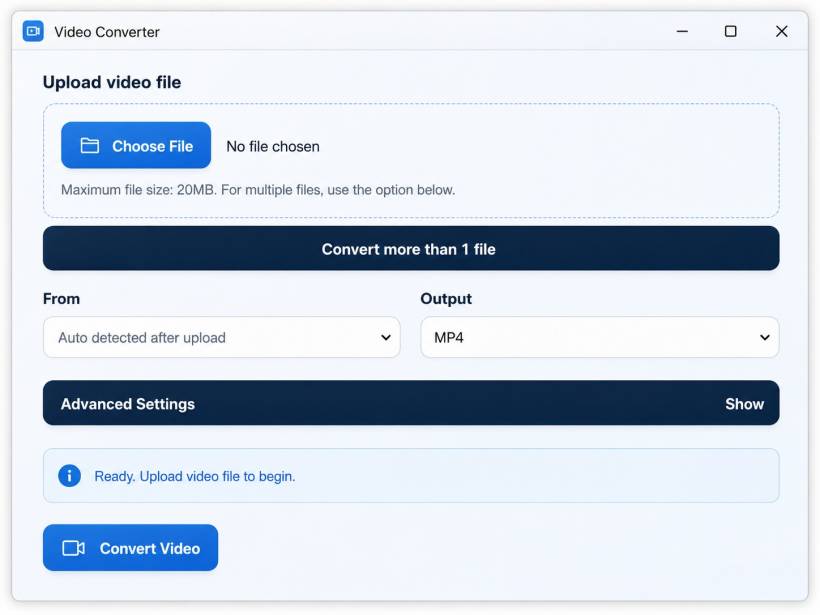
This app is designed around a simpler flow. The user chooses a video file, selects the output format, adjusts optional settings only if needed, and starts the conversion. That makes it suitable for people who just want to get the job done without learning technical video encoding terms.
At the same time, it is not limited to one-click conversion only. Users who need more control can open the advanced settings and fine-tune the result. This keeps the app friendly for beginners while still being useful for more technical users.
Supported Video Formats
One of the most important parts of any video converter is format support. Different users will have different source files depending on where the video came from. A video recorded on a phone may not use the same format as a downloaded clip, an exported editing project, or an older archived video.
The Video Converter app supports common formats such as MP4, MKV, MOV, AVI, WEBM, FLV, WMV and MPEG. These cover many of the file types that users are likely to encounter in normal daily usage.
MP4 is usually the safest option when compatibility matters. MKV is often used for high-quality video storage. MOV is common with Apple devices and editing workflows. AVI and WMV are older but still appear in archives and older systems. WEBM is common for web-based video. FLV is older but may still appear in legacy online media. MPEG remains useful in certain older video collections and systems.
By supporting multiple formats, the app gives users more flexibility without forcing them to understand all the technical details behind each container type.
Useful For Reducing File Size
One of the most common reasons people convert videos is file size. A video can quickly become too large to upload, email, archive, or share. This is especially true when dealing with high-resolution clips, long recordings, or files exported with very high bitrate settings.
A video converter can help reduce the file size by changing the output format, adjusting the quality level, lowering the resolution, or reducing the bitrate. The goal is not always to create the smallest possible file, because that can damage the quality too much. The better approach is to find a practical balance between size and quality.
For example, a large video recorded in high quality may not need to stay at the original resolution if it is only meant for quick sharing or website upload. A smaller MP4 version may be more than enough. This is where the app becomes helpful because it gives users a practical way to prepare videos for real-world use.
Better Compatibility For Uploading And Sharing
Another major reason to convert video is compatibility. Different websites and applications may support different formats. Some platforms prefer MP4. Some may reject older formats. Some may accept a file but process it slowly because the format is not ideal.
By converting videos into a more widely supported format, users can avoid many of these problems. MP4 is usually the most practical output choice because it works across most browsers, phones, computers, websites and media players. For general users, this makes the final video easier to share and view.
This is especially useful for people preparing videos for websites, blogs, online forms, school projects, internal company portals, presentations, or social media uploads. Instead of wondering why a file does not work, users can convert it into a more compatible format and move on.
Advanced Settings For More Control
While simple conversion is useful, some users need extra control. That is why the app includes optional advanced settings such as video quality, resolution, frame rate, bitrate, audio settings, trimming, mute audio, rotate, flip and reverse.
These settings are helpful when the default conversion is not enough. Resolution control allows users to reduce or resize a video. Frame rate settings can help standardize playback. Bitrate settings affect both file size and quality. Audio settings are useful when the sound needs to be adjusted or preserved in a certain way.
Other options such as trimming, mute audio, rotate, flip and reverse make the app more practical for quick video preparation. For example, a user may only need a short section of a video, or they may want to remove the audio before sharing it. A video recorded in the wrong orientation may need rotation. A mirrored video may need flipping. These are small tools, but they can save users from opening a full video editor for basic adjustments.
Designed For Casual Users And Power Users
A good converter should not scare away casual users. Many people simply want to choose a file, pick MP4, and click convert. They do not want to read about codecs, containers, bitrates, frame rates or encoding presets. For these users, the app keeps the main interface simple and direct.
At the same time, more experienced users may want to control the output. They may want a specific resolution, a lower bitrate, a different frame rate, or a muted version of the video. The advanced settings give them that flexibility without making the main interface feel crowded.
This balance is important. If everything is shown at once, the app can look intimidating. If too little control is provided, the app becomes too limited. By keeping advanced options available but tucked away, the app stays clean while still being capable.
Privacy-Friendly By Design
A privacy-friendly converter is especially important when dealing with personal or work-related videos. Videos can contain faces, voices, private locations, internal company information, family moments, or sensitive project material. Users should not have to upload every file to an unknown third-party service just to convert it.
The goal of this app is to offer a cleaner and more privacy-conscious experience. A simple browser-based workflow can make video conversion feel more convenient while reducing unnecessary friction for users who just want to handle their files quickly.
For users who frequently work with private media, this kind of approach is valuable. It keeps the tool focused on the task instead of surrounding the user with suspicious ads, forced accounts, or unclear processing steps.
A Practical Tool For Everyday Video Work
The Video Converter app is useful for many everyday situations. A user may need to convert a phone recording before uploading it. A blogger may need to prepare a video for a website article. A student may need to submit a project in a supported format. A staff member may need to compress a training video before sharing it internally. A content creator may need to quickly prepare clips without opening a full editing suite.
Not every video task requires professional editing software. Sometimes the job is simply to make a file smaller, more compatible, or easier to share. That is exactly where a simple converter becomes useful.
The app focuses on that practical middle ground. It is not trying to replace a full video editor. Instead, it gives users a fast and accessible way to handle common video conversion needs.
Why Simplicity Matters
Software does not always need to be complicated to be useful. In fact, the best tools for everyday tasks are often the ones that stay out of the way. A video converter should not require a long learning curve. It should not make users guess what to do next. It should guide them from upload to conversion as clearly as possible.
This app follows that idea by using a simple layout: upload the video, choose the output format, open advanced settings only when needed, and convert. That kind of structure makes the tool easier to understand at a glance.
For users who are not technical, this is important. A clean interface builds confidence. It tells the user that the task is manageable. For users who are technical, it saves time because the basic workflow is fast and direct.
Final Thoughts
Video Converter is built around a simple idea: converting video files should be easy, practical and privacy-friendly. Whether users need to change a video into MP4, reduce file size, prepare a clip for uploading, convert older formats, or make quick adjustments through advanced settings, the app provides a clean workflow without unnecessary complexity.
It is the kind of tool that fits everyday needs. It does not try to turn every user into a video encoding expert, and it does not bury a basic task under too many options. Instead, it gives casual users a simple one-click experience while still offering useful controls for those who need more flexibility.
For anyone who regularly works with video files, even occasionally, having a straightforward Video Converter app can save time and frustration. It makes video preparation easier, keeps the process cleaner, and helps users create files that are more compatible, more shareable and better suited for their intended purpose.











Comments 0