


The first difficult part of trying Linux can arrive before you download anything: deciding which distribution to use. You might recognise names such as Ubuntu, Linux Mint, Fedora, Debian, or Arch Linux. You might have seen an attractive desktop screenshot and wondered how to get the same experience. But once you start comparing options, the questions multiply. Which one suits an older laptop? Which one feels familiar coming from Windows? How much setup is involved? What if you want to learn Linux without spending your first evening troubleshooting?
I built Which Linux is for Me to give that decision a clearer starting point.
It is a browser-based application that asks about your computer, your experience, and the way you want to use Linux. For a typical supported PC, it turns those answers into a leading recommendation and three alternatives, with reasons for each choice. It also brings together desktop screenshots, official download links, and a simple installation checklist.
My aim was to make the first step approachable. Someone who is curious about Linux should be able to explore suitable options without already understanding every distribution, desktop environment, and release model.
Why choosing a Linux distribution is such a personal decision
A recommendation becomes useful when it takes the person and the computer into account.
Imagine two people looking for a Linux desktop. One wants to browse the web, write documents, and use familiar menus on an older laptop. The other enjoys configuring software, wants frequent updates, and sees learning the system as part of the appeal.
Those people can reasonably arrive at different choices.
Even two experienced users might want different things. A developer could prioritise access to newer tools, while someone setting up a family computer might place more value on predictable behaviour and straightforward maintenance. A person who enjoys customising a desktop may appreciate options that another person would find distracting.
That is the thinking behind the application. I wanted it to ask practical questions before suggesting names.
There is also a difference between liking the appearance of a desktop and being comfortable maintaining the system underneath it. A screenshot can help you decide whether a layout appeals to you. Questions about updates, setup effort, and terminal use help you consider what living with that system might involve.
The app brings those parts of the decision together. It gives you a manageable shortlist, then enough context to investigate it further.
A questionnaire that takes one question at a time
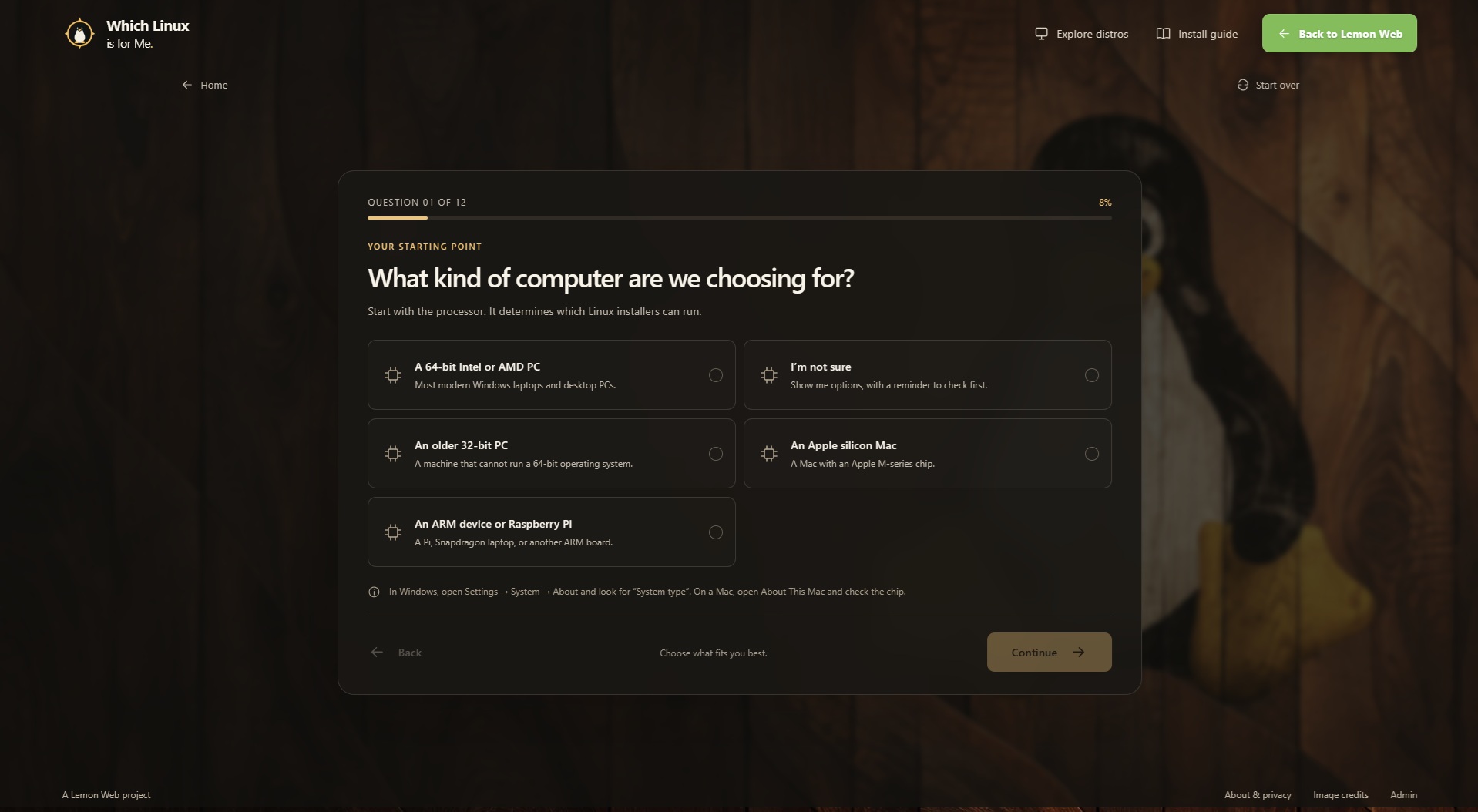
The full questionnaire contains 12 questions, presented individually.
You select an answer, use Continue to move forward, and use Back if you want to reconsider. A progress bar and question counter show where you are. Short explanations accompany the options, and tips help with details such as finding your installed memory or identifying your graphics hardware.
I wanted the experience to feel calm and straightforward. A large form full of technical terms can make a simple decision feel like an examination. Showing one question at a time gives each choice room to make sense.
Here is what the questionnaire covers:
| Question area | What it helps establish |
| Computer type | Whether the computer fits the standard PC recommendations or needs a more specific route. |
| Linux experience | How much familiarity and independent troubleshooting the user is comfortable bringing. |
| Main activity | Whether the priority is everyday use, work, development, gaming, creative work, or learning Linux. |
| Installed memory | How much room the desktop should leave for applications. |
| Desktop preference | Whether a familiar layout, a focused workspace, or extensive customisation sounds appealing. |
| Update preference | How the user feels about predictable releases, regular upgrades, and frequent changes. |
| Setup effort | Whether the user wants useful defaults or enjoys configuring the system. |
| Terminal comfort | How comfortable the user is with commands and graphical administration tools. |
| Graphics hardware | Which driver and installation considerations deserve attention. |
| Essential applications | Whether the user relies on Linux applications, web applications, or Windows-only software. |
| Installation approach | Whether the plan is to try Linux, dual boot, replace an existing system, or use a virtual machine. |
| Preferred help | Whether the user tends to look for community guides or detailed technical documentation. |
Several technical questions include an "I'm not sure" option. That matters because knowing every specification should not be a requirement for beginning the process. Where a missing detail affects confidence, the result includes a reminder to check it.
The questions also serve different purposes. Computer architecture helps determine which route is appropriate. Memory can affect which catalogue entries remain eligible. Installation preference helps shape the next-step guidance.
Some computers need that guidance earlier. Selecting Apple silicon, another ARM device, or a 32-bit PC leads to a more specific path after the first question. A machine with less than 2 GB of RAM also receives focused guidance before the full questionnaire is complete.
That is why I describe it as a questionnaire with up to 12 questions. The route follows the information supplied.
Understanding the recommendation and its three alternatives
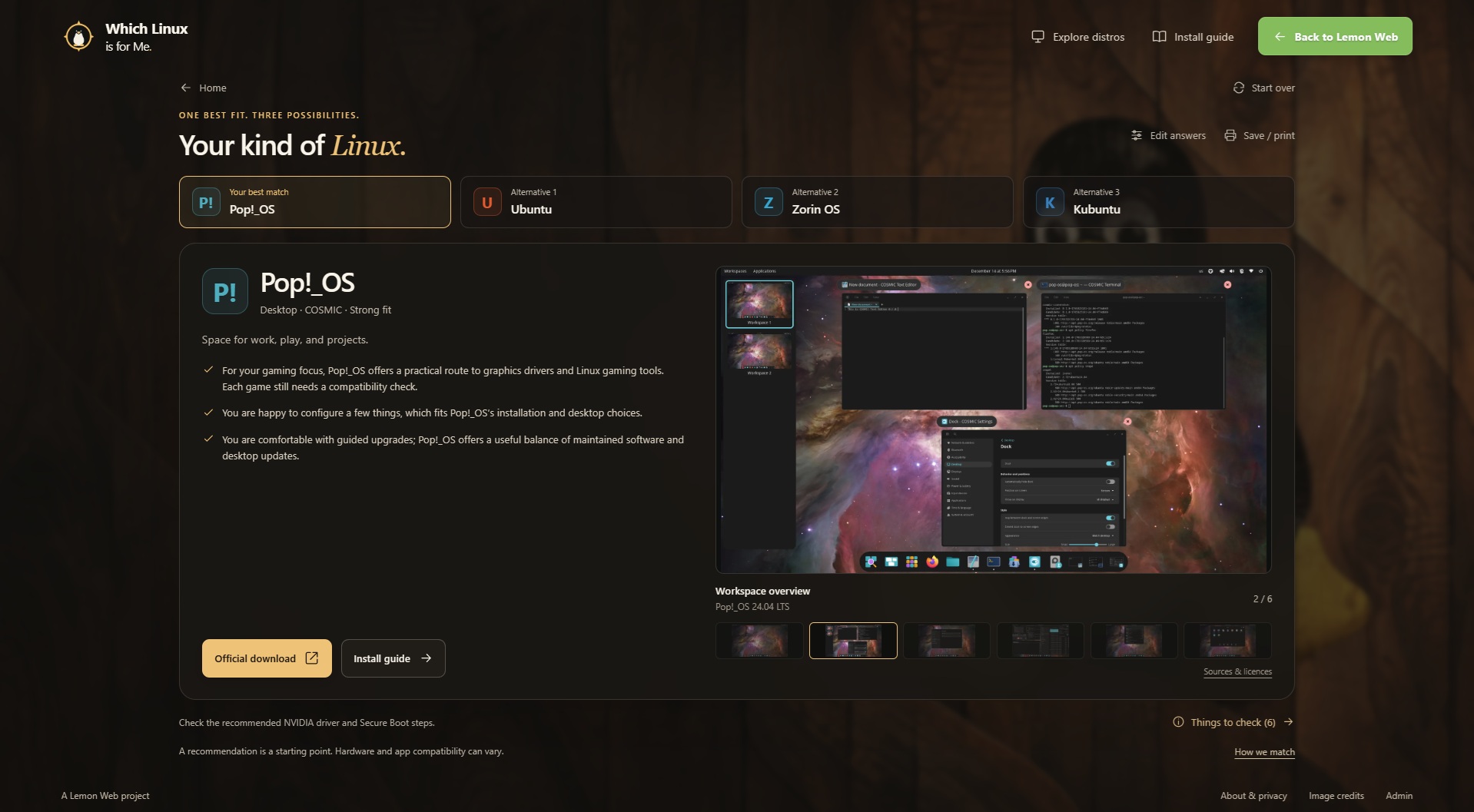
For a profile that fits the main catalogue, the results show one leading match and three alternatives.
I wanted the alternatives to remain part of the decision. People often discover their preferences by comparing a few plausible options. The leading result might align closely with their answers, while another option has a desktop or approach that they would enjoy exploring.
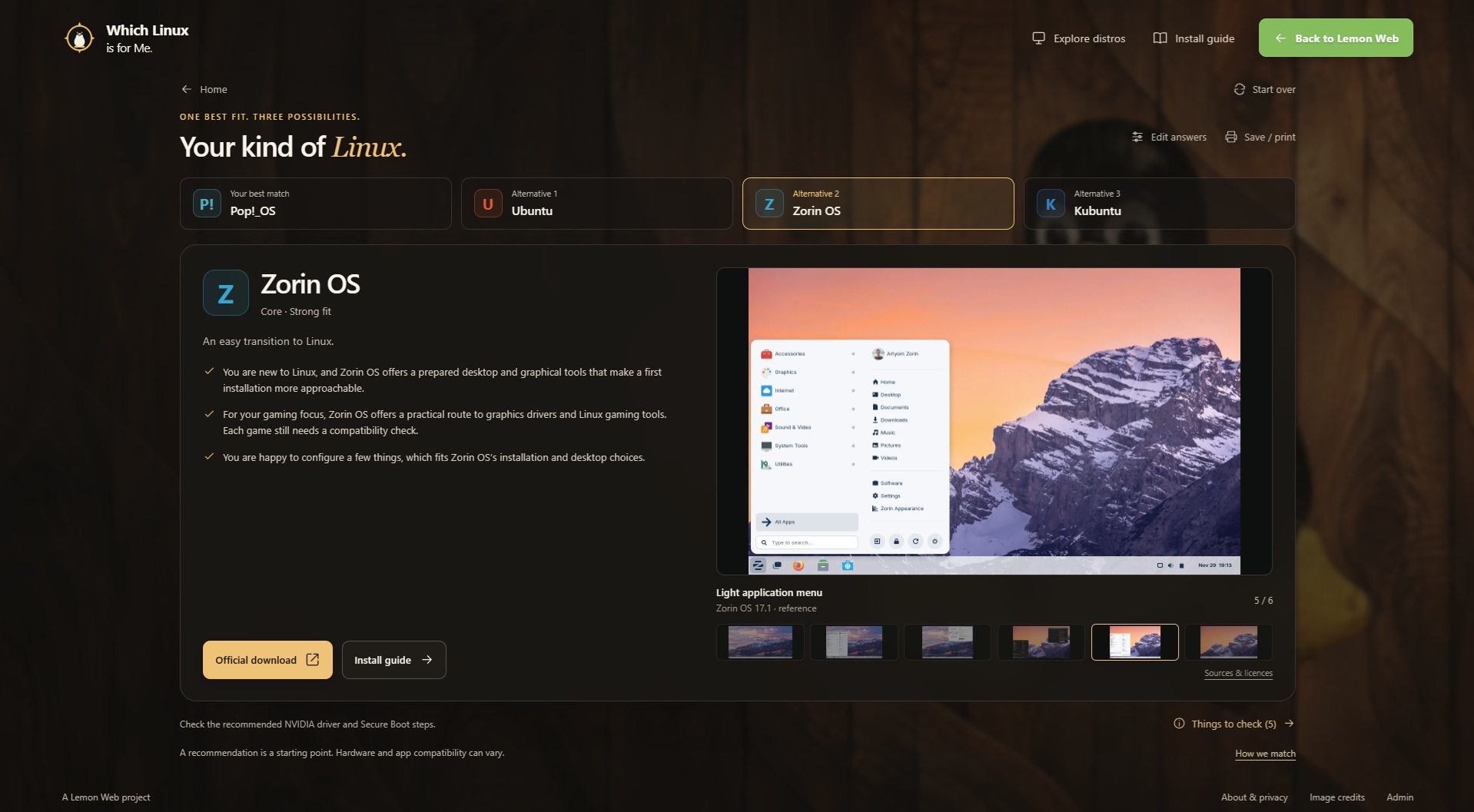
Selecting any of the four recommendations brings up its details in the same results area. You can read why it fits, look through its screenshots, open the official download page, and move into the installation guidance.
The explanations are a central part of the app. A distribution name alone gives you very little to work with. A reason connected to your answers tells you what the recommendation is trying to achieve: a familiar desktop, manageable setup, a suitable update approach, or a better match for the resources available.
How the matching works
The application uses a curated scoring model. The catalogue contains editorial ratings, and the engine compares them with the answers supplied. Some factors carry more weight than others, and eligibility rules are applied before the shortlist is produced.
This means hardware requirements and practical constraints can matter more than appearance. It also means a preference for doing everything manually should be treated differently from a request for an easy first installation.
Results use descriptions such as "Strong fit," "Good fit," and "Worth exploring." These describe alignment with the questionnaire and catalogue. They are not measurements of hardware compatibility or a probability that an installation will succeed.
The app relies on your selections; it does not inspect the computer automatically.
Alongside the reasons, there are considerations to read before installing. Those can relate to graphics drivers, essential applications, games, or the installation approach you selected.
If you change your mind about an answer, you can review and edit it, then update the recommendations within the same attempt. This makes the app useful for exploring a decision. You can see what changes when you put more emphasis on an easier setup, for example, or decide that you are willing to learn some terminal commands.
A Save / print option also opens the browser's print dialog. Where the browser offers it, you can save a PDF containing your answers, recommendations, reasons, and relevant links.
Seeing the desktop before deciding
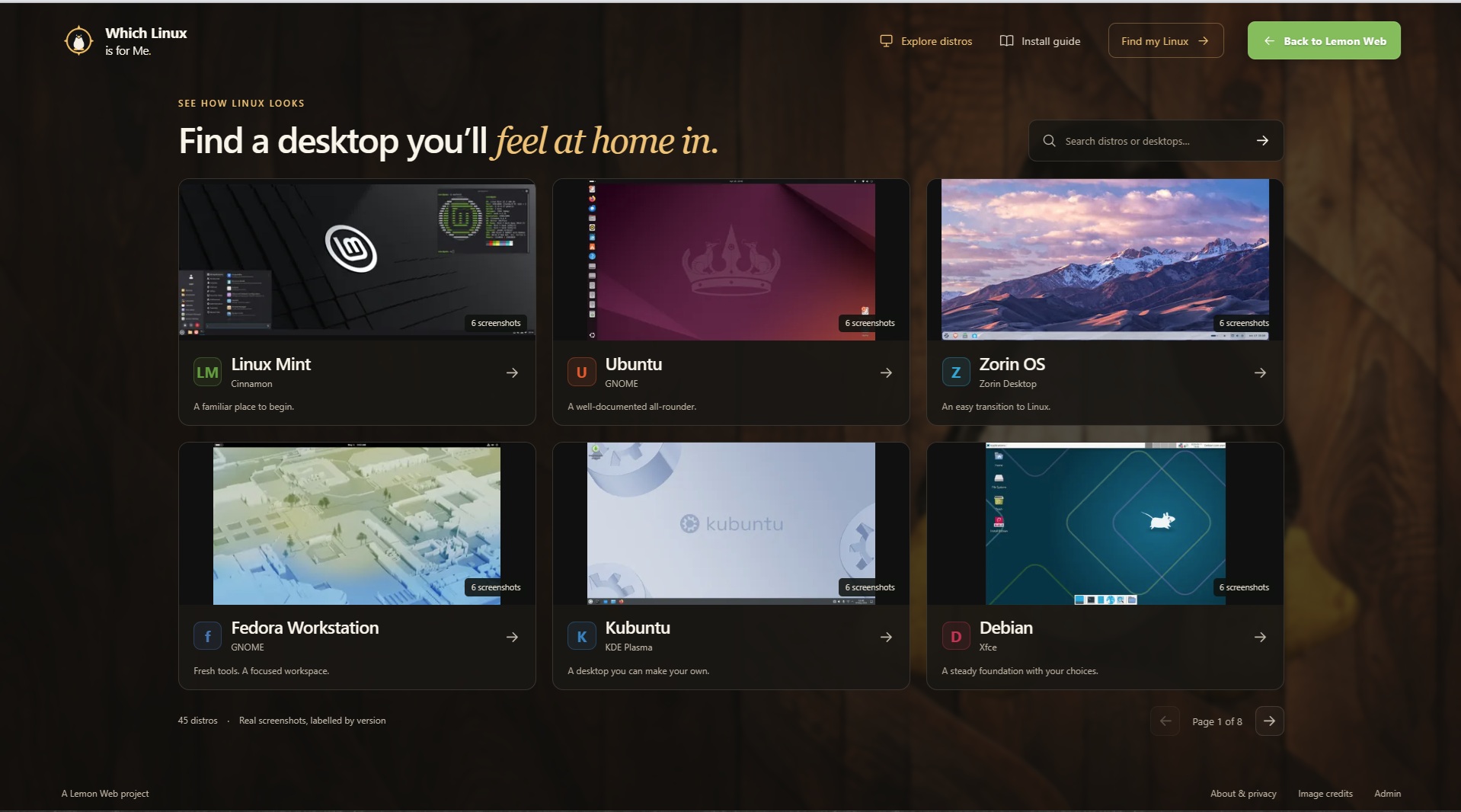
One feature I specifically wanted was a useful collection of real desktop screenshots.
Descriptions such as "clean," "customisable," or "familiar" can mean different things to different people. An image gives you something more concrete to examine: where the application launcher sits, how windows are arranged, what the settings interface looks like, and how much information is visible on the desktop.
The current bundle contains 45 real screenshots across 15 distributions, with three reference images for each entry.
The catalogue includes Linux Mint, Ubuntu, Zorin OS, Fedora Workstation, Kubuntu, Debian, elementary OS, Pop!_OS, openSUSE Tumbleweed, EndeavourOS, Arch Linux, Linux Lite, Lubuntu, MX Linux, and KDE neon.
That provides a selection of different approaches to explore without making the initial experience depend on browsing an enormous directory.
You can select thumbnails and enlarge images to look more closely. The screenshot collection includes version and source information, and the application provides an image credits page.
Reading screenshots in context
The images are references to actual captured interfaces. Their release versions, desktop editions, themes, and customisation can vary.
A screenshot therefore helps you understand an example of the experience. The version you download may have a different wallpaper, menu, application selection, or layout. An older screenshot can still illustrate an interface, but it should be read with its version label in mind.
Arch Linux is a useful example of why that context matters. Its images show configured desktops; there is no single default desktop that every Arch installation shares.
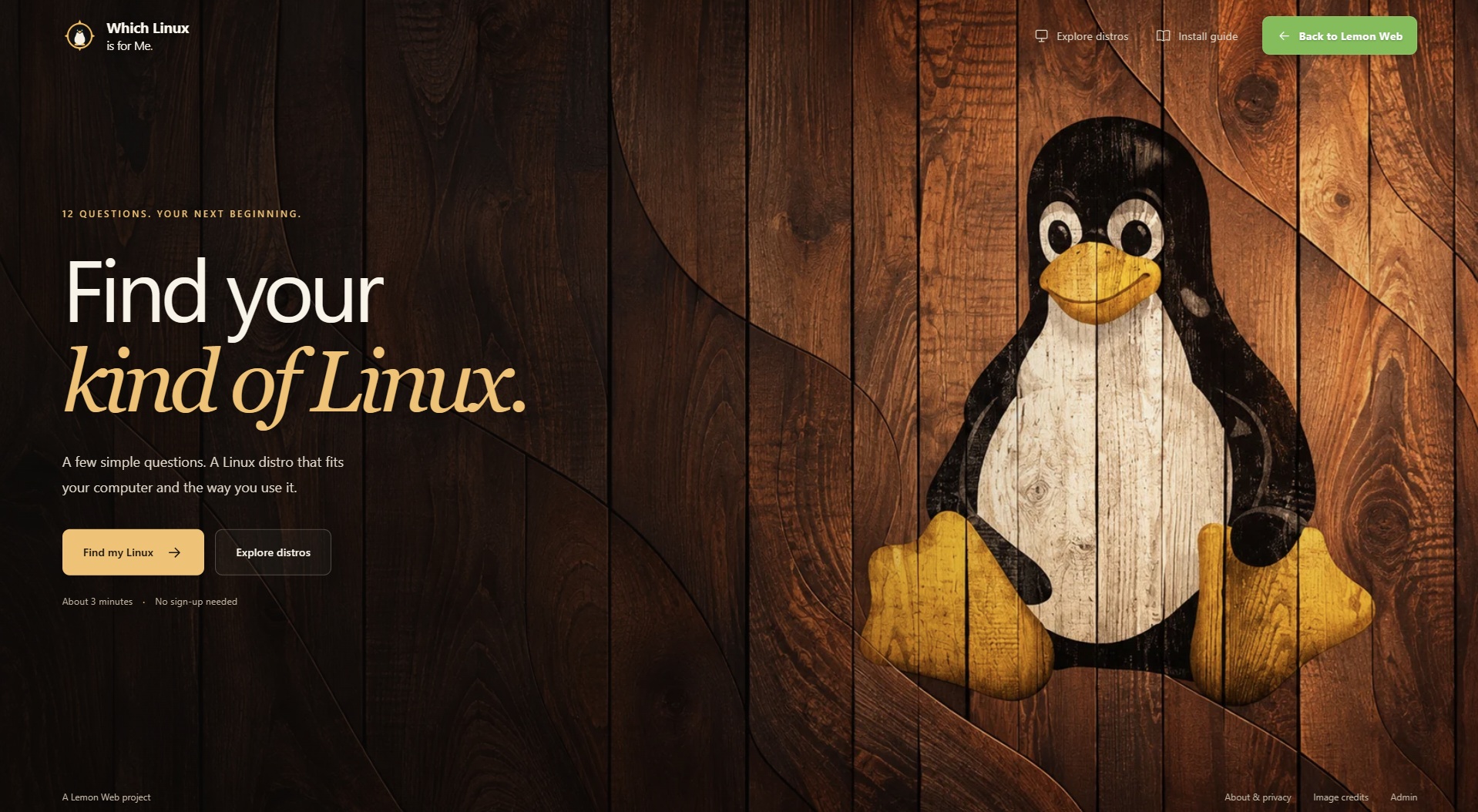
The screenshot collection is also separate from the decorative artwork used by the application itself. The full-screen wood-and-penguin background gives the website its visual identity. The distro galleries show real operating-system captures.
If you already have a few names in mind, you can go straight to Explore distros. The catalogue supports searching and browsing, so you can look at a particular entry without first completing the questionnaire.
A simpler interface with a clear visual identity
The design direction for this application was straightforward: keep the main page simple and make the next action obvious.
I wanted the wood-inspired artwork and Linux penguin to become the background of the experience. The warm texture gives the application a recognisable setting, while the foreground panels keep the questions and controls readable.
The home page introduces the purpose and gives visitors a clear way to begin. The questionnaire then keeps attention on the current question. Results, screenshots, and the next steps appear where they are needed.
On ordinary desktop window sizes, the public layouts are designed to fit within the viewport. That supports the feeling of moving through a small application, with the current task visible on screen.
Smaller screens, shorter windows, and larger zoom settings can use scrolling so that the content remains accessible. Being able to read an answer and reach a button matters more than rigidly preserving a particular layout.
The same principle applies to information density. A visitor does not need every explanation on the introduction screen. The detailed reasons belong with the results, and installation considerations belong near the decision to download or install.
My goal was a useful, focused interface that makes room for both beginners and people who already know what they want to investigate.
From a shortlist to a practical next step
Finding a suitable distribution is one part of the process. Knowing what to do afterwards matters just as much.
Each recommendation connects to an official download page, and the app includes an overview and installation area for the selected distribution. It also links to the project's own installation documentation.
Using official download pages lets visitors check the releases and editions currently offered by the project. They can then choose the image appropriate for their computer and read the associated instructions.
The built-in guide provides a six-step checklist, shown one step at a time:
The checklist gives the process a useful shape. Detailed steps still come from the selected distribution's current documentation.
For example, Linux Mint's installation guide covers choosing an image, creating bootable media, installation, and several post-installation tasks. Its separate verification instructions explain checks for both download integrity and authenticity. Linux Mint Installation Guide documentation
Give your essential software a place in the decision
A desktop can look comfortable while still requiring changes to the applications you use.
That is why the questionnaire asks about essential software. If your work depends on particular Windows-only applications, you need a plan for those applications before replacing your existing system. If gaming is a priority, the games and services that matter to you deserve their own compatibility checks.
A recommendation can point you towards distributions worth investigating. It cannot establish that every application, game, peripheral, or workflow will behave as you expect.
Trying a live environment, where available, can help you examine the desktop and check hardware functions. A virtual machine can be another way to explore the interface, although it does not test the same hardware path as running Linux directly on the computer.
Ubuntu's desktop installation documentation includes the option to try the desktop from installation media and advises backing up before installation. Those are sensible habits to bring to the process. Ubuntu
I want the app to help people reach an informed next step, with room to investigate before making changes to their main computer.
A fresh questionnaire on every visit
One behaviour I wanted to keep especially simple is starting a new attempt.
Each time the questionnaire is opened or refreshed, it begins again at Question 1.
Answers remain available while that page is open. You can move backwards, continue, and edit your choices during the same attempt. Switching between browser tabs does not clear the attempt.
Opening the questionnaire again or refreshing it starts fresh. That makes the behaviour predictable when returning later, exploring a different computer, or letting someone else try the app.
There is no account registration required for the public questionnaire.
The answers are sent to the application's server to calculate the recommendations. The app does not save quiz answers or completed results in browser storage, and it does not keep those answers in a database or its own logs.
Ordinary hosting or CDN access logs may still exist. The privacy page explains the application's behaviour and the distinction between the public quiz and the separate admin login.
For this type of tool, I prefer a short-lived interaction: answer the questions, examine the suggestions, and save or print the result if it is useful.
Keeping the application manageable behind the scenes
For readers interested in the implementation, the application is built for PHP 8.2, with JavaScript handling the interactive questionnaire and results interface.
The distro catalogue is maintained in JSON. It holds the information and official links the application needs, while the screenshot catalogue keeps its own image and attribution metadata.
There is no database installation required to run the application.
I chose this structure because the catalogue needs to remain manageable as project websites and documentation change. The administration area provides a way to update the catalogue and links, along with import, export, and backup features.
There is also an optional link checker to help check whether download pages are reachable. Maintaining an accurate catalogue still involves reviewing the information and updating it when needed; a successful page response does not establish that every detail on that page is current or appropriate.
The screenshots are bundled with the application and served from the same website. That keeps the galleries available without depending on image hotlinks to other sites. Their source and attribution information remains part of the collection.
The visitor-facing experience can stay simple while those maintenance tools sit behind the admin login.
Who I had in mind when building it
The most obvious audience is someone approaching Linux for the first time. They may know why they want to explore it but have little basis for choosing a distribution. The questionnaire gives them a way to express preferences in practical terms.
It can also help someone returning after time away. They may remember how they used Linux before but now have different hardware, different applications, or less interest in maintaining a highly customised setup. Answering the questions around their current needs can produce a more useful starting point.
Another audience is someone considering Linux for a spare or older computer. Memory, processor type, and the intended workload become particularly relevant there. The app asks about those details early, and its specialist routes help avoid treating every machine as a typical modern desktop.
I also see value in using it while helping someone else choose. You can work through the questions together, talk about the answers, and compare the resulting shortlist. That creates a discussion around the person's needs.
An experienced user may already have a preferred distribution. Even then, the tool can be useful for exploring what changes when the goal changes: a learning environment, a family PC, or a machine intended primarily for everyday web use.
The questions are about the situation you are planning for. You do not need to select the most technical answer to get a worthwhile result.
Try it with the computer and routine you actually have
If you would like to use the app, begin with the computer you have in mind and the tasks you expect to perform on it.
Answer for your actual preferences. If you want graphical tools, choose that. If frequent changes sound inconvenient, say so. If learning commands and building a system appeal to you, let the questionnaire reflect that too.
When the results appear, read the reasons and compare the alternatives. Open the screenshots, check the considerations, and follow the official links for the distributions that interest you.
If a technical detail is uncertain, make a note to confirm it before downloading or installing. The result is a starting point for that next step.
That is what I wanted to build with Which Linux is for Me: a small application that helps turn an open-ended choice into a shortlist you can understand and act on.
Try it for your own computer, or work through it with someone who is curious about Linux. I would be interested to hear which distribution it suggests and whether the reasons fit what you are looking for.











Comments 0