

Microsoft has started rolling out the June 2026 Patch Tuesday update for Windows 11, and this release is much bigger than a routine monthly security patch. The update, listed as KB5094126, applies to Windows 11 versions 25H2 and 24H2. Depending on your version, it moves the system to OS Build 26200.8655 or 26100.8655. More importantly, it brings one of the most packed Windows 11 monthly updates in recent memory.
This release includes performance improvements, Secure Boot certificate changes, AI-related updates, new camera and audio features, Task Manager enhancements, accessibility improvements, storage refinements, Microsoft Store improvements and several important bug fixes.
For everyday users, the update should make Windows feel more responsive in key areas such as the Start menu, Search and Action Center. For IT admins, the Secure Boot certificate rollout is one of the most important changes. For developers and power users, the new Task Manager columns and Dev Drive improvements are useful quality-of-life upgrades.
What's Included in the June 2026 Windows 11 Update
The June 2026 Patch Tuesday update is unusually broad. Some changes arrive immediately, while others are part of Microsoft's gradual rollout system, meaning they may appear on your device over time.
The major highlights include:
• Secure Boot certificate updates for eligible devices
• Shared Audio support for two Bluetooth LE Audio devices
• Task Manager improvements with deeper NPU visibility
• Multi-App Camera support for sharing one camera across multiple apps
• Custom user folder naming during Windows setup
• Magnifier and screen reader improvements
• Windows Hello refinements for face and fingerprint sign-in
• Better short-query results in Windows Search
• Dev Drive size selection in gigabytes
• USB4 display reliability and USB3 recovery improvements
• Personalization fixes for wallpapers and accent colors
• Microsoft Store download and error reporting improvements
• A fix for update error 0x800f0922 linked to limited EFI System Partition space
This is not just a small bug-fix update. It touches many parts of the operating system, from startup security to daily usability.
Low Latency Profile Is the Most Noticeable Everyday Upgrade
One of the biggest improvements in this update is not presented with much excitement in Microsoft's changelog. It is described simply as a general performance improvement that accelerates app launches and core Windows experiences such as Start, Search and Action Center.
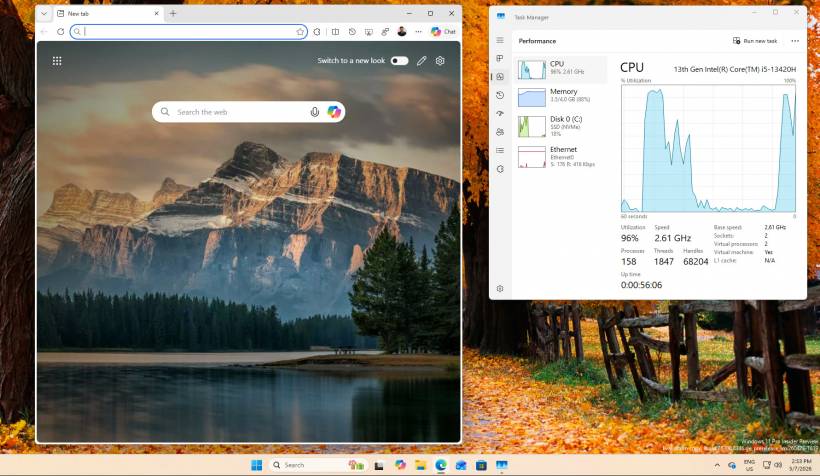
In practice, this refers to the wider rollout of Windows 11's Low Latency Profile.
Low Latency Profile is designed to make Windows feel more responsive by giving the CPU a short boost at the exact moment you open an app or interact with core shell areas. Instead of waiting for the usual CPU scheduling process, Windows briefly increases CPU activity for around one to two seconds.
The result should be faster response times when opening:
• Start menu
• Windows Search
• Action Center
• Other core shell elements
This improvement is likely to be most noticeable on budget, older or mid-range PCs. On faster machines, the difference may be more subtle, but the system should still feel smoother.
There is no simple toggle to turn Low Latency Profile on or off. It is also part of the gradual rollout, so it may not appear immediately after installing the June update.
Secure Boot Certificate Updates Are More Urgent
While many of the June update features are gradual, the Secure Boot certificate changes are part of the normal rollout. That means they arrive immediately when the update is installed.
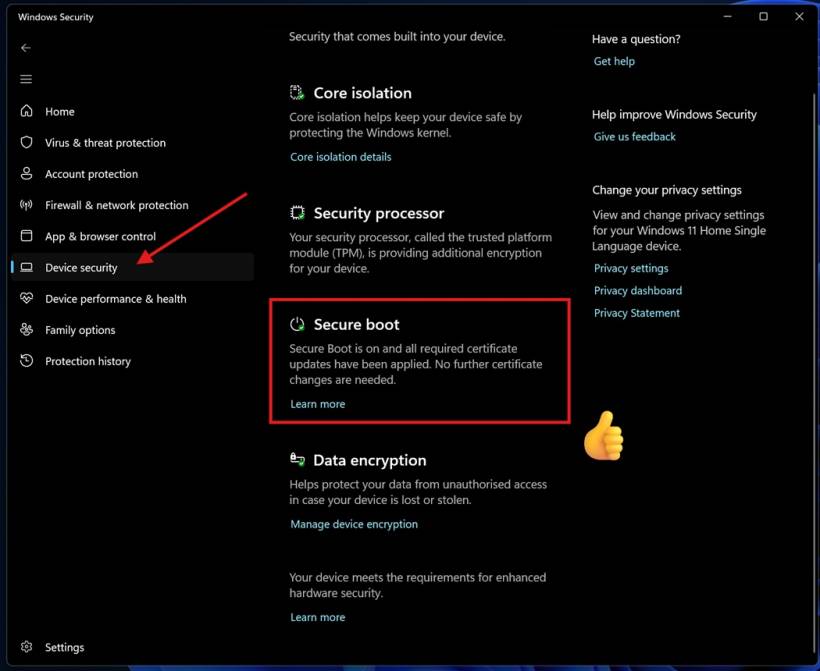
Secure Boot helps ensure that only trusted software runs when a PC starts. Windows PCs have long relied on Secure Boot certificates issued in 2011, but Microsoft is now moving systems to newer 2023 certificates because the older ones are reaching expiry.
For most regular Windows 11 users, this should happen automatically. Many devices may have already received the newer certificates in the background.
However, this update matters more for:
• Older PCs running Windows 11 unofficially
• Systems with strict firmware or boot configurations
• Devices that previously failed Secure Boot certificate updates
Microsoft is also improving the targeting data used to decide which devices are ready for the new Secure Boot certificates. The idea is to broaden availability while still avoiding risky deployments on systems that may not be ready.
There is also a new policy called LimitSecureBootRequiredServiceData, available through Group Policy and MDM. This lets enterprise admins limit some Secure Boot service data sent to Microsoft, which may be useful for organisations with strict telemetry requirements.
Shared Audio Lets Two People Listen From One PC
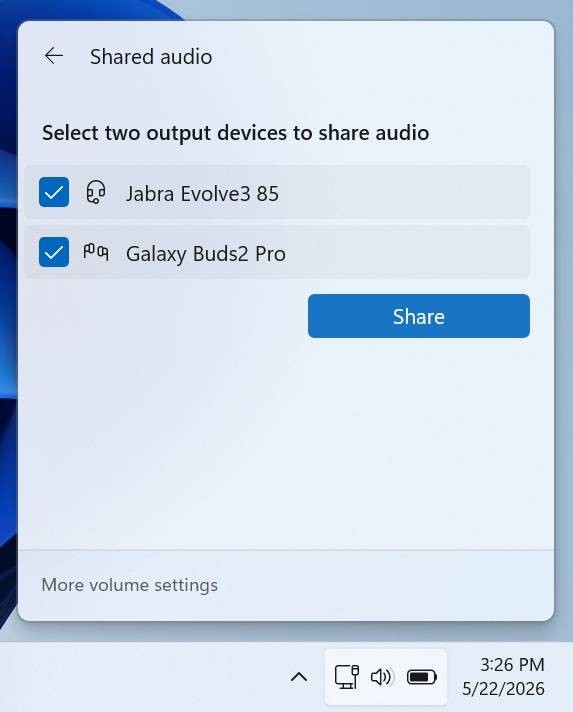
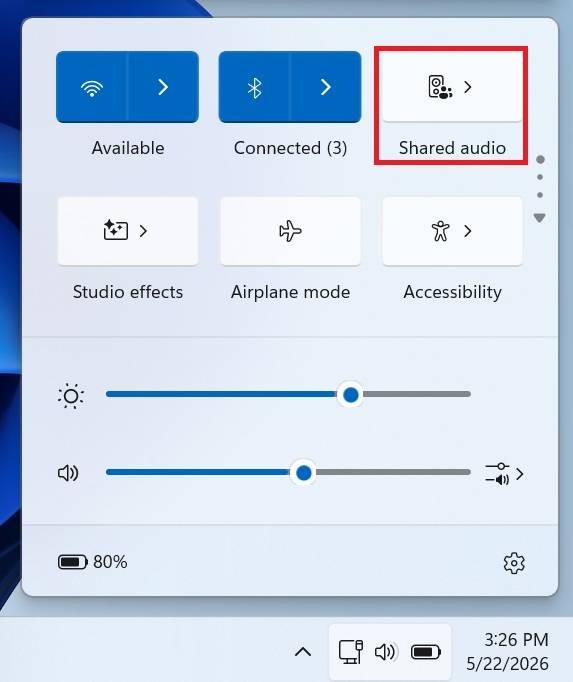
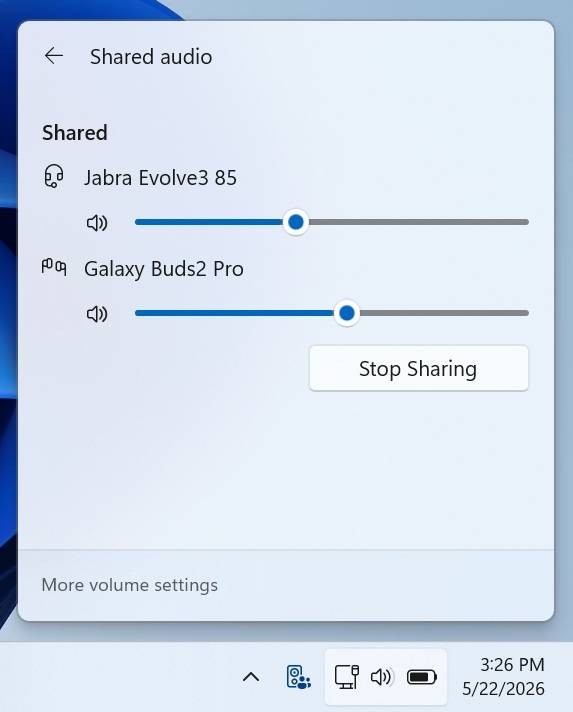
The June update introduces Shared Audio, a new feature that allows two people to listen to the same audio from one Windows 11 PC at the same time.
It uses Bluetooth LE Audio broadcast technology and is designed for supported paired devices.
The setup is simple. Users can open Quick Settings from the taskbar, choose Shared Audio, select two supported connected devices and start sharing.
This is useful for situations such as watching a movie together, sharing audio during travel, or listening privately with two sets of earbuds connected to one laptop.
Task Manager Gets Much Better AI Hardware Visibility
Task Manager is getting a useful upgrade for the AI PC era.
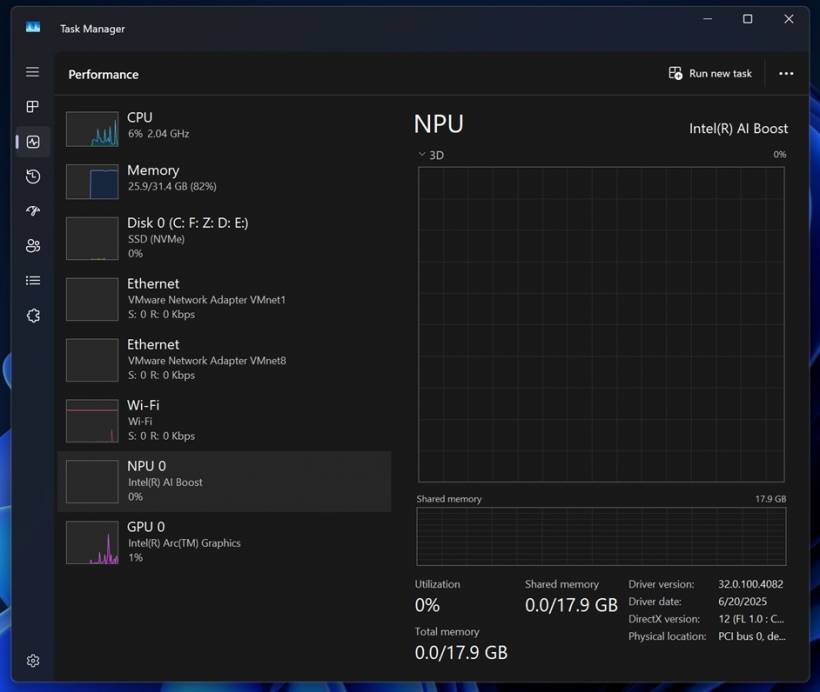
Windows 11 already showed basic NPU information on the Performance page, but the June update expands this visibility into the process-level views. This means you can now see which apps are actually using the NPU.
New optional columns include:
• NPU Engine
• NPU Dedicated Memory
• NPU Shared Memory
These columns are available across areas such as Processes, Users and Details.
This is useful for anyone using Copilot+ features, local AI tools, transcription apps or other software that may rely on neural processing. Instead of guessing whether an app is using the NPU, users can now check directly in Task Manager.
The Performance page also gets better representation of neural engines that are part of a GPU. This matters because modern AI acceleration is not always limited to a standalone NPU. Some processors also include AI-related hardware inside GPU components.
Another helpful addition is the new Isolation column. This shows whether an app is running inside an AppContainer sandbox. For IT admins and power users, this makes it easier to identify which apps are running with restricted access and which are not.
Multi-App Camera Fixes a Long-Standing Webcam Limitation
Windows 11 has historically allowed only one app to use a webcam at a time. This could be frustrating if you wanted to use Teams and OBS together, or if Zoom and another recording app both needed camera access.
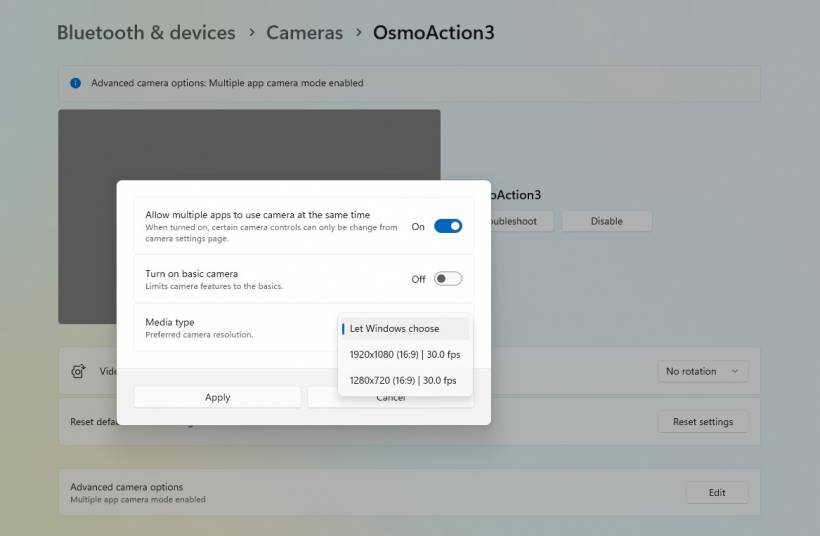
The June 2026 update introduces Multi-App Camera, which allows multiple applications to access the same camera stream at the same time.
This is useful for streamers, remote workers, educators, content creators and anyone who needs to use a webcam across more than one app.
Microsoft is also adding Basic Camera Mode. When enabled, Windows uses its built-in generic camera driver instead of the manufacturer's driver. This helps with troubleshooting. If the camera works in Basic Camera Mode but fails normally, the issue is likely related to the OEM camera driver.
Enterprise admins can manage these camera options through Group Policy.
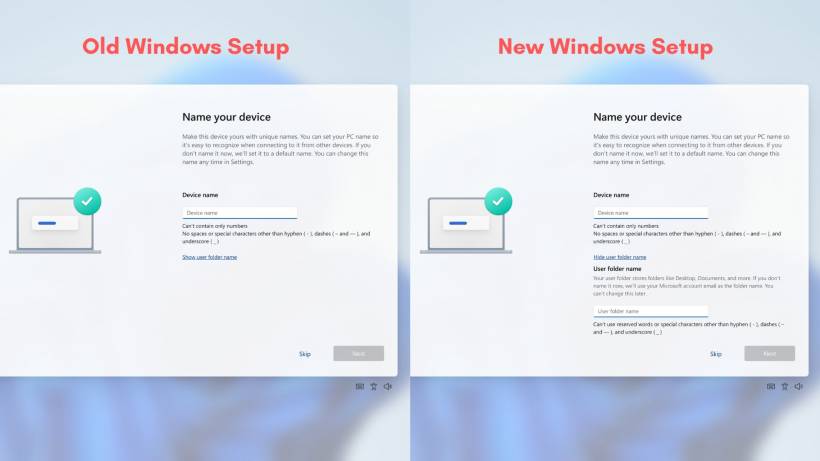
Windows Setup Finally Lets You Choose Your User Folder Name
One long-running Windows annoyance is finally being addressed.
When setting up Windows 11 with a Microsoft account, Windows would often create a user profile folder based on a shortened version of the email address. This could result in strange or incomplete folder names under C:\Users.
With the June update, Windows Setup now lets users choose a custom user folder name during installation.
This option appears during the setup process on the Device Name page. If the user skips it, Windows continues with the default behaviour.
The limitation is that this only applies during initial setup. Existing Windows installations cannot use this feature to rename an already-created profile folder.
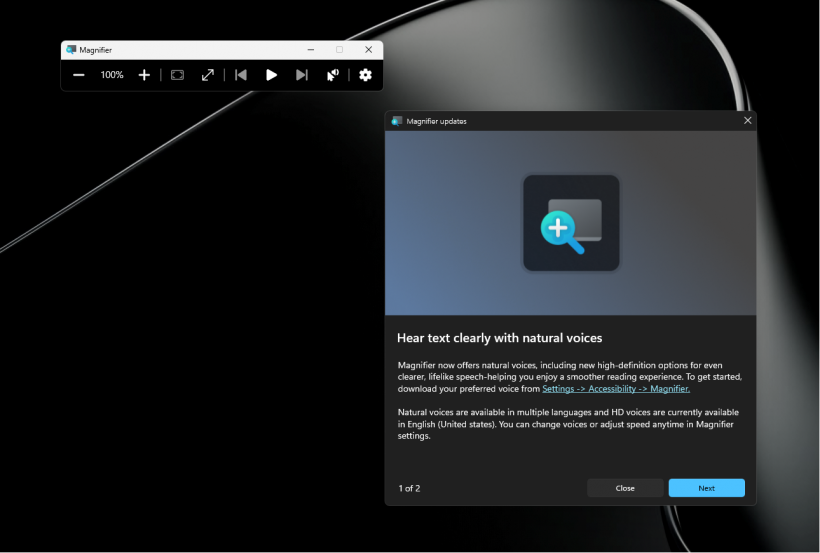
Magnifier Gets Better Accessibility Support
The June update improves Magnifier in several ways, especially for users who rely on screen readers.
Magnifier now gives clearer announcements when users zoom in or out, change views, enable color inversion, or turn Magnifier on and off. This makes the experience easier to follow without depending entirely on visual confirmation.
Another important improvement is support for permitted protected content. Previously, Magnifier could not zoom into certain protected screen areas, which could be frustrating for users with visual impairments. The update improves this behaviour where permitted.
Lens mode also feels smoother, reducing jitter when moving the Magnifier around the screen.

Windows Hello Becomes More Consistent
Windows Hello is also being refined.
Previously, if you used your PIN once, Windows might make PIN the default sign-in method for future logins. This could push face or fingerprint sign-in into the background, even when biometric sign-in was available.
After this update, Windows Hello face or fingerprint sign-in becomes the default again whenever it is available. The exception is if you use your PIN three times in a row. In that case, Windows keeps PIN as the default until you change sign-in behaviour again.
The update also reduces delay when biometric sign-in becomes available after Modern Standby. This should make Windows Hello feel faster after waking a laptop or tablet from sleep.
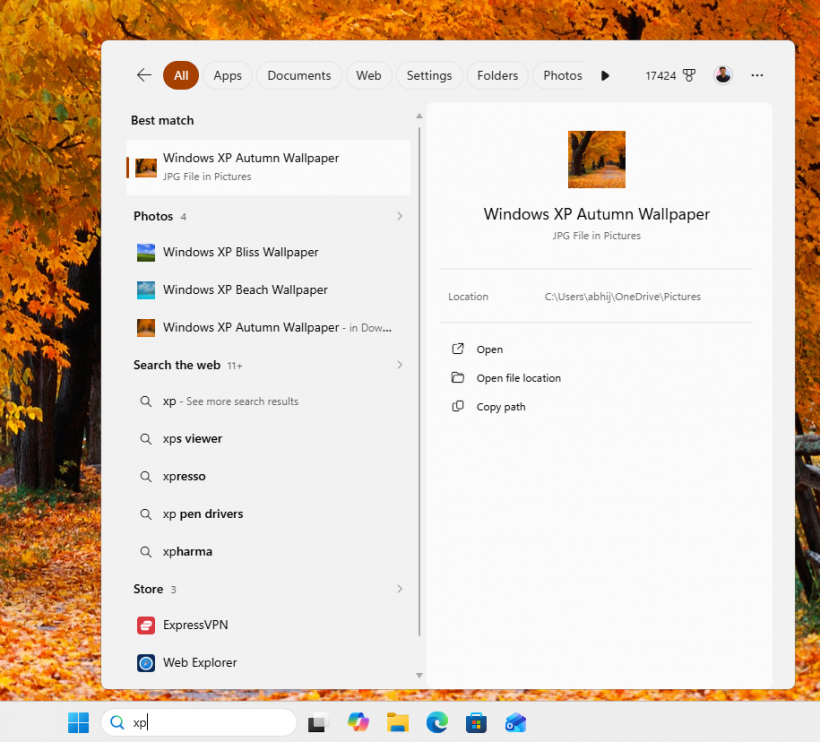
Windows Search Gets Better With Short Queries
Windows Search now handles very short search terms better.
Previously, typing one or two characters often produced poor or empty results. With this update, Windows Search can find and prioritise files with as few as two characters.
This is especially helpful for users who work with short filenames, codes, abbreviations or project references.
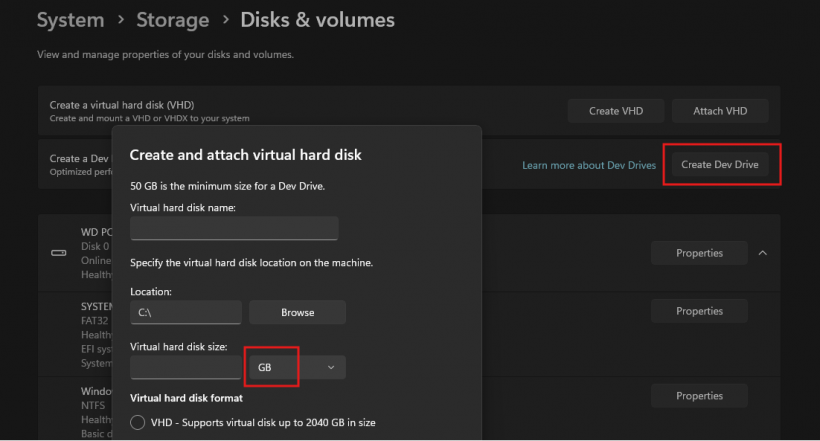
Storage and Dev Drive Improvements
The Storage settings area gets a small but welcome improvement.
When creating or resizing a Dev Drive, users can now specify the size in gigabytes instead of only megabytes. Since Dev Drives are usually measured in tens or hundreds of gigabytes, this makes the process more natural.
Microsoft has also reduced an unnecessary User Account Control prompt in Storage settings. Previously, opening the Storage page could trigger a UAC prompt immediately. Now, the prompt appears only when users choose to view temporary files.
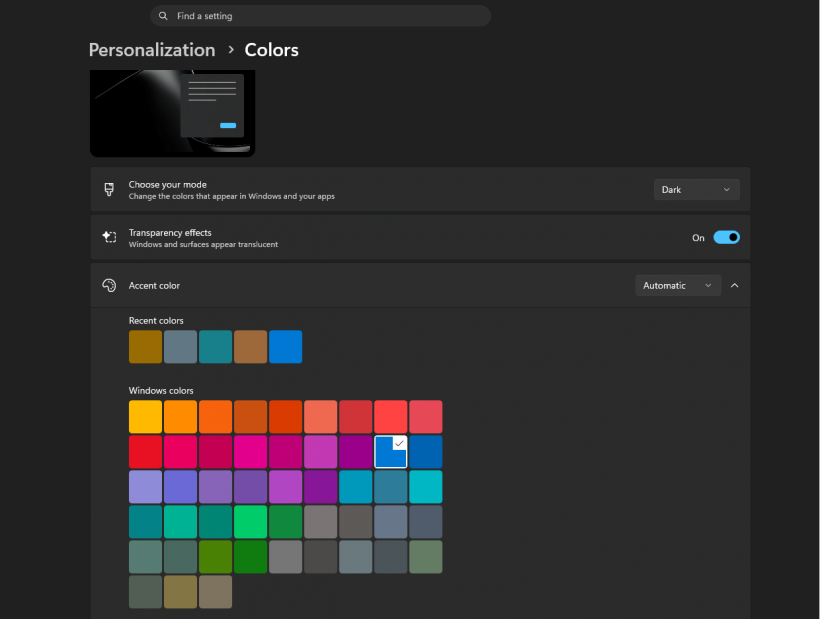
Personalization Fixes Improve Wallpaper and Accent Colors
The June update also addresses two Personalization issues.
First, automatic accent color selection is now more accurate. Windows should do a better job matching the accent color to the dominant colors in your wallpaper.
Second, wallpaper persistence has been improved. Some users had problems where their custom wallpaper reverted to a solid color after restarting or updating Windows. This update makes wallpaper settings more reliable across restarts and upgrades.
USB4, USB3 and Battery Reliability Are Improved
The update includes several hardware reliability improvements.
USB4-connected displays should now wake more consistently when a PC comes out of standby, which is useful for users with docking stations and external monitor setups.
The USB3 stack also receives resiliency improvements. This should help prevent certain USB devices from becoming unresponsive after hardware faults or unexpected conditions.
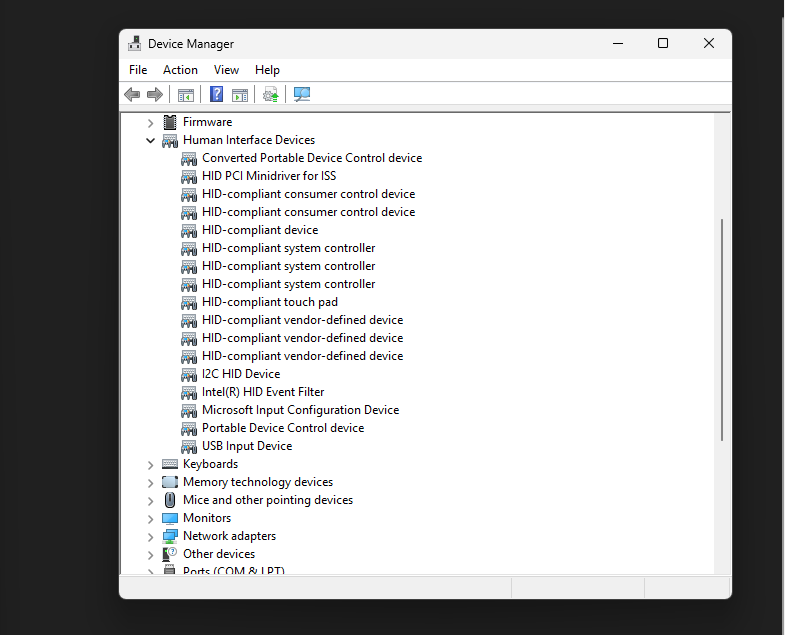
Microsoft has also improved power behaviour involving sensors and HID devices. Some apps or failed peripherals could keep parts of the system active during standby, draining battery. The June update improves protection against these situations.
Input, Clipboard and Desktop Reliability Fixes
Several smaller fixes are included for everyday Windows use.
The touch keyboard on the sign-in screen is now more reliable, including when entering or changing a password. Explorer.exe is also more stable when closing the input switcher.
Clipboard history performance is improved as well, which should make Windows + V feel smoother for users who rely on it frequently.
Desktop shortcut loading has also been improved, reducing cases where shortcuts appear missing or broken after certain actions or restarts.
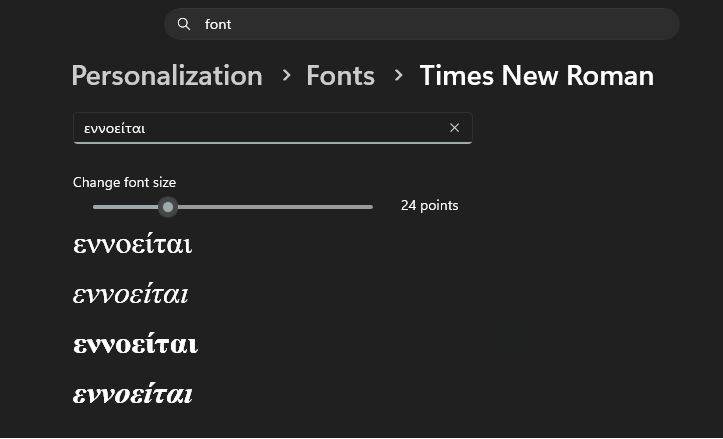
Times New Roman Gets Better Greek and Cyrillic Rendering
The Times New Roman font family receives rendering improvements for Greek and Cyrillic scripts.
The update improves how combining diacritical marks are positioned. These marks include accents and modifiers that attach to letters. Incorrect positioning could make text look uneven or harder to read, so this is a useful improvement for users working in those languages.
Task Scheduler Now Remembers Column Widths
Task Scheduler gets a small but practical fix.
Column width adjustments are now saved across sessions. Previously, if you resized columns to view more task details, those changes could disappear after closing and reopening Task Scheduler.
This is not a major feature, but it is the kind of quality-of-life fix that makes administrative tools less annoying to use.
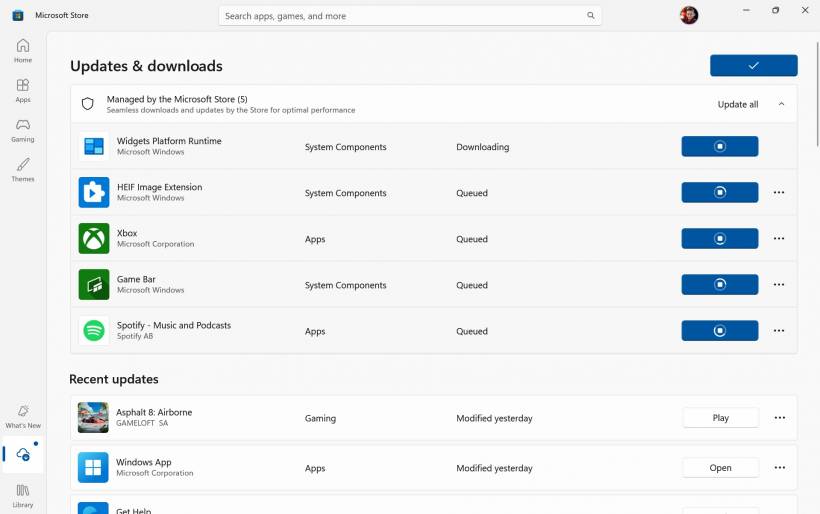
Microsoft Store Downloads Should Be Faster and Clearer
The Microsoft Store is also getting improvements.
Microsoft says the update improves download performance and bandwidth usage, which should make app downloads and updates faster.
Error reporting is also improved when downloads fail because of Windows Update group policy settings. Instead of showing a vague error, the Store should now provide a more useful message.
EFI System Partition Update Error Is Fixed
A notable fix in the normal rollout addresses error 0x800f0922.
Some PCs failed to complete updates when the EFI System Partition had very limited free space, especially when 10 MB or less was available. This was more common on systems that had already installed the May 2026 security update.
The June update fixes this issue, allowing affected devices to complete installation successfully.
Windows 11 AI Components Are Updated in the Background
The update also refreshes several internal AI components used across Windows 11.
These include:
• Content Extraction
• Semantic Analysis
• Settings Model
These components are updated to version 1.2605.856.0. Microsoft does not provide detailed public changelogs for each component, but they support intelligent search, recommendations and other AI-assisted behaviours across Windows.
For most users, these updates happen silently in the background and do not require any action.
Servicing Stack Update Is Also Included
Microsoft is also shipping a servicing stack update alongside the main release. This is listed as KB5094135, Build 26100.8648.
Servicing stack updates improve the part of Windows responsible for installing updates. They are usually invisible to users, but they help make future updates more reliable.
As of the release, Microsoft says it is not aware of any known issues with the June 2026 update.
How to Install the June 2026 Windows 11 Update
To install the update, open Settings, go to Windows Update, and select Check for updates.
The update should appear as KB5094126. After installation, your build number will move to either 26200.8655 or 26100.8655, depending on whether your device is running Windows 11 25H2 or 24H2.
Not every feature may appear immediately after installation. Many of the new additions are part of a gradual rollout, so features such as Low Latency Profile or Shared Audio may take a little longer to arrive.
A Surprisingly Big Update for Windows 11
The June 2026 Patch Tuesday update is one of the most substantial Windows 11 monthly updates in a long time.
It is not only about security fixes. It improves performance, modernises Secure Boot certificates, expands AI hardware visibility, fixes long-standing annoyances, improves accessibility and adds new features that make Windows more flexible.
For regular users, the most noticeable change may be faster app launches and smoother shell performance. For IT admins, the Secure Boot updates are the priority. For power users, Task Manager, camera, storage and search improvements make this update especially useful.
Overall, this is a Windows 11 update worth installing once it becomes available on your device.











Comments 1
some of the updated changes in June 2026 were great actually especially the mult i camera bug issue that has annoyed me for many many many years