

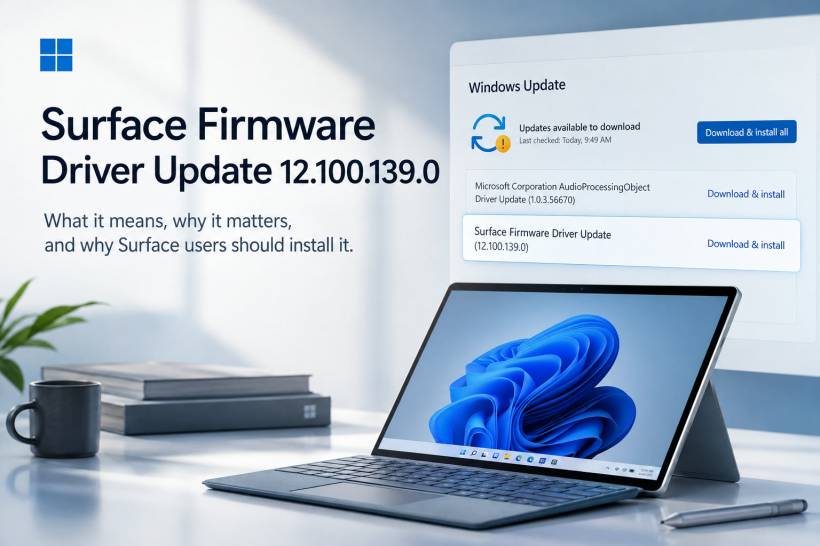
Microsoft has started pushing another Surface firmware driver update, listed as Surface Firmware Driver Update 12.100.139.0, to selected Surface devices through Windows Update. Unlike normal Windows updates, Surface firmware updates usually do not bring obvious new features or visual changes. You normally will not see a new button, redesigned menu, or major interface difference after installing it. Instead, updates like this work deeper inside the device, improving how the Surface hardware communicates with Windows.
For most users, this is the kind of update that is easy to ignore because it looks small. But firmware updates are important because they can affect stability, battery behaviour, thermal management, device reliability, sleep and wake behaviour, keyboard response, charging, cameras, sensors, and overall system security.
Microsoft recommends keeping Surface devices updated with both Windows updates and hardware updates such as drivers and firmware. Surface updates can be checked through Windows Update or the Surface app, and Microsoft also provides manual driver and firmware packages for advanced users or IT deployment scenarios.
What Is a Surface Firmware Driver Update?
A Surface firmware driver update is not the same as a normal app update.
Firmware sits between the physical hardware and the operating system. It helps the device manage low-level functions that happen before or beneath Windows, such as boot behaviour, hardware detection, power control, sensors, battery charging, touch input, keyboard communication and thermal control.
On Surface devices, these updates are usually delivered through Windows Update. They may appear with names such as:
• Surface System Aggregator - Firmware
• Surface UEFI - Firmware
• Surface Integration - System devices
• Surface ME - Firmware
The exact component depends on the Surface model and configuration. Microsoft's Surface update history pages show that similar firmware driver entries often map to components such as Surface System Aggregator - Firmware, which manages communication between different hardware subsystems.
Why Version 12.100.139.0 Matters
The version number 12.100.139.0 may look technical, but it is mainly an identifier used by Windows Update and Device Manager to track the installed firmware component.
Microsoft does not always publish detailed public notes for every individual firmware version across every Surface model. Sometimes, Surface update notes group firmware changes under broader categories such as security, reliability, performance, usability, or device stability.
That means the update may not come with a long list of user-facing changes. However, it can still be important.
Updates like this may help improve:
• Device security
• Power and battery behaviour
• Sleep and wake reliability
• Hardware communication
• Keyboard, touch, camera, or sensor behaviour
• Compatibility with newer Windows builds
This is especially relevant for Surface devices because Microsoft controls both the hardware and software experience. Firmware updates are one of the ways Microsoft fine-tunes that relationship over time.
Do Not Expect a Big Visual Change
After installing Surface Firmware Driver Update 12.100.139.0, most users probably will not notice anything immediately.
That is normal.
Firmware updates usually work quietly in the background. Their purpose is not to redesign Windows or add a visible feature. Instead, they are meant to make the device behave more reliably.
For example, a firmware update may reduce random wake issues, improve how the system handles power states, fix hardware-level bugs, or improve compatibility with new Windows versions. These improvements are valuable, but they are not always easy to see right away.
In many cases, the best firmware update is the one you never notice because your device simply becomes more stable.
Why Surface Firmware Updates Are Worth Taking Seriously
It can be tempting to delay firmware updates, especially if your Surface is working fine. But firmware is closely connected to device security and reliability.
A normal Windows update can patch the operating system. A firmware update can address lower-level device behaviour that Windows alone may not fully control.
For Surface owners, these updates are especially important because the device depends on many tightly integrated parts, including the display, battery, cameras, sensors, touch screen, keyboard cover, pen support, charging system and sleep/wake management.
A small firmware change can affect how smoothly all these components work together.
Microsoft also notes that each Surface device receives driver and firmware updates until its end-of-servicing date, meaning firmware support is part of the official device lifecycle.
How to Check Whether Your Surface Has the Update
The easiest way to check for the update is through Windows Update.
If the update is available for your device, it should appear automatically. It may be listed as Surface Firmware Driver Update 12.100.139.0 or under a related Surface firmware component name.
You can also use the Surface app. Microsoft recommends opening the Surface app, expanding Help & support, and checking the update status from there. If updates are available, the app can direct you to Windows Update.
For more advanced users, you can also check Device Manager after installation. Depending on your model, the update may appear under firmware or system devices.
Prepare Your Surface Before Installing
Before installing any Surface firmware update, it is better to take a few simple precautions.
Microsoft recommends plugging in your Surface, making sure the battery is charged to at least 40%, keeping the device powered on during the update, and connecting accessories such as a Surface Keyboard, Type Cover, Surface Pen or Surface Dock if you want them to receive related updates as well.
A simple preparation checklist:
• Make sure the battery is at least 40%
• Keep the device turned on during installation
• Connect Surface accessories if you use them
• Use a stable internet connection
• Restart when Windows asks you to
This is important because firmware updates can sometimes install during restart. Interrupting the process is not recommended.
Should You Install Optional Surface Driver Updates Too?
In most cases, yes, especially if they come directly from Microsoft and are marked as Surface-related.
Microsoft recommends checking optional updates after the main update process and installing available Surface-named drivers if they appear under Driver updates.
Optional updates may include device-specific fixes that are not always installed immediately through the normal update path. These can be useful if you are troubleshooting hardware behaviour, display issues, battery drain, input problems, or accessory compatibility.
However, regular users do not usually need to manually hunt for firmware packages unless Windows Update is not working properly or the device is managed in an IT environment.
Manual Firmware Downloads Are Mainly for Advanced Users
Microsoft also provides downloadable Surface driver and firmware packages in MSI format. These are useful for IT admins, offline devices, custom Windows images, or situations where multiple Surface devices need to be updated consistently.
For normal users, Windows Update remains the simplest and safest method.
Manual installation is useful when:
• You are reinstalling Windows manually
• You manage multiple Surface devices
• You need to update offline devices
• You are preparing a custom deployment image
For everyday users, though, the better approach is simple: let Windows Update handle it.
What If the Update Does Not Appear?
Surface updates are often released in stages. Not every device receives the same update at the same time.
If Surface Firmware Driver Update 12.100.139.0 does not appear on your Surface yet, it does not automatically mean something is wrong. The update may not apply to your specific Surface model, or Microsoft may still be rolling it out gradually.
It is also possible that your device already has a newer or different firmware branch depending on the model.
The best thing to do is:
• Open the Surface app and review update status
• Install any pending Windows updates first
• Restart your device and check again
• Avoid forcing firmware unless you know it applies to your exact model
Firmware compatibility is device-specific, so it is not a good idea to install packages meant for another Surface model.
The Bottom Line
Surface Firmware Driver Update 12.100.139.0 may not look exciting, but it is still an important update.
It is the type of release that works quietly behind the scenes, improving the connection between Windows and Surface hardware. You may not notice a dramatic change after installing it, but updates like this can help with stability, security, power management and device reliability.
For most Surface users, the recommendation is straightforward: install it through Windows Update when it becomes available, keep your Surface plugged in during the process, and restart when prompted.
Firmware updates are not glamorous, but they are part of what keeps a Surface device running properly over time.











Comments 0