

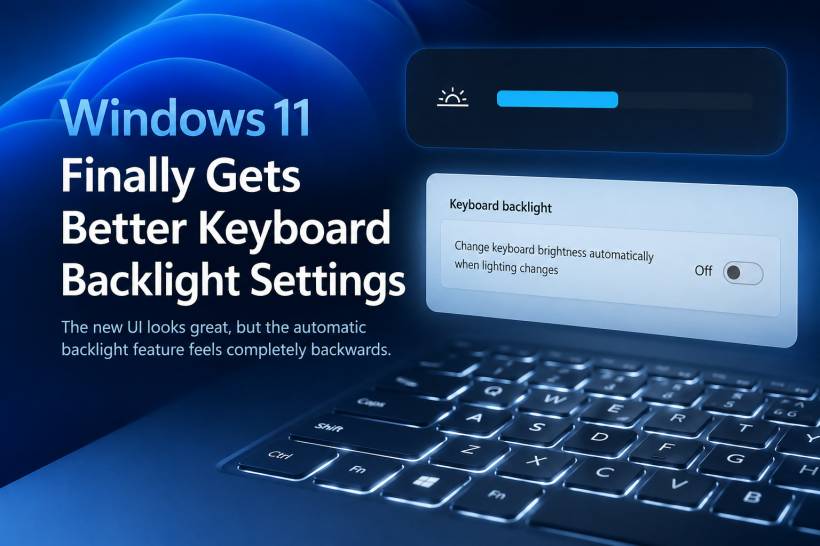
Windows 11 has slowly been moving more hardware controls into the modern Settings app, and one of the latest additions is a proper keyboard backlight setting. For users with supported keyboards, especially laptops and detachable keyboards, this is actually a welcome improvement. Instead of relying only on function keys, manufacturer utilities, or hidden firmware behavior, Windows is finally giving users a cleaner way to adjust keyboard lighting directly from Settings.
This feature is available in Windows 11 version 24H2 and Windows 11 version 25H2 through newer Release Preview builds, including builds 26100.7309 and 26200.7309. Microsoft describes it as an improvement for supported HID-compliant keyboards, with the goal of making keyboard backlighting clearer in low-light environments while also helping conserve power.
On paper, this sounds like a small feature. In daily use, however, it is the kind of small quality-of-life improvement that can make Windows feel more polished.
A Cleaner Keyboard Backlight Control In Settings
The best part of this update is the new keyboard backlight control inside Windows Settings. It gives the keyboard backlight a proper UI instead of making users depend only on shortcut keys such as Fn plus a keyboard lighting button.
The new control feels quite similar to the modern volume or brightness slider experience in Windows 11. It is simple, visual, and much easier to understand. For casual users, that matters. Not everyone remembers which function key controls the keyboard light, and on some laptops, the icon is tiny, unclear, or behaves differently depending on Fn Lock.
The setting can usually be found here:
From there, users can adjust the keyboard backlight brightness, depending on whether the device supports this new Windows-level control. It is a nice move because keyboard backlight control has always felt unnecessarily scattered across different brands and laptop models.
Some devices rely on vendor apps. Some depend on BIOS settings. Some only work through keyboard shortcuts. So having Windows handle this in a more consistent way is a good step forward.
The New UI Actually Looks Good
One thing Microsoft got right here is the visual presentation. The keyboard backlight control looks like it belongs in Windows 11. It is not a messy legacy Control Panel setting, and it does not feel like an old hardware dialog that was copied from ten years ago.
The slider-style UI is clean, modern, and easy to understand. It gives the same kind of feeling as adjusting volume or screen brightness, which is exactly how keyboard backlight control should behave.
It may sound like a minor thing, but this kind of polish matters. Windows 11 already has many settings spread across different areas, so whenever Microsoft brings a useful hardware control into the modern Settings app properly, it makes the system feel more complete.
In short, the manual control is good. The UI is good. The idea is good.
But then we get to the automatic keyboard backlight behavior.
The Auto Keyboard Backlight Feature Feels Ridiculous
The confusing part is the new automatic keyboard backlight feature. This setting uses the ambient light sensor to adjust the keyboard backlight automatically. In theory, that sounds useful. If the room is bright, the keyboard light can reduce or turn off to save battery. If the room is dark, the keyboard light should turn on so users can actually see the keys.
That would make perfect sense.
The problem is that the behavior some users are seeing feels backwards. When the environment is dark, the keyboard backlight does not light up properly. That is ridiculous, because darkness is exactly when the keyboard backlight is needed the most.
The whole purpose of a keyboard backlight is simple:

• In bright environments, the keyboard light is less important
• In dark environments, the keyboard light becomes useful
• At night, users expect the keys to be visible
• During low-light typing, the backlight should help, not disappear
This is why the current automatic behavior can feel so frustrating. A keyboard backlight is not just a decorative effect. It is a practical visibility feature. If the laptop detects a dark room and then decides not to light up the keyboard, the feature is working against the user instead of helping them.
Why This Matters More Than It Sounds
For many users, this will not be a big issue because they may continue using the keyboard shortcut manually. But for people who work at night, use their laptop in dim rooms, travel often, or rely on detachable keyboards, this can quickly become annoying.
A bad automatic brightness feature is sometimes worse than having no automatic feature at all. At least with manual control, the user knows what to expect. With automatic control, the keyboard may behave unpredictably depending on lighting conditions, sensor readings, battery state, or device support.
This is especially noticeable on devices like Surface-style keyboards, premium laptops, and modern ultrabooks where users expect a smooth experience. If Windows wants to take over more hardware controls from OEM utilities, the behavior needs to be reliable.
The logic should be simple: when the room gets darker, the keyboard should become easier to see.
Microsoft Should Fix The Auto Logic Quickly
Hopefully, Microsoft reviews this behavior and fixes it as soon as possible. The foundation of the feature is good. The UI is useful. The Settings integration makes sense. But the automatic adjustment needs to follow common sense.
If the system is using an ambient light sensor, then the backlight behavior should be predictable:
• Bright room: reduce or turn off keyboard backlight
• Dim room: increase keyboard backlight
• Dark room: keep keyboard backlight visible
• Battery saver mode: reduce brightness only when necessary
That would make the feature useful instead of confusing. Microsoft has been working hard to modernize Windows settings, but small hardware features like this need to be tested carefully because they affect everyday use.
Nobody wants to fight with their keyboard light just to type in the dark.
How To Turn Off Automatic Keyboard Backlight Adjustment
Until Microsoft improves the automatic behavior, the best workaround is to turn off the automatic keyboard backlight feature and return to manual control.
Here is how to do it:
Once this option is turned off, Windows should stop changing the keyboard backlight based on the ambient light sensor. This allows you to manually choose the brightness level that works best for you.
If the option does not appear, it likely means your keyboard or laptop model does not support the new Windows keyboard backlight control yet. In that case, you may still need to use your laptop's built-in function key shortcut, manufacturer utility, or BIOS setting.
Also Check Battery Saver Settings
If your keyboard backlight still turns off unexpectedly, it is also worth checking your power settings. Some laptops reduce keyboard lighting when Battery Saver or Energy Saver is enabled.
You can check this under:
If Energy Saver is active, Windows or your device firmware may reduce keyboard lighting to save power. This makes sense when the battery is low, but it can be annoying if the keyboard light turns off too aggressively.
For users who type frequently in low-light environments, manual backlight control is still the safer option for now.
Final Thoughts
The new keyboard backlight setting in Windows 11 is a good idea, and the UI implementation is actually quite nice. It feels modern, clean, and much more convenient than relying only on keyboard shortcuts or manufacturer tools. This is the kind of small improvement that makes Windows feel more polished.
However, the automatic keyboard backlight behavior needs work. If the system detects a dark environment, the keyboard should light up, not disappear. That is the most basic expectation of a backlit keyboard.
For now, the best solution is to disable automatic keyboard brightness adjustment and use manual control instead. Hopefully, Microsoft fixes the logic soon, because the feature itself has potential. It just needs to behave the way users naturally expect: when it gets dark, the keyboard should help you see.











Comments