

If you've ever been frustrated by Windows File Explorer — maybe it takes ages to search, or it feels too basic for managing your files — you're definitely not alone. Many users eventually start looking for full-blown replacements, hoping for something faster, smarter, or more flexible.
But what if you didn't have to replace File Explorer at all?
Instead of switching entirely, you can supercharge the existing one with a few lightweight add-ons that blend right into Windows. These tools expand File Explorer's abilities, giving it powers like instant previews, smarter batch renaming, faster file transfers, and even automatic organization. After adding a few of these, I stopped thinking about alternatives altogether — and actually started enjoying File Explorer again.
Here are four tools that completely changed the way I use Windows every day.
1. Peek and PowerRename
Speed and convenience at your fingertips
Microsoft's PowerToys suite has quietly become a productivity goldmine, and two of its tools — Peek and PowerRename — are absolute game-changers for File Explorer users.
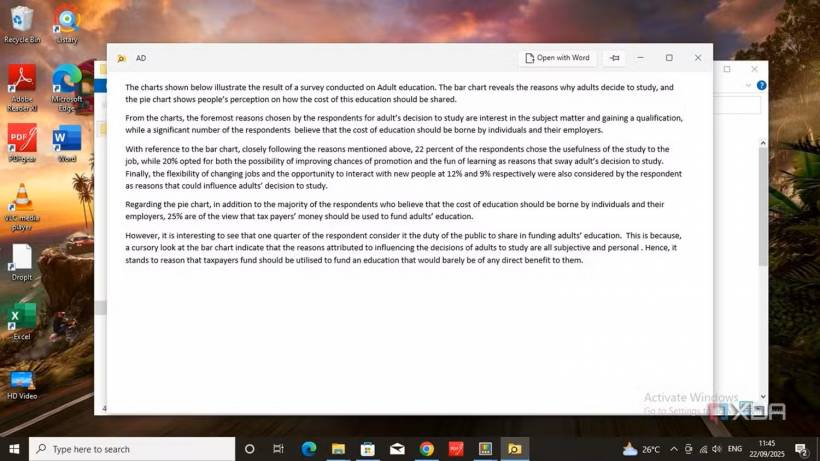
Peek introduces a simple but incredibly useful feature: quick file previews. By pressing Ctrl + Spacebar, you can instantly preview almost any file — PDFs, images, Markdown notes, even code snippets — without opening any heavy apps. It feels a bit like macOS's "Quick Look," and it saves tons of time when you just need to peek at what's inside a file.
Then there's PowerRename, which tackles one of File Explorer's most frustrating limitations: batch renaming. Instead of manually editing hundreds of filenames, PowerRename gives you a powerful find-and-replace interface with real-time previews. You can rename files across multiple folders, filter by extensions, and apply patterns in seconds. Whether you're organizing old photos, movies, or project files, it's fast, safe, and efficient — no third-party renamer app required.
2. TeraCopy
Overcome file-transfer frustration
We've all been there — halfway through copying gigabytes of data when suddenly one bad file stops everything. File Explorer's default copy system doesn't handle interruptions well, and when transfers fail, it can be hard to tell what was actually copied.
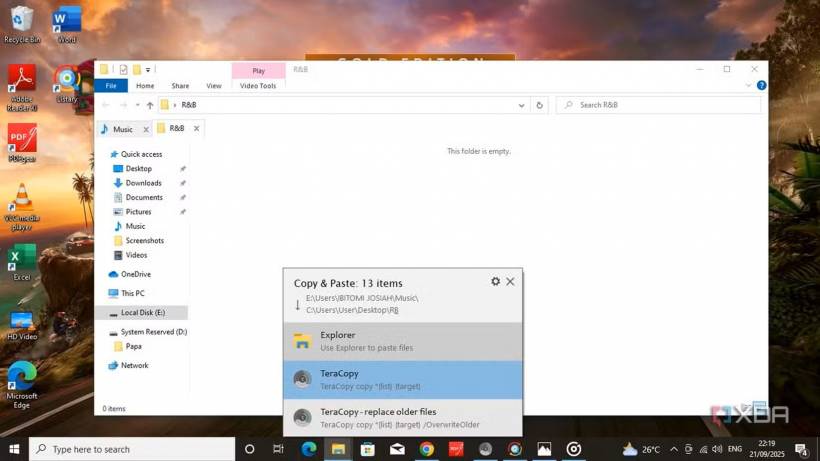
That's where TeraCopy comes in. It not only makes transfers faster, but it also gives you complete control. You can pause, resume, and even verify file integrity once the process is done. If it encounters a corrupted file, it skips it automatically and continues with the rest — no more restarts or guesswork.
TeraCopy also keeps a detailed log, so you'll know exactly what succeeded and what failed. For anyone who regularly moves large backups, works with external drives, or manages a NAS setup, this tool is a lifesaver. It gives peace of mind that File Explorer alone simply can't.
3. Listary
Search and navigate without waiting
Windows Search has improved over the years, but let's be honest — it's still painfully slow at times. Listary fixes that.
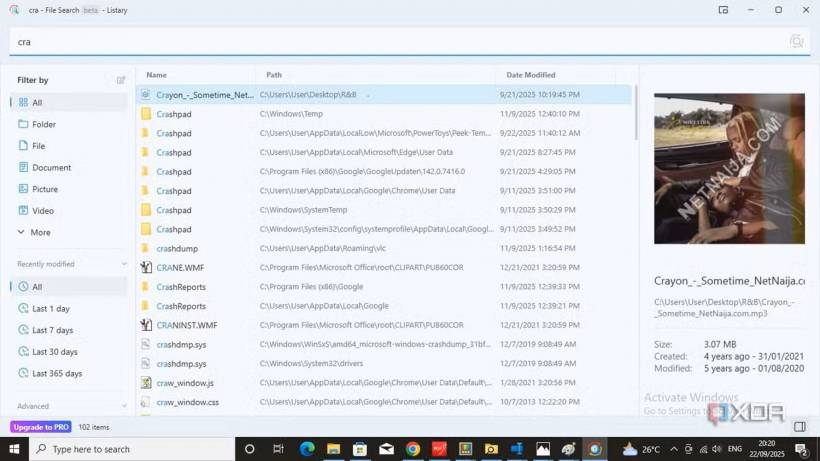
Once installed, Listary hooks directly into File Explorer. Open any folder and just start typing — you'll get lightning-fast, real-time results. Files, folders, and even recently used items appear instantly. It's like having Spotlight from macOS right inside Windows.
But Listary isn't just about search. By double-tapping Ctrl, you can bring up a command bar to launch apps, run web searches, or execute system commands. It transforms File Explorer from a passive browser into a dynamic control hub. For multitaskers, it's one of those tools that makes Windows feel brand new again.
4. DropIt
The smart way to automate file organization
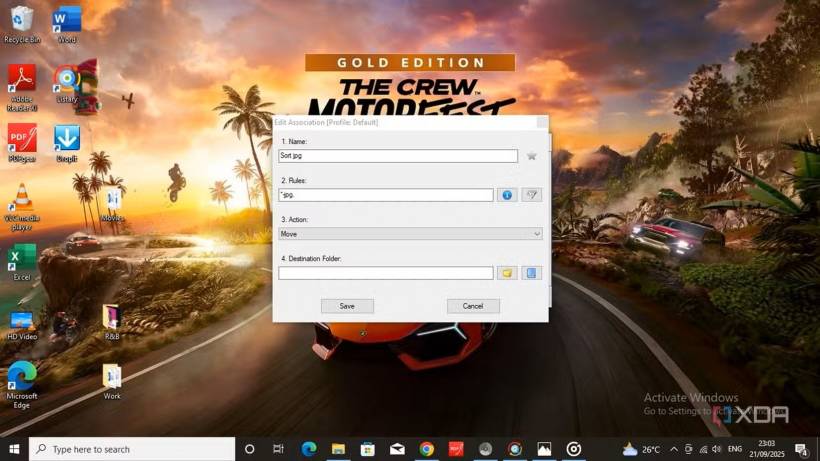
If your Downloads folder looks like a digital landfill, DropIt is your new best friend. It automates sorting so you never have to manually organize files again.
Once set up, DropIt sits as a floating icon on your desktop. Drag any batch of files onto it, and it automatically sorts them according to rules you've defined — moving, renaming, compressing, or even uploading them. For example, you can tell it to send all .jpg files to your Pictures folder, all .pdfs to Documents, and all .zip archives to a dedicated Backups directory.
You only need to define your sorting rules once, and after that, DropIt does the hard work every time. It's automation at its simplest — perfect for keeping your folders tidy without lifting a finger.
Don't Replace File Explorer — Reinvent It
It's tempting to ditch File Explorer when it feels outdated, but finding a good replacement can be a hassle. Many third-party file managers require steep learning curves or paid licenses. These add-ons, however, give you the best of both worlds: the familiarity of Windows combined with the advanced functionality you've been missing.
Peek and PowerRename speed up your workflow, TeraCopy adds reliability, Listary brings modern search capabilities, and DropIt automates the boring parts. Together, they turn File Explorer into a powerful, customizable hub that actually fits the way you work.
So before you jump ship — try enhancing what you already have. You might be surprised how capable File Explorer can be with the right tools by your side.











Comments