

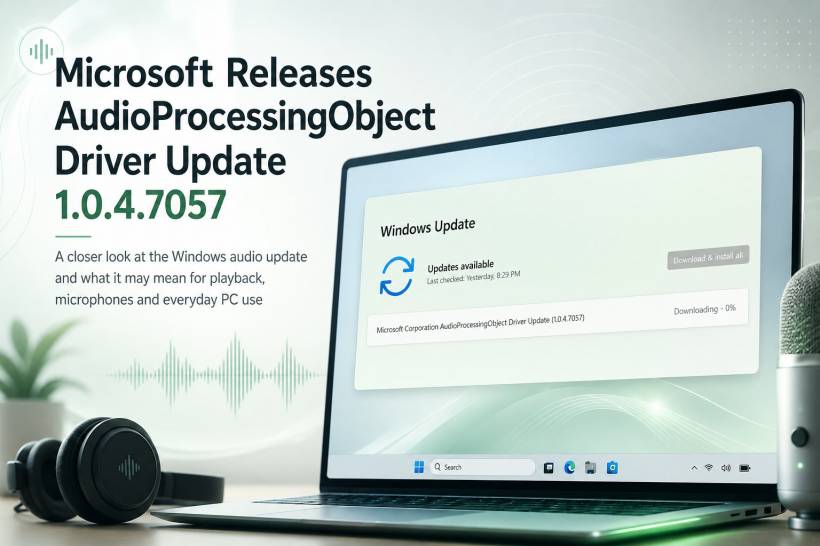
A new driver has begun appearing in Windows Update under the rather technical name Microsoft Corporation AudioProcessingObject Driver Update (1.0.4.7057). Unlike the familiar monthly cumulative updates, this package is focused specifically on the audio-processing layer inside Windows.
The update may look minor, but audio-processing components can influence several everyday functions, including speaker output, microphone quality, video calls, voice recording and built-in sound enhancements. However, Microsoft has not provided a detailed public changelog for version 1.0.4.7057, so users should be careful not to assume that it introduces a particular new feature.
What Is an Audio Processing Object?
An Audio Processing Object, commonly shortened to APO, is a software component that processes sound as it travels through the Windows audio system. It does not necessarily replace the main hardware driver controlling the speakers, headphones or microphone. Instead, it sits within the audio pipeline and applies additional processing to the sound.
Microsoft describes APOs as software-based digital signal-processing components. They can be used for features such as equalisation, acoustic echo cancellation, automatic microphone gain control, reverberation and other audio effects.
This means an APO may affect both sides of the audio experience. For playback, it can help tune the sound coming from laptop speakers or connected headphones. For recording, it can process microphone input before it reaches applications such as Microsoft Teams, Discord, Zoom, a voice recorder or a web browser.
Why Is It Listed as a Driver Update?
The word "driver" can make the update sound as though it is replacing the computer's entire audio system. In practice, modern Windows audio installations are often divided into several packages.
A computer may have a primary audio driver from Realtek, Intel, Qualcomm or another hardware manufacturer. Alongside it, Windows may install separate extension drivers, software components and APO packages that provide device-specific effects.
On Windows 11, Microsoft requires these audio-processing packages to use the dedicated AudioProcessingObject driver classification. That is why the package appears separately in Windows Update instead of being bundled under a normal Windows cumulative update.
The update name also lists Microsoft Corporation as the provider. That indicates that Microsoft is publishing or signing the package, but it does not necessarily tell us which exact Windows audio feature it supports on every device.
What Version 1.0.4.7057 May Be Improving
Because Microsoft has not published detailed release notes for this specific version, its exact changes remain unclear. It is therefore safer to describe the likely areas of improvement rather than claim that it adds a confirmed feature.
The update may contain reliability fixes for Windows audio effects, microphone processing or communication-focused audio modes. It could also improve compatibility with newer Windows builds, correct problems affecting particular hardware configurations or refine how audio-processing services interact with applications.
Possible areas affected include microphone noise reduction, echo cancellation during calls, volume consistency, speaker tuning, voice capture and transitions between different audio devices. These are reasonable possibilities based on the role of an APO, but they are not confirmed changes for version 1.0.4.7057.
Some APO functions can also be handled by dedicated audio hardware rather than the main processor. Microsoft notes that hardware-offloaded audio processing can improve efficiency and reduce power consumption in supported scenarios.
Will the Update Make the Computer Sound Better?
Possibly, but users should not expect an obvious improvement in every case.
Driver updates of this type are often released to fix compatibility or stability problems that only appear under particular conditions. A user whose audio was already working correctly may hear no noticeable difference after installation.
On another device, the update could improve microphone clarity, reduce audio interruptions or fix an enhancement that was not loading correctly. The results depend heavily on the computer model, audio hardware, installed applications and manufacturer-specific sound configuration.
It is also possible for an audio-processing update to change the character of the sound slightly. Since APOs can apply equalisation and other effects, a revised package could make speakers sound louder, softer, clearer or less bass-heavy depending on the tuning it contains.
Should You Install It?
For most everyday Windows users, allowing Windows Update to install the driver is reasonable. The package is being delivered through the normal Windows servicing system and is intended for compatible configurations.
Users who depend heavily on their audio setup may prefer to be more cautious. This includes people using their computers for music production, live streaming, recording, broadcasting or important online meetings. In those situations, it may be sensible to note the current driver versions and test the speakers, microphone, Bluetooth audio and headset after installation.
A restart is also worth performing after the update, even when Windows does not immediately demand one. Audio services and processing components may not fully reload until the computer restarts.
What to Check After Installation
After installing version 1.0.4.7057, users should test both playback and recording rather than checking only whether sound is present.
Play music or a video through the built-in speakers, wired headphones and Bluetooth devices that are normally used. Then test the microphone using Windows Sound settings or a voice-recording application.
It is also worth making a brief test call because echo cancellation and automatic gain behaviour may only become noticeable during communication sessions.
Users should watch for unusual symptoms such as crackling, brief dropouts, reduced microphone volume, missing bass, delayed audio, broken enhancements or sound disappearing when switching between devices.
What to Do If Audio Becomes Worse
The first step is to restart the computer and test the audio again. Windows audio services sometimes retain an older component in memory until the system is rebooted.
If the sound becomes distorted or begins crackling, Microsoft recommends temporarily disabling audio enhancements from the selected device's sound settings. This can help determine whether the problem is being caused by an effect rather than the underlying hardware driver.
When the problem clearly began after the update, the previous audio driver may be restored through Device Manager. Open the properties of the relevant audio device, select the Driver tab and use Roll Back Driver when the option is available. Microsoft specifically recommends driver rollback when audio stops working after a recent Windows update.
If rollback is unavailable, users can install the latest audio package provided by their computer manufacturer. Manufacturer packages may include several coordinated components designed for that specific laptop or motherboard.
A Small Update With a Significant Role
The Microsoft Corporation AudioProcessingObject Driver Update 1.0.4.7057 may not be as visible as a major Windows feature update, but it operates in an important part of the system. Modern audio depends on more than a basic speaker driver; it also relies on software components that manage effects, microphone behaviour and communication processing.
Most users can install the update normally and may not notice any immediate change. That is not necessarily a bad sign, as many driver updates are designed to improve reliability quietly in the background.
Final Thoughts
The appearance of version 1.0.4.7057 in Windows Update is not a warning and does not indicate that something is wrong with the computer. It is an audio-processing driver intended to update part of the Windows sound pipeline.
Since Microsoft has not released a detailed changelog for this exact version, claims about specific improvements should be treated cautiously. The sensible approach is to install it, restart the computer and test the usual speakers, headphones and microphone. Should any problems appear, Windows still provides options to disable audio enhancements, roll back the driver or reinstall the manufacturer's original audio package.











Comments