

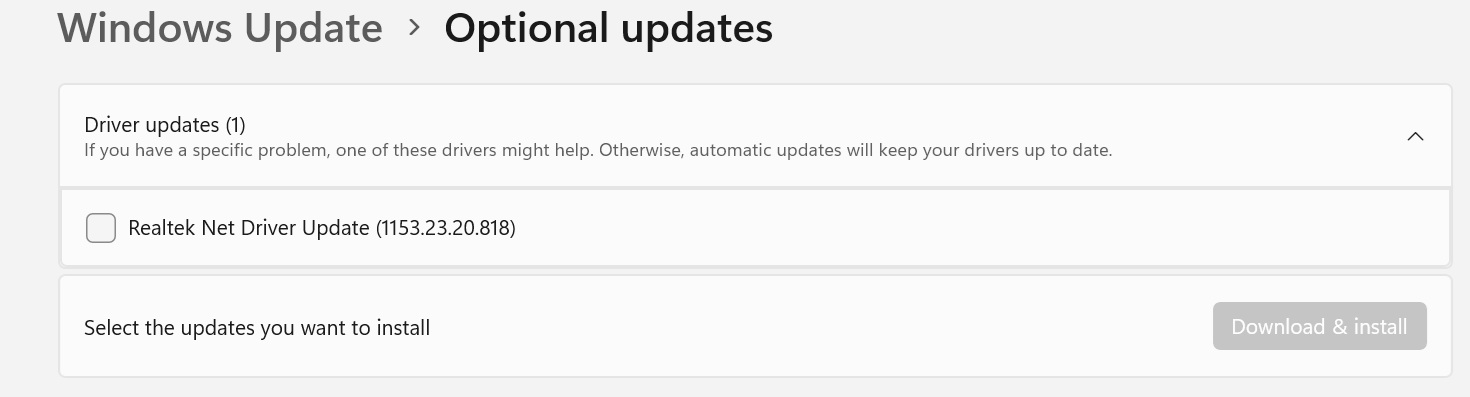
A Realtek network driver update carrying version 1153.23.20.818 is appearing under the Optional updates section in Windows 11, as shown in the accompanying screenshot. The listing gives us the manufacturer and version number, but very little explanation about what the update actually does. That naturally raises a few questions: Is this for Wi-Fi, does it affect a docking station, and should it be installed when everything already seems to be working?
The important thing is to look beyond the Realtek name. This version aligns with Realtek's USB Ethernet driver family, making wired network adapters and compatible docking setups the relevant hardware to investigate. However, identifying the driver family is not the same as confirming that every Realtek adapter—or every Microsoft Surface device—receives this particular update.
What This Realtek Update Is Actually For
Realtek's official download page lists its Windows 11 USB Ethernet driver package under the 115X.23.20 version family, which matches the numbering pattern of the update shown here. The package uses Microsoft's NetAdapterCx networking driver framework. In practical terms, this is software that helps Windows communicate with a supported USB-connected wired network controller, rather than an update for Realtek audio or a general-purpose Wi-Fi upgrade.
The relevant hardware category includes Realtek's RTL8153 family of USB 3.0 Gigabit Ethernet controllers. These provide the familiar wired network connection through an Ethernet cable, even when the computer itself does not have a built-in network socket. Realtek also maintains drivers for other USB Ethernet controller families, so the presence of the Realtek brand alone is not enough to establish compatibility with this exact version.
Which Devices and Setups Are Relevant?
The determining factor is the Ethernet adapter inside the accessory, not simply the brand or model of the computer. Windows uses hardware identifiers to match devices with compatible driver packages. A laptop and a desktop can therefore require the same network driver when they use matching external adapters, while two visually similar docking stations may require different drivers.
For Surface users, the following are relevant wired-networking setups to check. These are examples of Microsoft's supported Ethernet accessories, not a verified compatibility list for version 1153.23.20.818:
Surface Pro 8 is a useful example of why the distinction matters. Microsoft includes Surface Ethernet Adapter support in its deployment guidance for the device, while its built-in wireless networking is identified separately as Intel Wi-Fi 6 AX201. Consequently, a Realtek Ethernet-related update on a Surface Pro 8 should not be interpreted as an update to its internal Wi-Fi adapter. The attached networking accessory is the component to investigate.
Other Windows computers using Realtek-based USB Ethernet hardware may also be relevant, but their eligibility must be established from the actual adapter and driver package. It would be inaccurate to announce this as an update for all Dell, HP, Lenovo, ASUS, or Surface computers simply because some of their accessories contain Realtek networking components. The same caution applies to different Windows architectures: a compatible package must match both the hardware and the installed Windows environment.
What Does Version 1153.23.20.818 Actually Change?
This is where expectations need to remain grounded. The Windows Update screenshot confirms the version being offered and its placement under optional driver updates, but it does not include a changelog. I could not verify official release notes detailing the individual fixes in version 1153.23.20.818 or a complete hardware compatibility list for this exact package.
That means claims such as "fixes random disconnections," "reduces gaming latency," or "patches a specific security vulnerability" should not be presented as confirmed improvements. Those might be reasons to investigate a network driver update, but they are not established changes in this release. Likewise, a larger version number does not, by itself, prove that users will experience faster downloads.
It is also important to separate driver updates from hardware upgrades. Realtek identifies the RTL8153 family as Gigabit Ethernet hardware, while faster Ethernet capabilities belong to other controller families. Installing a newer driver does not turn a Gigabit adapter into a 2.5GbE or 5GbE adapter.
Why a Small Ethernet Driver Update Can Still Matter
A network driver works below the applications people interact with every day. Microsoft's NetAdapterCx framework provides networking-specific support and integrates with Windows' driver framework, including functionality related to device operation and power management. This helps explain why networking maintenance is not only about headline download speeds: it also involves how the adapter operates as part of the wider Windows system.
For someone who regularly works through a dock, the most useful outcome would be dependable behaviour throughout an ordinary working day. Does Ethernet connect after docking? Does it remain available during a file transfer? Does the connection return normally after the computer wakes from sleep? These are sensible things to evaluate after installation, rather than assuming that a successful update automatically means a measurable performance improvement.
Should You Install It When Everything Is Working?
The screenshot places this driver under Optional updates, which is an important distinction. Microsoft explains that Windows 11 installs recommended drivers automatically, while optional drivers require the user to select them manually. An optional listing is therefore not the same as an instruction that every user must install the package immediately.
My practical recommendation is to make the decision around the device's actual condition. When the existing Ethernet connection is stable and there is no documented fix that you need, there is no reason to rush simply to remove an item from the optional updates list. When Windows offers the package for a relevant adapter and you are troubleshooting wired-networking behaviour, installing it during a suitable maintenance window is a more deliberate approach.
For workplace computers, I would take the same approach on a smaller scale before a wider rollout. Test a representative computer and docking setup, record the previous driver version, and check normal working tasks before deploying more broadly. Without a verified changelog for this specific release, observed behaviour on your own hardware is more useful than assuming that every machine will benefit equally.
How to Confirm Which Adapter Is Involved
Before installing, open Device Manager and expand Network adapters. Locate the wired adapter associated with the connected dock or Ethernet accessory, open its Properties, and examine the Driver tab. Record its name, provider, and current driver version so there is a clear baseline for comparison. Microsoft documents Device Manager as the place to inspect and manage individual device drivers.
For a more precise identification, use the Details tab and select Hardware Ids from the Property menu. These identifiers are what Windows uses when matching a device to a driver package. They are more reliable than assuming compatibility from a general label such as "Realtek," particularly when several network adapters are listed on the same computer.
Installing the Update Through Windows Update
When the package is offered for your computer and you decide to proceed, the installation route is straightforward:
Choose a moment when you are not relying on the wired connection for an important task. I would avoid making the change during a remote-support session, an essential meeting, or a large transfer. Having an alternative connection available is also a useful precaution when changing the driver for the network adapter currently in use.
What to Check After Installation
After restarting, revisit the adapter's Driver tab and compare the installed version with the baseline you recorded. Then test the connection using the same dock, cable, and network port as before. This makes the comparison more meaningful than changing several parts of the setup at once.
A practical check should include normal browsing, an appropriate file transfer, disconnecting and reconnecting the dock, and putting the computer through a sleep-and-wake cycle. Make sure the traffic being tested is actually using Ethernet rather than an available Wi-Fi connection. The aim is to confirm that the updated adapter behaves consistently during the tasks that matter to you.
Should a new problem appear immediately after installation, Device Manager provides a Roll Back Driver option on the adapter's Driver tab when rollback is available. Administrator permissions are required. Where rollback is unavailable, use the device manufacturer's supported driver package rather than downloading an arbitrary replacement from a third-party driver website.
Final Thoughts
Realtek Net Driver Update 1153.23.20.818 is worth examining as a USB Ethernet-related optional update, especially for computers that obtain their wired connection through an adapter or docking accessory. It should not be treated as a universal Realtek update or an automatic upgrade to a computer's Wi-Fi connection. The exact adapter matters more than the name printed on the laptop.
The main limitation is that the available information establishes the driver family and the Windows Update listing, but not a verified list of fixes or every device supported by this exact build. My recommendation is therefore straightforward: identify the adapter, keep expectations realistic, and test the update under normal working conditions. For a networking driver, a connection that continues to work reliably is a more meaningful result than a newer number in Device Manager.











Comments 0