

Microsoft Edge has been going through a lot of visual changes over the past few years. Some users like the newer rounded design, softer interface, and modern Windows 11-style appearance. Others, however, prefer the cleaner and sharper browser layout where the webpage reaches the edge of the browser without an extra rounded border around it.
From there, you could disable the rounded containers flag and bring Edge back closer to the older, cleaner look. It was simple, easy, and gave users a choice.
Unfortunately, as of the June 2026 Edge update, Microsoft appears to have removed that option. Users have reported that the rounded corners and visible border are now forced in newer Edge builds, including Edge version 149.0.4022.52, with the old flag no longer available or no longer working. This has been discussed by users on Microsoft's own support forums, where people complained that the browser now forces a rounded border around the webpage area with no normal setting to disable it.
Why This Change Is Annoying For Some Users
For some people, this may sound like a small cosmetic issue. After all, it is just a border and rounded corner effect. But for users who care about screen space, visual consistency, or clean browser layouts, it can be surprisingly distracting.
The extra border makes the page feel like it is sitting inside a frame instead of fully using the browser window. On some setups, especially with dark websites or high-contrast themes, the border becomes even more obvious. It can also look inconsistent compared to other browsers or older versions of Edge.
The frustrating part is not really that Microsoft added a new look. The bigger issue is that Microsoft removed the easy choice to turn it off. A design option that used to be controlled through Edge flags is now hidden or removed, leaving users with fewer ways to customise their own browser.
The Old Fix No Longer Works
Before this update, many users relied on the Edge flag:
Disabling this flag would remove the rounded container effect and make the browsing area look more traditional. However, after the June 2026 update, this flag has either disappeared or stopped working for many users.
That means the old solution is no longer reliable. Going into Edge flags and searching for rounded containers may not show anything useful anymore. Even if the flag appears on some versions, it may not have the same effect as before.
The New Workaround
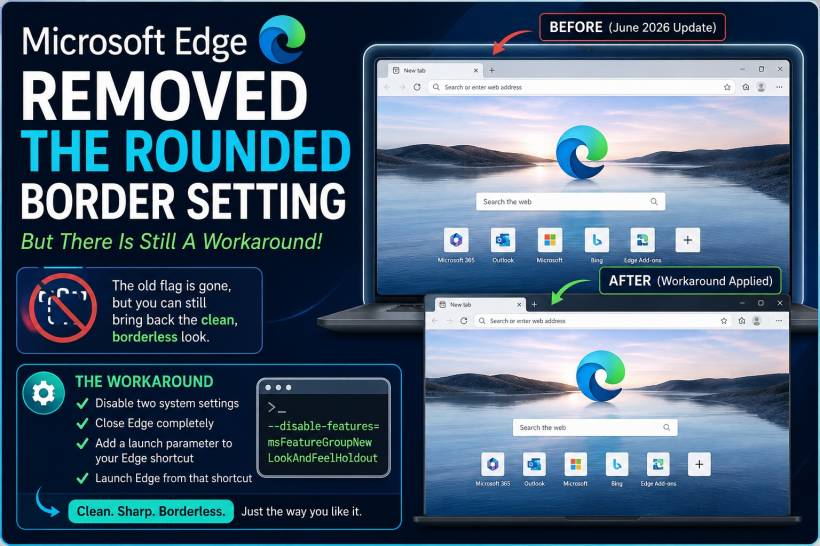
Some users have found another workaround using an Edge launch parameter. This is not as convenient as changing a normal setting, but it can still help remove the new rounded border look.
Here is what you need to do.
First, open Microsoft Edge and go to:
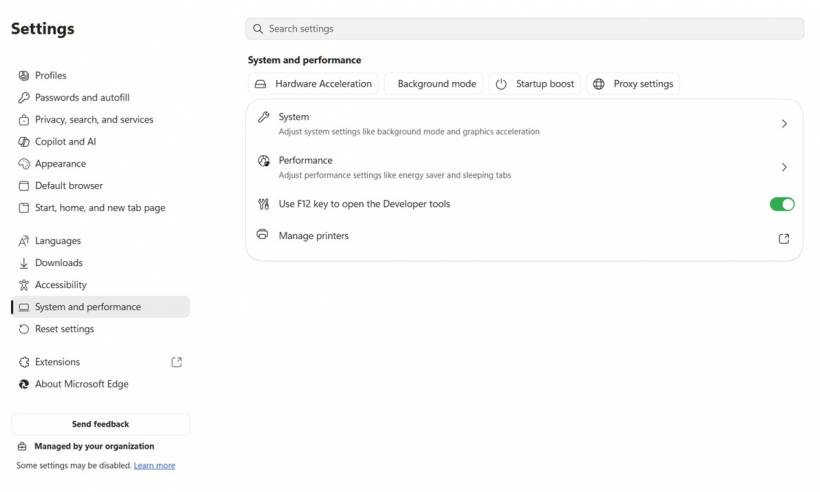
Then disable these two options:
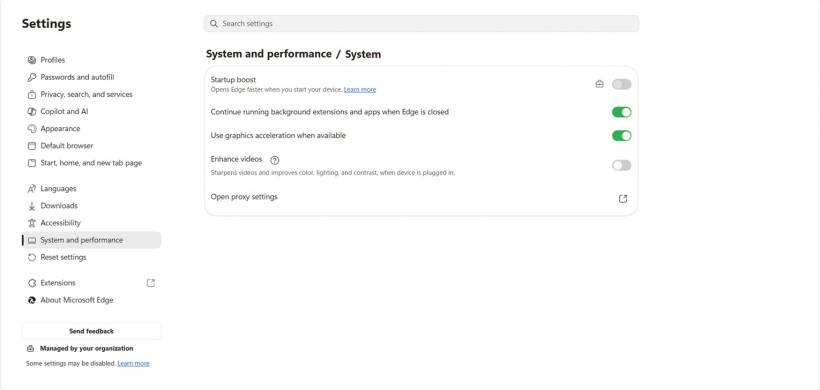
• Startup acceleration
• Keep running background extensions and apps when I close Microsoft Edge
This step is important because Edge often keeps running in the background even after you close the browser window. If Edge is still running, the launch parameter may not apply properly.
After disabling those options, close Microsoft Edge completely.
Next, open Task Manager by pressing:
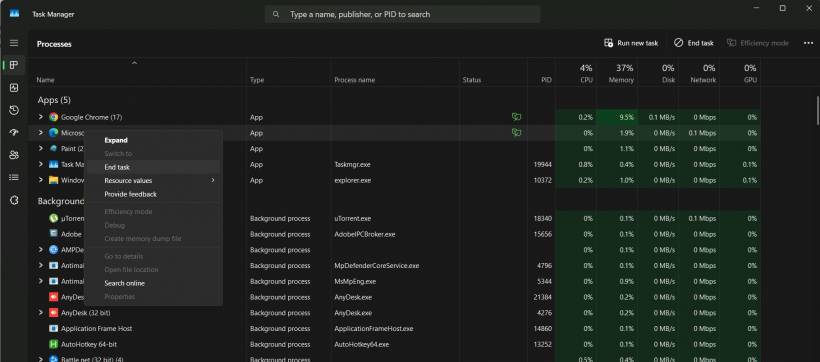
Search for Microsoft Edge in Task Manager and make sure it is not still running. If you still see Edge processes there, close them.
Once Edge is fully closed, right-click your Microsoft Edge shortcut and open Properties.
In the Target field, go to the very end of the line. After the closing quotation mark, add a space and paste this launch parameter:
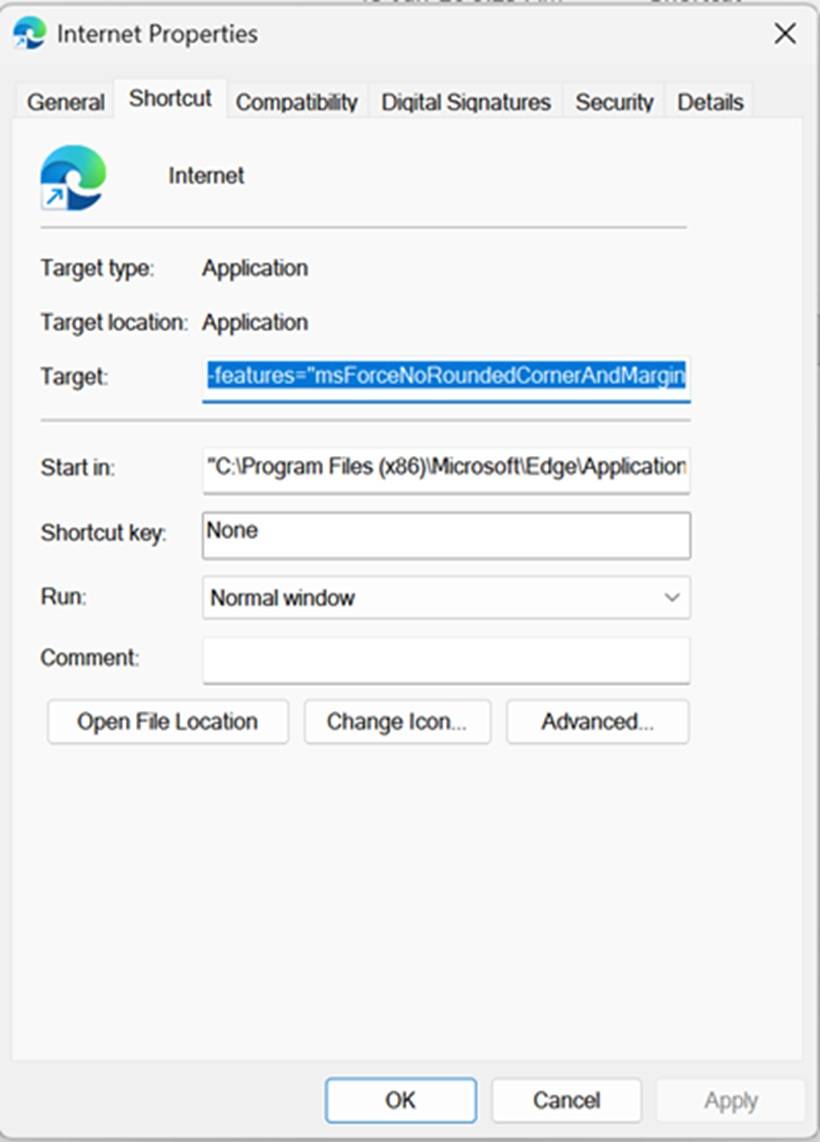
Your Target line should look something like this:
After that, click Apply and OK.
You can then pin this shortcut to your taskbar, desktop, or wherever you normally launch Edge from. The important part is that you must open Edge using this edited shortcut. If you open Edge from another shortcut, from Windows Search, or from another app, the launch parameter may not be applied.
A Few Things To Keep In Mind
This workaround is not an official settings toggle. It works by launching Edge with a specific feature disabled. Because of that, Microsoft may change or remove this behaviour in a future update.
Also, this method only works properly if Edge is completely closed before launching it from the modified shortcut. That is why disabling Startup acceleration and background extensions is important. If Edge is already running in the background, Windows may simply open a new Edge window using the existing process instead of applying the new launch parameter.
So, if the fix does not seem to work, check these things first:
• Make sure Startup acceleration is disabled
• Make sure background extensions are disabled
• Make sure Edge is fully closed in Task Manager
• Make sure the launch parameter is added after the quotation mark
• Make sure there is a space before the launch parameter
• Make sure you are launching Edge from the edited shortcut
Microsoft Should Bring Back A Proper Toggle
While this workaround is helpful, it also highlights the bigger problem. Users should not need to edit shortcut properties just to remove a browser border.
Microsoft Edge already has a lot of settings for themes, appearance, sidebar behaviour, toolbar buttons, startup options, and performance features. A simple toggle for rounded browser containers would make sense. Some users like the modern rounded look, and that is fine. But users who prefer the sharper, classic layout should also have the option to disable it.
Browser design is personal. Some people want a softer, modern interface. Others want a clean, borderless, no-nonsense layout. Both preferences are valid.
Final Thoughts
The June 2026 Edge update may have removed the old rounded containers flag, but thankfully, there is still a workaround for users who dislike the forced border around the browser content area.
By disabling Edge's background startup options and adding the launch parameter:
you may be able to bring back a cleaner Edge layout without the unwanted rounded border.
Still, this should not have to be a hidden workaround. Microsoft should restore a proper appearance setting so users can decide how they want their browser to look. Edge is a strong browser, but removing useful customisation options is never a good move, especially when those options affect something users look at every single day.











Comments 0