

Windows 11 is receiving another optional preview update, and this time Microsoft is concentrating less on flashy new features and more on the everyday areas that frequently frustrate users. Update KB5101684 introduces performance, reliability and usability improvements across File Explorer, Windows Search, the Start menu, taskbar, lock screen and several accessibility features.
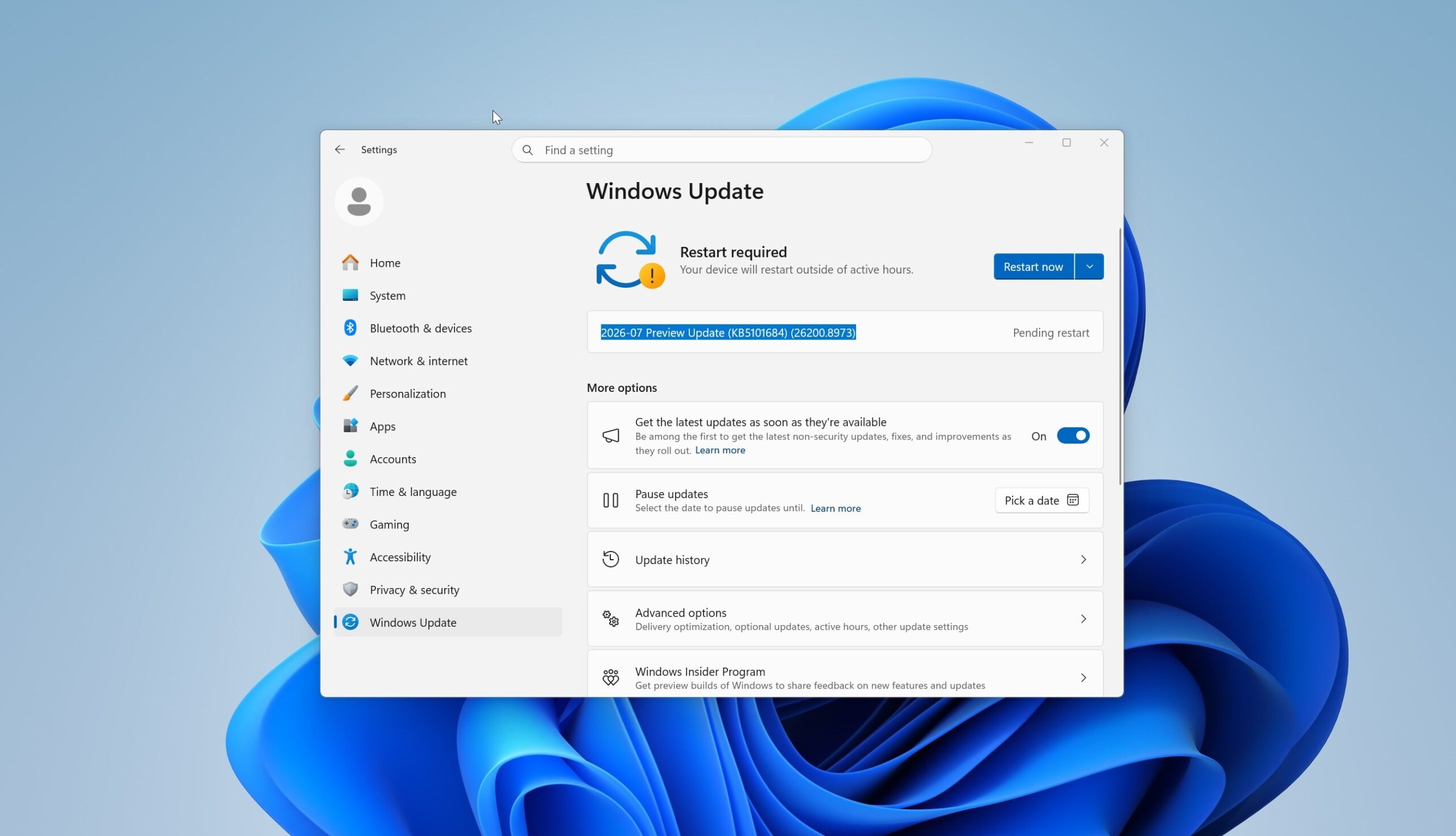
The update raises Windows 11 version 25H2 to Build 26200.8973, while version 24H2 moves to Build 26100.8973. It is available through Windows Update, but because this is an optional preview release, most users will need to select Download & install manually.
Microsoft has also made standalone .msu packages available through the Microsoft Update Catalog for administrators, offline installation and deployment across multiple computers.
An Optional Preview, Not a Mandatory Security Update
KB5101684 is what Microsoft commonly describes as a D release. These preview updates normally arrive during the final week of the month and allow users and administrators to receive non-security fixes before they are included in the next mandatory cumulative update.
That distinction matters.
Unlike a normal Patch Tuesday release, this update is not essential for protecting the computer against newly disclosed security vulnerabilities. It mainly contains reliability fixes, interface improvements and performance-related changes.
Users who do not urgently need any of the improvements may prefer to wait until the changes become part of a future mandatory update. Preview updates receive less public testing than standard monthly releases, so there is always a possibility that new problems may appear after installation.
Check the "Get the Latest Updates" Setting
The update should not install automatically unless the Get the latest updates as soon as they're available option is enabled under Windows Update.
Microsoft has previously explained that this setting gives users earlier access to optional improvements, out-of-band releases and gradually deployed features. However, it may also cause Windows to install updates that are not strictly necessary for the computer at that moment.
Users who prefer a more conservative update process should keep the toggle disabled.
To install KB5101684 manually:
Open Settings, select Windows Update, check for updates and choose Download & install when the preview appears.
Windows Update remains the simplest and safest installation method because it automatically selects the correct package for the system.
Offline Installers Are Available for Manual Deployment
The Microsoft Update Catalog provides standalone packages for x64 and Arm64 systems.
These .msu installers are particularly useful when Windows Update repeatedly fails, when a computer has limited internet access or when an administrator needs to update several devices without downloading the same package individually on every machine.
The packages are unusually large, reaching approximately 5GB depending on the Windows version and architecture.
Recent Windows cumulative updates have grown considerably because they include servicing components, feature enablement files and, on some devices, AI-related resources. The package downloaded through Windows Update may be smaller because the service can retrieve only the files required by the individual computer.
The Update Catalog package is more comprehensive because it must support a wider range of system configurations.
The Update Focuses on the Features People Use Every Day
KB5101684 is not packed with major interface redesigns. Instead, it improves familiar parts of Windows that users interact with constantly.
This includes File Explorer, Windows Search, the Start menu, Task View and the taskbar.
These improvements may appear minor when read individually, but small delays and inconsistencies can make the operating system feel sluggish when they happen repeatedly throughout the day.
A Start menu that opens smoothly, a search function that understands misspellings and a File Explorer that displays information clearly can produce a more noticeable improvement than another decorative feature.
File Explorer Finally Uses Sensible File-Size Units
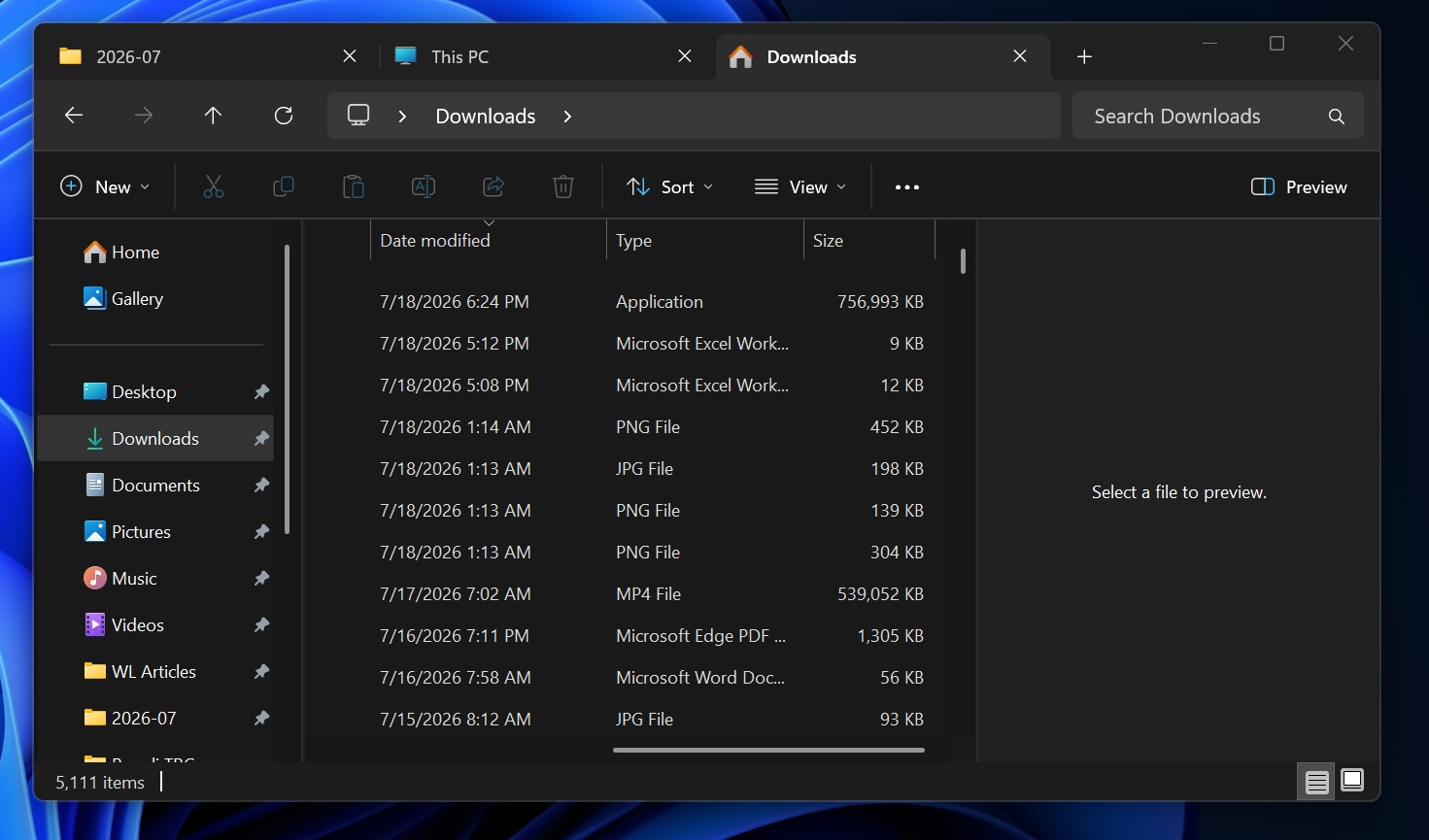
File Explorer currently displays file sizes in kilobytes within the Size column, even when the file is several gigabytes.
Technically, the information is correct, but it is not always convenient. A user looking at a large installation image may see millions of kilobytes and need to mentally convert the figure to understand how much storage it occupies.
After KB5101684, File Explorer can display sizes using the most appropriate unit.
Small files remain visible in kilobytes, while larger items can appear in megabytes or gigabytes. A large ISO image, for example, may now be shown as 7.57GB instead of an unnecessarily long kilobyte value.
This makes it much easier to identify large files and understand where storage space is being used.
Folders Can Open in New Tabs with a Middle Click
Microsoft is also bringing another browser-like behaviour to File Explorer.
Users can middle-click a folder to open it in a new tab, similar to middle-clicking a link in a web browser. This is useful when comparing folders, organising files across several locations or keeping the current directory open while exploring another one.
Tabbed browsing has already improved File Explorer considerably, but some interactions still require additional context menus or keyboard shortcuts. Middle-click support makes the experience faster and more intuitive.
It is a small addition, but one that frequent File Explorer users may appreciate immediately.
Dark Mode Becomes More Visually Consistent
The File Explorer Home page has occasionally displayed an unusual grey flash when loading or scrolling in dark mode.
The brief change in colour does not usually affect functionality, but it makes the interface feel unfinished and can be distracting on displays set to low brightness.
KB5101684 removes this behaviour and improves visual consistency when the Home view is opened in dark mode.
Microsoft has also improved thumbnails in the Recommended area, making it easier to recognise files before opening them.
These changes do not transform File Explorer, but they help reduce the uneven visual behaviour that has affected parts of Windows 11 since launch.
Windows Search Becomes More Forgiving of Typing Errors
Windows Search has long been criticised for struggling with simple misspellings.
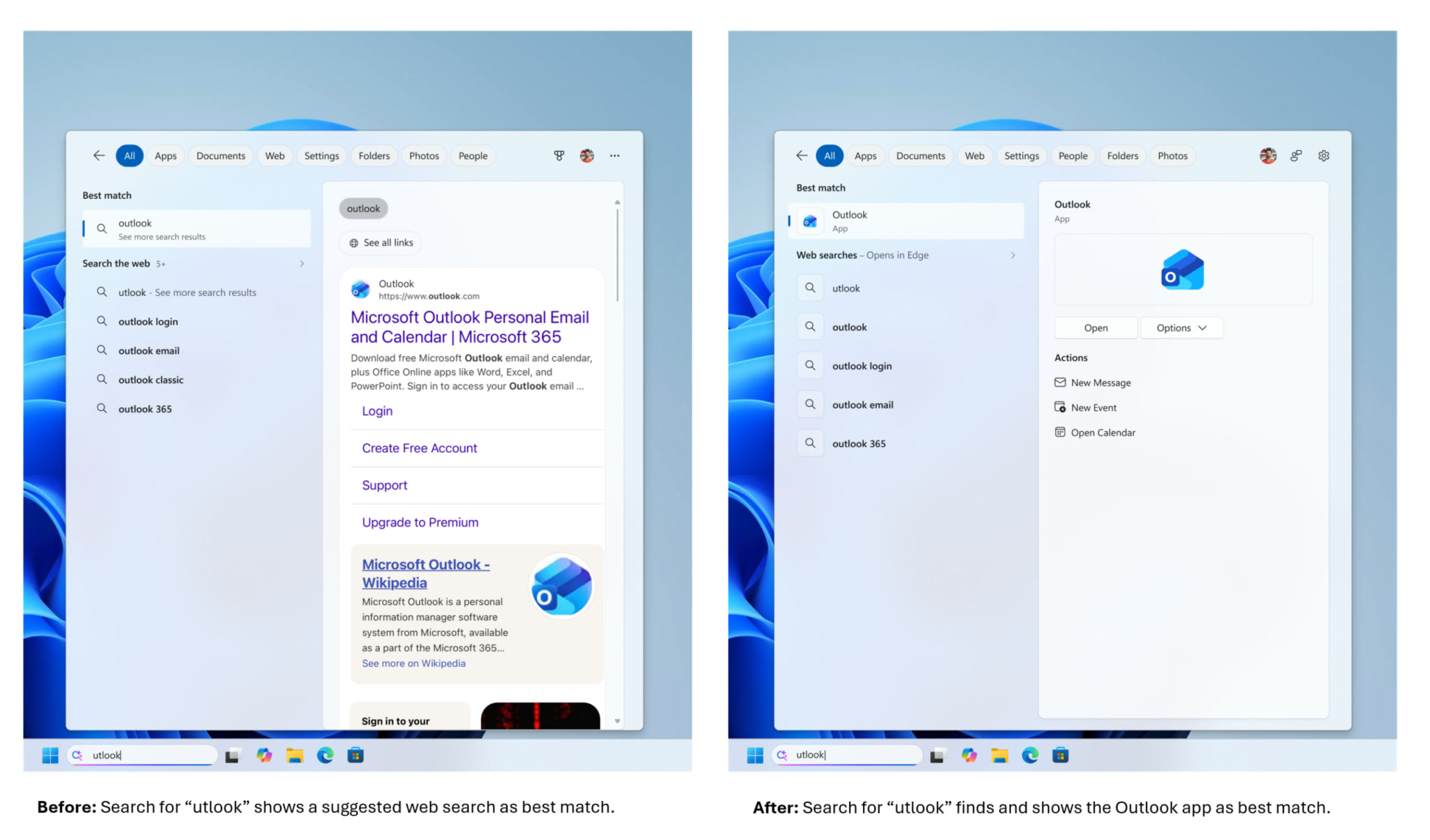
A user searching for Outlook as "otlook" or Settings as "xetting" might receive unrelated web suggestions instead of the installed application or system setting they intended to find.
KB5101684 improves typo recognition, allowing Search to understand more imperfect queries.
This is especially useful when searching quickly from the Start menu, where one incorrect letter should not prevent Windows from finding an obvious result.
Search is also becoming better at connecting queries to specific Settings pages. Searching for a Bluetooth audio setting should now produce a more relevant destination rather than a collection of loosely related Bluetooth and sound options.
Windows Search Still Keeps Its Bing Integration
The update does not introduce a straightforward way to disable Bing results completely.
Windows Search continues to combine local applications, files, settings and online suggestions. Users who dislike web integration may therefore find the improvements welcome but incomplete.
Microsoft appears to be focusing first on making the existing experience more accurate rather than changing how local and online results are combined.
Better typo tolerance and improved Settings matching should still make Search more useful, especially for users who mainly use it to launch applications and locate system controls.
Start Menu Customisations Should Stop Resetting
One of the more irritating Start menu problems involves custom layouts or pinned applications unexpectedly reverting.
A user may arrange the Start menu, choose a preferred view or modify pinned items, only to find that Windows later returns the layout to its previous state.
KB5101684 addresses this behaviour so that Start menu preferences are retained more reliably.
Keyboard navigation within the application list has also been corrected, improving usability for people who prefer navigating with arrow keys or rely on assistive technologies.
The update further adjusts the account section of the Start menu so that it reflects the user's Microsoft subscription status more accurately.
Low-End PCs Should Experience Less Start Menu Stuttering
Microsoft has also made performance changes intended to reduce Start menu stutter, especially on systems with limited processing power or memory.
The Start menu is one of the most frequently opened parts of Windows, so even a short delay can make the whole operating system feel slower.
After the update, the menu and taskbar should become responsive more quickly following sign-in. Microsoft has also improved the Windows lock-screen and authentication process to reduce performance problems on computers with lower amounts of RAM.
These changes may be especially helpful for affordable laptops, older desktops and systems with 8GB of memory or less.
Task View and Virtual Desktops Use Fewer Resources
The update includes performance and memory-management improvements for explorer.exe, particularly when switching between virtual desktops through Task View.
Users who regularly maintain several desktops may have noticed delayed animations, brief pauses or increased memory consumption after switching repeatedly.
KB5101684 aims to reduce this lag and make desktop transitions smoother.
Jump Lists have also been made more reliable. These menus, which appear when right-clicking an application on the taskbar, should no longer close unexpectedly as often.
Recent-file lists in File Explorer have received similar reliability work.
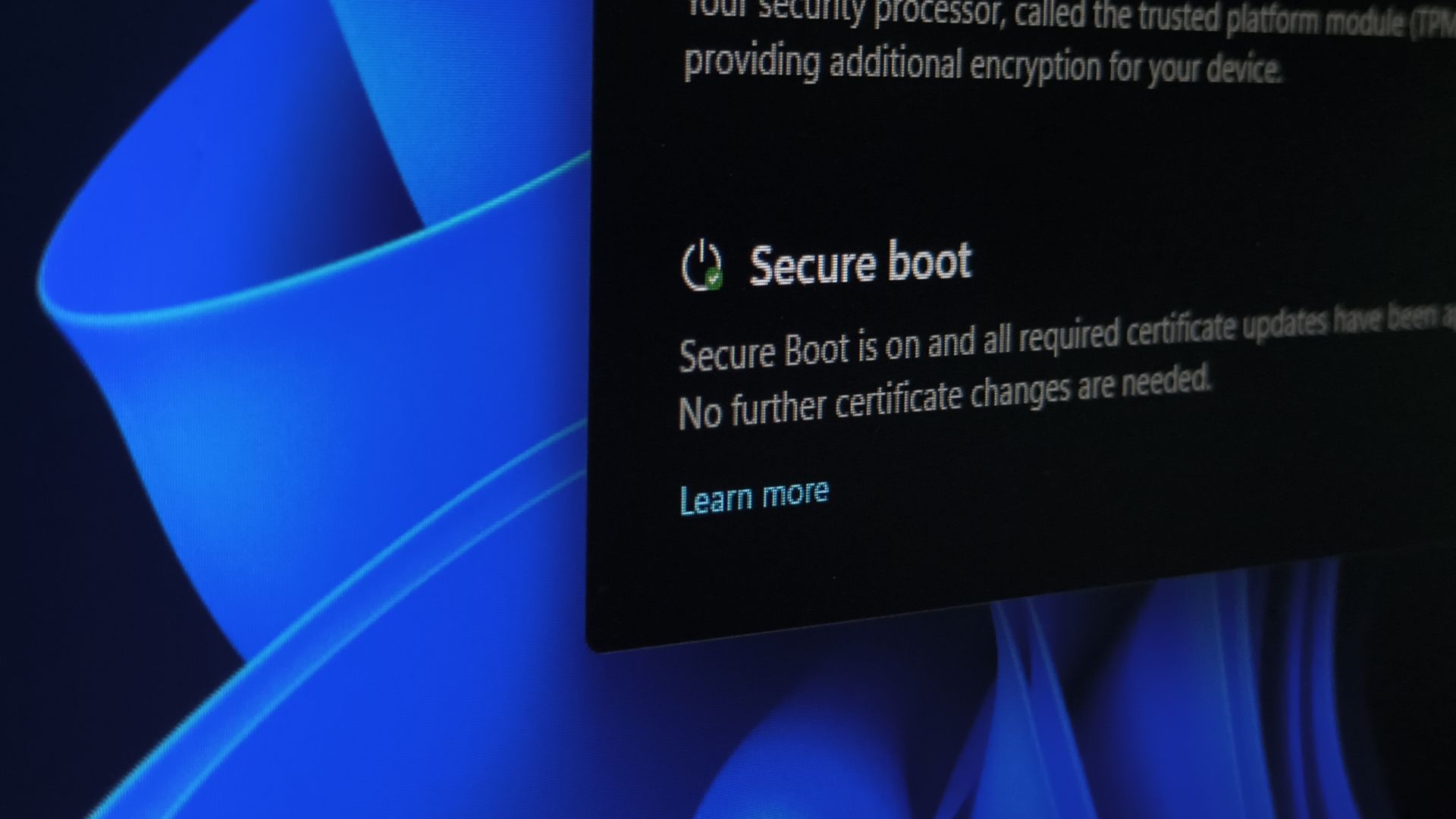
Secure Boot Certificates Continue Rolling Out
Some Windows users have seen messages indicating that updated Secure Boot certificates have not yet been applied to their computers.
Microsoft says the rollout remains gradual and that most users do not need to take immediate action.
KB5101684 expands the certificate deployment to additional supported PCs. Microsoft is also continuing to work with hardware manufacturers to make sure compatible firmware and device configurations receive the required updates.
Secure Boot helps prevent untrusted software from loading during the early stages of system startup. Its certificates need to be refreshed periodically as older signing infrastructure approaches expiration or is replaced.
Users should generally allow Windows Update and the device manufacturer's firmware tools to manage this process rather than attempting manual certificate changes without a specific reason.
Precision Touchpads Receive New Scrolling Controls
Supported precision touchpads gain additional configuration options after installing the update.
Users can adjust the baseline scrolling speed and enable Accelerated Scrolling. With this feature active, repeated scrolling gestures can move through content progressively faster.
This may be useful when navigating long documents, spreadsheets, websites or file lists.
Touchpad preferences vary considerably. Some users prefer predictable, consistent movement, while others want rapid scrolling after repeated gestures. Providing both options allows the experience to be adjusted according to personal preference.
The new controls will only appear on devices with supported precision touchpad hardware and compatible drivers.
Taskbar Notification Badges Follow the Accent Colour
Taskbar notification badges have traditionally used red, regardless of the system's selected accent colour.
The update changes this behaviour so that badges can reflect the Windows accent colour more consistently.
Microsoft's reasoning appears to be that applications should not rely on bright red indicators to demand attention unnecessarily. A badge can still communicate unread activity without making every notification appear urgent.
This also gives the taskbar a more unified appearance when users have customised the Windows colour scheme.
The Lock Screen Becomes Less Crowded
New Windows installations can display several widgets on the lock screen, including weather, sports, financial information and other cards.
For some users, this creates unnecessary clutter before they even sign in.
Microsoft is simplifying the default experience so that the lock screen initially displays only the Weather widget. Users remain free to remove it or add other widgets through Settings.
Reducing the number of default cards makes the lock screen cleaner while still preserving customisation for those who find the information useful.
Windows Hello Expands Support for Secure Fingerprint Readers
Windows Hello Enhanced Sign-in Security, or ESS, provides stronger protection for biometric authentication.
Previously, support for ESS could be limited depending on the computer's built-in hardware. KB5101684 expands compatibility to supported external fingerprint sensors.
Users with a compatible reader can connect it and use more secure fingerprint authentication without depending solely on the sensor built into the laptop.
This may benefit desktop users, businesses with docking stations and organisations that want to standardise biometric authentication across different devices.
Hardware compatibility will still depend on the reader, driver and computer security configuration.
Mouse Cursor Size Settings Now Remain Applied
The update fixes an issue where the selected mouse-pointer size could fail to persist.
This is more than a cosmetic inconvenience for users with visual impairments. A larger cursor may be essential for navigating the interface comfortably.
Windows should now remember the chosen size more consistently across restarts and sign-in sessions.
Microsoft has also improved Magnifier on touch-enabled computers. Touch control bars are disabled by default when they would obstruct enlarged content, allowing more of the magnified area to remain visible.
AI Components Become More Manageable
On supported AI PCs, users can now remove the Image Generation AI component.
Microsoft has been adding AI models and features directly to Windows, particularly on Copilot+ PCs. While local models can improve privacy and responsiveness, they also consume storage space.
Providing an uninstall option gives users greater control over which AI capabilities remain installed.
This may be especially useful for people who do not use image generation or who prefer reclaiming the occupied storage.
Removing the component may disable features that depend on it, so users should confirm what functionality will be affected before uninstalling it.
Power and Energy Saver Settings Become More Consistent
Power-related settings now apply more reliably across all available power plans.
Users can also specify a threshold for Energy Saver under Settings > System > Power & battery.
This allows the feature to activate when the battery falls below a chosen level rather than relying entirely on a fixed default.
Energy Saver can reduce background activity, visual effects and performance to extend battery life. Giving users more control over its activation point makes it easier to balance performance and runtime.
Laptop users who spend long periods away from a charger may prefer a higher threshold, while those prioritising performance can activate it later.
Windows Update Cleans Up More Effectively
KB5101684 improves the way Windows Update removes files that are no longer required.
Cumulative updates can leave behind temporary installation files, replaced components and recovery data. Some files must remain available in case the update needs to be reversed, but others can be cleaned after they are no longer useful.
Improved cleanup may reduce storage usage and prevent update-related files from accumulating unnecessarily.
The benefit may not be dramatic after one update, but it can become more noticeable over time, especially on devices with smaller solid-state drives.
Dark Mode Receives Better System Sounds
Microsoft has also adjusted system audio behaviour when Windows is operating in dark mode.
Windows 11 has gradually introduced softer and slightly different sounds depending on whether light or dark mode is active. The intention is to make the experience feel calmer and better suited to the visual environment.
The update expands or refines these dark-mode sounds across additional system interactions.
This is a subtle design change rather than a functional improvement, but it contributes to Microsoft's effort to make Windows feel more consistent.
Should You Install KB5101684 Now?
The update includes several useful fixes, particularly for users affected by Start menu resets, sluggish virtual desktops, inaccurate Search results or File Explorer usability problems.
However, it remains an optional preview.
Users whose computers are operating normally do not need to rush. The safest approach is usually to wait until Microsoft incorporates the fixes into the next mandatory cumulative update, giving the preview release more time to be tested on a wider range of hardware.
Installing it now makes more sense when:
Microsoft currently lists no known issues, but newly discovered problems may still emerge as more people install the release.
Businesses Should Test Before Broad Deployment
Organisations should avoid deploying an optional preview update across every production device without validation.
A small test group should include different hardware models, business applications, security tools and user profiles. IT teams should monitor sign-in behaviour, application compatibility, printing, networking, performance and device stability.
The offline installer can simplify large-scale deployment, but convenience should not replace proper testing.
Because the update changes File Explorer, Search, authentication, touchpad behaviour and parts of the Windows shell, organisations should confirm that important workflows remain unaffected before approving it for general use.
Final Thoughts
Windows 11 KB5101684 is not a dramatic feature release, but it addresses the type of everyday problems that often matter more than headline additions.
File Explorer becomes easier to read, Search better understands mistakes, Start menu settings are retained more reliably and virtual desktops should switch with less lag. Improvements to Windows Hello, touchpad scrolling, accessibility, update cleanup and power controls provide additional value across different types of devices.
The performance work is especially welcome because Windows 11 has frequently been criticised for feeling heavier than necessary on lower-end hardware.
At the same time, this is still an optional preview update. Users who are not experiencing any of the affected issues can safely wait for the fixes to arrive through a future mandatory release.
For those who decide to install it, Windows Update remains the recommended route. The standalone .msu package is best reserved for offline installation, troubleshooting or controlled deployment across multiple computers.











Comments