

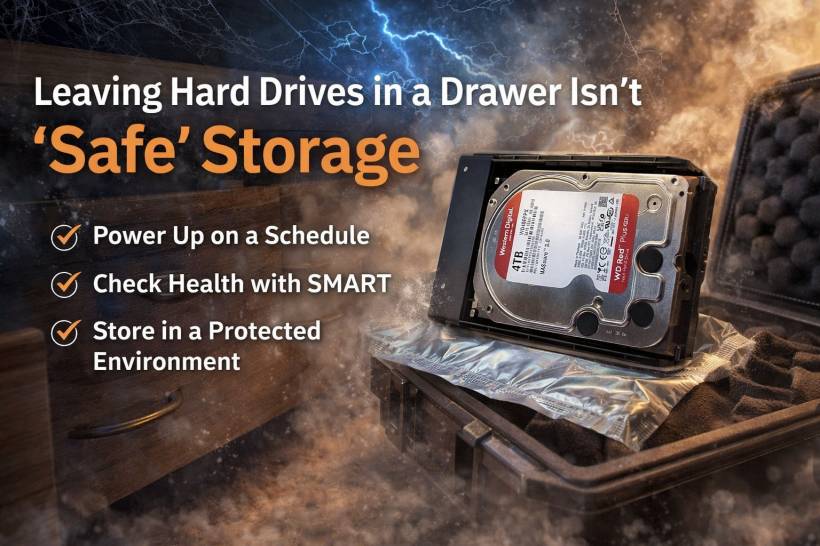
A lot of people treat hard drives like they're time capsules. Copy files, unplug, toss into a drawer, and assume everything will be fine ten years later. The problem is: hard drives aren't like paper files. They're electromechanical devices with moving parts, lubricants, and electronics that age even when they're sitting still.
Cold storage can work, but only if you treat it like maintenance, not abandonment. These are the three rules that matter most.
Rule 1: Power Them Up on a Schedule
One of the biggest myths in long-term archiving is the idea that a disconnected hard drive is "paused," like nothing changes until you plug it back in. In reality, time still does its thing.
Hard drives have mechanical components designed to move. Inside, the platters spin on bearings and a spindle motor. Many modern drives use fluid dynamic bearings, which depend on a thin layer of lubricant to reduce friction and keep rotation stable. Leave a drive sitting for years and that lubricant can degrade, dry out, or settle in ways that make the motor struggle when you finally power it back on.
That's when you hear the classic nightmare scenario: the drive tries to spin up, fails, clicks, or just never fully starts. The data might technically still be on the platters, but if the hardware can't get into operating condition, you can't reach it.
It's not only the mechanics either. The electronics on the controller board age too. Components like capacitors can slowly degrade, which can lead to unstable power regulation later when you reconnect the drive.
What to do instead: aim for quarterly power-ups. You don't need to do anything aggressive like formatting or rewriting the whole drive. Just plug it in, let it spin up, and keep it running for around 30 to 60 minutes. That simple "exercise" helps redistribute lubricants, warms things up to normal operating conditions, and reduces the risk of the drive seizing or failing at startup due to long dormancy.

Rule 2: Don't Just Power Up, Check Health With SMART
Powering on proves one thing only: the drive can still start. It doesn't tell you whether the drive is quietly degrading in ways that will bite you later.
This is where SMART comes in. Most modern hard drives track internal health stats and error counters using Self-Monitoring, Analysis, and Reporting Technology. The catch is: if a drive sits in storage and rarely gets connected, your computer never gets the chance to warn you about trouble.
So when you do your periodic power-up, take the extra step to read the SMART data using a basic diagnostic tool. You're looking for early warning signs that often show up before the drive fails completely, such as:
• Current Pending Sector Count (sectors that are unstable and may fail)
• Spin Retry Count (the motor had trouble reaching full speed, which is a big red flag for long-dormant drives)
These checks take seconds, but they give you a reality check instead of a guess. If those numbers are non-zero or trending upward, that drive is no longer trustworthy for archival storage. The best move is to migrate your data while the drive still works, not after it becomes a recovery project.

Rule 3: Store Drives Like Electronics, Not Like Stationery
The environment matters more than most people think. A drawer or closet might feel "safe," but drives are sensitive to things you can't always see: static electricity, moisture, temperature swings, and physical knocks.
Start with the basics: anti-static protection. The underside of a hard drive has exposed electronics that can be damaged by electrostatic discharge. You may not even feel the zap, but it can still ruin chips on the board. An ESD (anti-static) bag is the minimum level of protection.
Next is humidity and temperature stability. Places like garages, attics, or rooms that get very hot in the day and cool at night can cause condensation. Moisture can lead to corrosion on connectors and circuit boards, and over time it can contribute to the slow degradation of the drive itself. Ideally, store drives in a climate-controlled room with relatively stable temperature and low humidity.
Finally, protect them from shock and vibration. Hard drives are precision devices. Even powered off, a drop or repeated vibration can cause damage or misalignment. Use a padded storage case, or at least a box with non-conductive foam so drives don't knock into each other.

Final Thoughts
Cold storage isn't just "put it away and forget it." If you want a drive to be readable years from now, you have to keep it mechanically healthy, keep an eye on its warning signs, and store it properly so the electronics and internals aren't slowly getting wrecked by the environment. Do those three things consistently and your "drawer drive" becomes a real archive, not a gamble.











Comments