

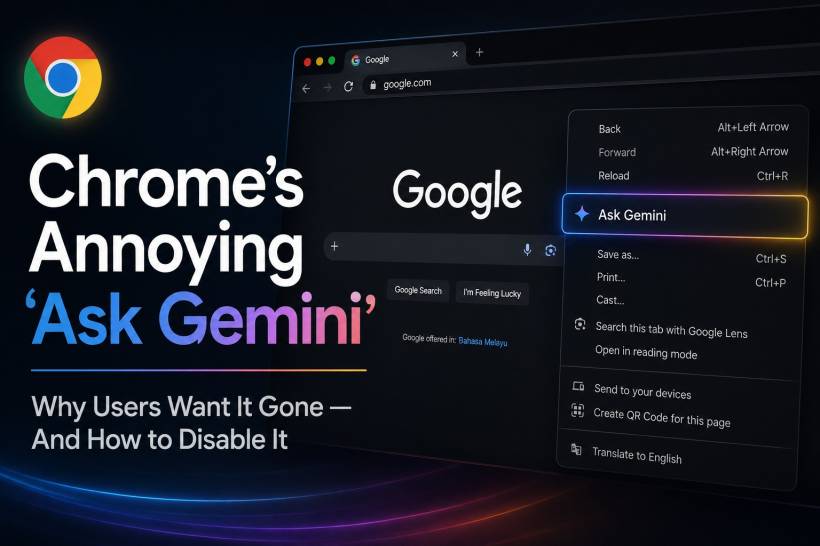
There was a time when a browser was simply a browser. You opened it, searched for something, visited websites, downloaded files, copied text, right-clicked when needed, and moved on with your day. Simple. Predictable. Peaceful. Then came the modern AI invasion. Suddenly every software company decided that every button, menu, sidebar, search bar, document editor, and browser window needed an AI assistant sitting inside it. Google Chrome is no exception, and one of the more annoying examples is the "Ask Gemini" option that has started appearing inside Chrome's interface and context menus.
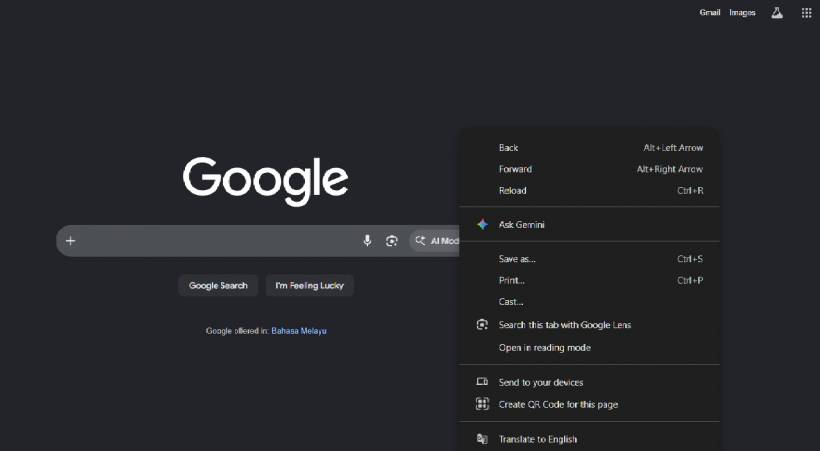
On paper, the idea sounds helpful. You highlight something, right-click, and ask Gemini to explain, summarize, or assist with it. For people who actively use Gemini, that may be useful. The problem is that not everyone asked for this. Some users simply want a clean browser without extra AI prompts appearing in places where they already had a familiar workflow.
Why The "Ask Gemini" Option Feels So Annoying
The irritation is not necessarily about Gemini itself. The bigger issue is how these features are being inserted into everyday software. When a browser adds a new AI option into the right-click menu, it changes muscle memory. The context menu is one of those things users interact with quickly without thinking too much. Copy, paste, inspect, save image, search, translate, open link, and move on.
When "Ask Gemini" appears there, it feels like one more item competing for attention. It may not break the browser, but it does make Chrome feel slightly more cluttered. For users who value a simple and controlled browsing experience, that small addition can become surprisingly irritating.
It also reflects a wider trend. AI tools are no longer only available when users deliberately open them. They are being placed directly inside operating systems, browsers, office suites, search engines, phones, and productivity apps. That can be powerful, but it can also feel intrusive when there is no obvious off switch.
The Bigger Problem Is Choice
The real complaint many users have is not "AI is bad." It is more like, "Please let me decide where I want AI to appear." There is a big difference between offering a feature and pushing it into the user interface by default.
Chrome is already a busy browser for many people. Between extensions, account sync, password prompts, translation offers, notifications, shopping suggestions, side panels, and now AI integration, the experience can start to feel heavier than it needs to be. If someone wants Gemini, they should be able to use it. If they do not want it, they should be able to remove it cleanly without hunting through experimental flags or registry policies.
That is why disabling the "Ask Gemini" option is not just about cleaning up a menu. It is about taking back control of the browser experience.
Method 1: The Quick Flag Fix
The fastest and easiest way to remove the "Ask Gemini" option is through Chrome's experimental flags page. This is the recommended method for most users because it does not require editing the Windows Registry and can be reversed easily.
First, open a new tab in Chrome and type the following into the address bar:
Press Enter, and Chrome will open the experimental features page.
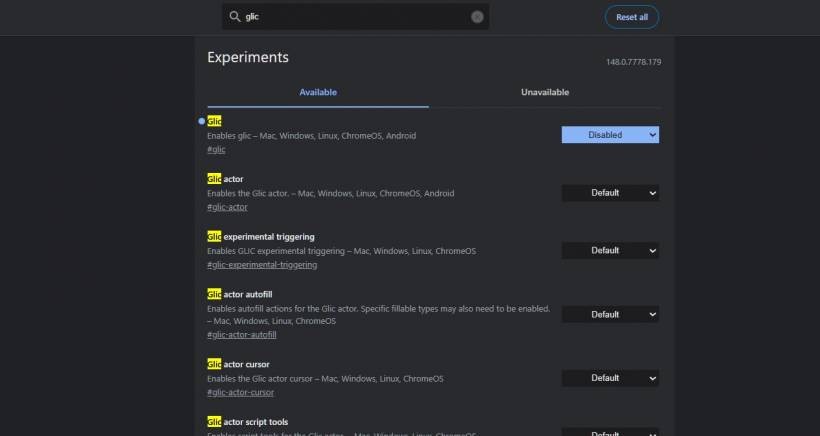
Next, use the search bar at the top of the flags page and search for:
Look for the flag labeled Glic. This flag handles Gemini-related entry points across Chrome on Windows and Mac. Once you find it, click the dropdown menu beside it and change the setting to:
After that, Chrome will show a Relaunch button at the bottom of the window. Click it to restart the browser.
Once Chrome reopens, the "Ask Gemini" option should be gone from the right-click context menu. For most users, this is the cleanest and quickest fix.
Why The Flag Method Is Usually Enough
The flag method is useful because it disables the feature at the experimental feature level. It does not require administrative policy changes, and it does not permanently alter the system. If you later change your mind, you can return to the same flag and set it back to Default or Enabled.
The only downside is that Chrome flags are experimental. Chrome updates can sometimes rename, remove, reset, or change the behaviour of flags. That means the fix may not always survive future browser updates. For normal home users, that may be acceptable. For people who want something more permanent, there is another method.
Method 2: The Registry Fix For A More Permanent Block
If you want to block Chrome's AI integrations more firmly, especially on Windows, you can use Chrome Enterprise policies through the Windows Registry. This method is more permanent because it tells Chrome that AI-related features are not allowed by policy.
This is better suited for advanced users, IT administrators, or anyone managing a shared computer environment. Since it uses the Windows Registry, you should be careful and only apply it if you are comfortable making system-level changes.
To do it, open Command Prompt as Administrator.
Then run the following commands:
reg add "HKLM\SOFTWARE\Policies\Google\Chrome" /v "GeminiSettings" /t REG_DWORD /d 1 /f
After running the commands, restart Chrome.
To confirm that the policy has been applied, open Chrome and go to:
On that page, you should see the policies listed under machine-level policies. This means Chrome is reading the registry values and enforcing them.
What These Registry Policies Do
The first policy is:
This disables Chrome's core AI Mode integrations, including AI-related entry points in places such as the address bar and search areas where supported.
The second policy is:
This disables Gemini integration in Chrome. In practical terms, this helps remove Gemini-related browser hooks, sidebar items, and context menu entries where Chrome supports that policy.
Together, these settings are useful if you want Chrome to behave more like a traditional browser again, without Gemini trying to appear inside your normal browsing flow.
Which Method Should You Use?
For most people, the flag method is the better starting point. It is fast, simple, and easy to reverse. You do not need administrator rights, and you are not making deeper changes to Windows.
The Registry method is better if you want a stronger solution or if Chrome updates keep bringing the AI features back. It is also more suitable in business or managed environments where you want consistent behaviour across machines.
A sensible approach is to try the flag method first. If the "Ask Gemini" option returns after an update, then consider the Registry method.
A Small Warning Before Using The Registry Method
The Registry method uses machine-level Chrome policies. That means it can affect all Chrome users on the same Windows installation, not just one Chrome profile. This is useful if you want the setting enforced, but it is something to keep in mind if the computer is shared.
Also, once a policy is applied, Chrome may show a message saying the browser is managed by your organization. That does not always mean anything suspicious is happening. It can appear simply because Chrome has detected local policy settings on the machine.
Final Thoughts
The "Ask Gemini" option in Chrome is a good example of where modern software is heading. AI is no longer something you only open when you need it. It is being built into the background of everyday apps, sometimes helpfully, sometimes annoyingly.
For users who want AI inside their browser, Gemini integration may be convenient. But for users who prefer a cleaner Chrome experience, the extra context menu option can feel unnecessary and intrusive. A browser should still feel like a tool that belongs to the user, not a place where every new feature gets pushed into view by default.
Thankfully, there are ways to remove it. The quick flag fix should be enough for most users, while the Registry method gives advanced users and IT admins a more permanent way to keep Chrome's AI features under control.
In the end, the best AI feature is still the one users can choose to enable, disable, or ignore completely.











Comments