

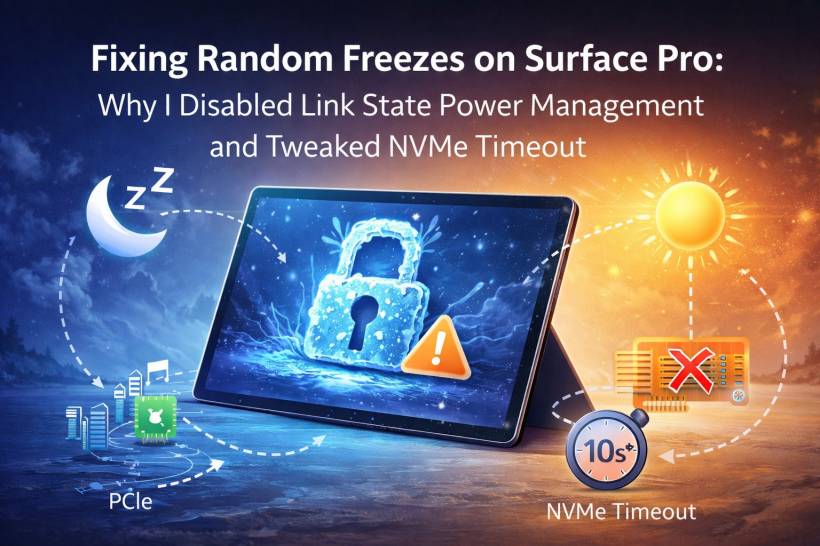
If you're using a Surface Pro, especially models like the Surface Pro 7, 8 or 9, you might have run into a really annoying issue after upgrading your SSD to something faster like a Gen4 NVMe. Everything works smoothly at first, performance feels great, and then out of nowhere the system freezes for a few seconds after waking from sleep. The desktop stops responding, apps hang for a moment, and then the whole device suddenly comes back to life like nothing ever happened. It's frustrating and makes a premium device feel unreliable.
The good news is that this issue isn't random or mysterious. There are real technical reasons behind it, and with a bit of tuning, you can make the Surface much more stable.
Why the Surface Freezes After Sleep
The first thing to understand is that Surface devices don't really "sleep" in the traditional way. Instead of using the classic S3 Sleep mode that many older laptops rely on, they use something called Modern Standby, also known as S0ix. This is a low-power active state that keeps the system partially awake so it can maintain network connections, receive notifications, and resume very quickly.
To achieve this, Windows aggressively powers down components while still keeping the system technically alive. The CPU, PCIe bus, and especially the NVMe SSD are frequently pushed into deep low-power states. On paper, this is brilliant because it improves battery efficiency and lets the Surface wake almost instantly. However, when you replace the original SSD with a faster aftermarket drive, particularly Gen4 NVMe models, things don't always wake up as gracefully. Some drives take slightly longer to respond after being deeply powered down, and when Windows suddenly needs to access storage immediately after resume, everything pauses while it waits. That delay is exactly what you experience as the "freeze."
The Tweaks That Actually Make a Difference
After digging through forums, technical documentation and user experiences, two adjustments consistently stand out as effective solutions for this problem.
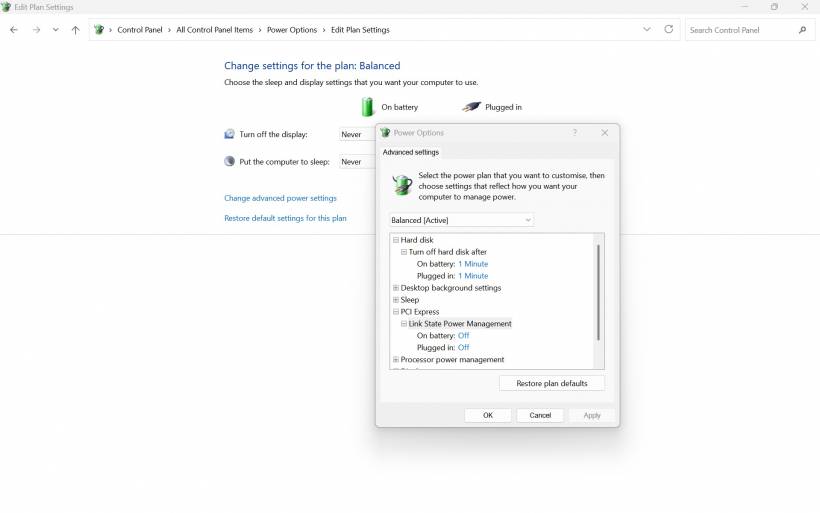
The first is disabling PCIe Link State Power Management. This is a feature designed to save battery by reducing power to the PCIe bus when it's idle, which includes your SSD. While it's great for efficiency, it can make wake-up timing more unpredictable. Turning it off means Windows is less aggressive with power saving on the SSD connection, allowing it to respond faster after standby. The impact on battery life is surprisingly small in real-world use, but the improvement in stability can be very noticeable.
The second tweak involves increasing the NVMe controller timeout value in the registry. By default, Windows only gives the SSD a short period to respond before it assumes something is wrong. Some modern NVMe drives simply need slightly more time when waking from deep power states. Increasing the ControllerTimeout value to around 10 seconds tells Windows to be more patient. Instead of panicking or stalling unpredictably, the system waits more gracefully, and in most cases the drive responds well within that time.
Making the Changes Easier to Apply
Technically, you could adjust these settings manually by hunting through Control Panel power settings and editing the Windows registry by hand. But unless you enjoy digging through hidden menus and long registry paths, it is much more convenient to automate the process.
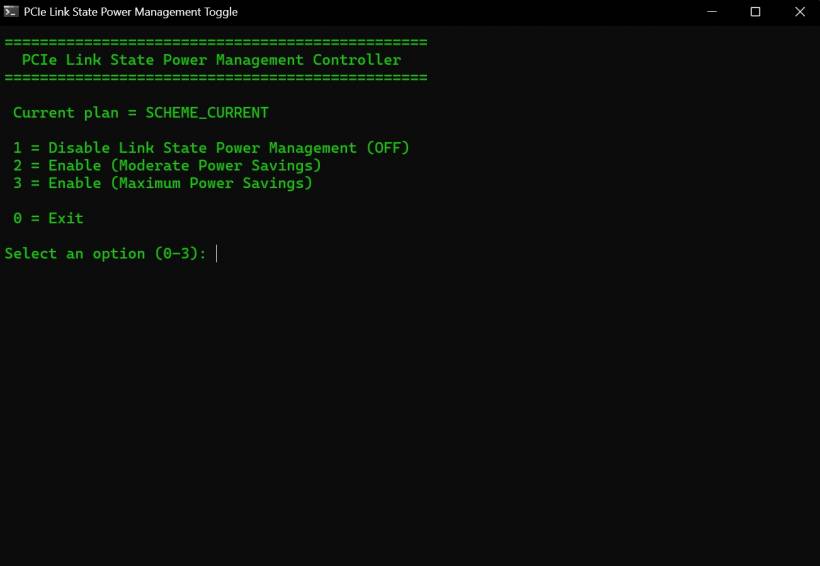
That is why I created a simple approach. A registry file handles the NVMe timeout adjustment, and a single batch file provides a user-friendly on-screen menu that lets you turn Link State Power Management on or off whenever you like. This makes it easy to switch between stability mode and power-saving mode without constantly clicking through deep settings. It's clean, reversible, and feels more like a proper tool rather than a hack.
If you are not comfortable to run the CMD file above, you can always inspect the code below or just download and right click to see the code first before executing and understand what it does. Atleast for myself, i woudlnt trust to simply donwload and run any codes as i prefer to read first before simply running the code.
Refer below for th code for the link state tongler:
title PCIe Link State Power Management Toggle
color 0A
echo ================================================
echo PCIe Link State Power Management Controller
echo ================================================
echo.
echo Current plan = SCHEME_CURRENT
echo.
echo 1 = Disable Link State Power Management (OFF)
echo 2 = Enable (Moderate Power Savings)
echo 3 = Enable (Maximum Power Savings)
echo.
echo 0 = Exit
echo.
set /p choice=Select an option (0-3):
if "%choice%"=="1" goto OFF
if "%choice%"=="2" goto MODERATE
if "%choice%"=="3" goto MAX
if "%choice%"=="0" goto END
echo.
echo Invalid choice. Please run again.
pause
goto END
:OFF
echo.
echo Disabling PCIe Link State Power Management...
powercfg -setacvalueindex SCHEME_CURRENT SUB_PCIE ASPM 0
powercfg -setdcvalueindex SCHEME_CURRENT SUB_PCIE ASPM 0
powercfg -SetActive SCHEME_CURRENT
echo Done.
goto FINISH
:MODERATE
echo.
echo Enabling PCIe Link State Power Management (Moderate)...
powercfg -setacvalueindex SCHEME_CURRENT SUB_PCIE ASPM 1
powercfg -setdcvalueindex SCHEME_CURRENT SUB_PCIE ASPM 1
powercfg -SetActive SCHEME_CURRENT
echo Done.
goto FINISH
:MAX
echo.
echo Enabling PCIe Link State Power Management (Maximum)...
powercfg -setacvalueindex SCHEME_CURRENT SUB_PCIE ASPM 2
powercfg -setdcvalueindex SCHEME_CURRENT SUB_PCIE ASPM 2
powercfg -SetActive SCHEME_CURRENT
echo Done.
goto FINISH
:FINISH
echo.
echo Please restart Windows for best effect.
pause
:END
exit
Now below is another additional optional tweaks at the registry to increate the controller timeout to 10 seconds. Download the file below, and run the registry file.
Content of the registry file is as below.
; NVMe: increase controller timeout to 10 seconds (10000 ms)
; Path: HKEY_LOCAL_MACHINE\SYSTEM\CurrentControlSet\Services\stornvme\Parameters\Device
[HKEY_LOCAL_MACHINE\SYSTEM\CurrentControlSet\Services\stornvme\Parameters\Device]
"ControllerTimeout"=dword:00002710
You can always do this manually as well. Just open up your registry editor by typing START - Run - Regedit. Navigate to path as below.
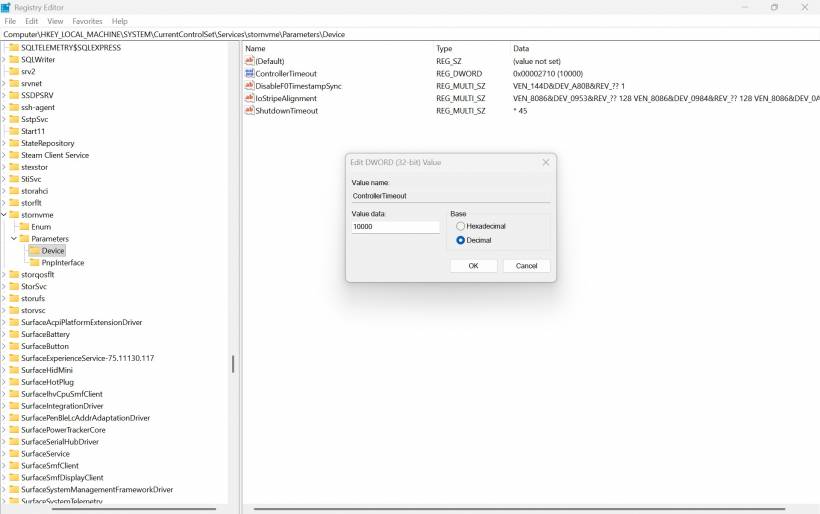
Then create a DWORD 32bit value "ControllerTimeout" and enter the value of 10000 (make sure value is in decimal).
Does It Really Help?
In most real-world cases, yes. Users who applied these tweaks noticed far fewer post-sleep freezes, smoother resumes, and more consistent responsiveness. The device simply feels less hesitant when waking up. The best part is that there is no noticeable performance penalty and only a minimal effect on battery life, if any. For many Surface owners, especially those with upgraded SSDs, the trade-off is more than worth it.
When Should You Consider Doing This?
If your Surface wakes from sleep and stalls for several seconds, if apps frequently hang right after resume, or if you have replaced your original SSD and noticed stability issues afterwards, then these tweaks are worth trying. They are also helpful if Event Viewer shows storage or NVMe-related warnings, or if you're just tired of random lag that makes your device feel unreliable. If your device works perfectly and you've never seen the issue, then there is no need to change anything. But if you do experience these freezes, this simple tuning can make the Surface feel like the device it was meant to be.
Final Thoughts
The Surface Pro line is designed to be sleek, efficient, and modern, but its aggressive power-saving behavior does not always play nicely with every high-performance SSD. Rather than living with random freezes, a bit of tuning can make everything behave more predictably. Disabling Link State Power Management and increasing the NVMe timeout doesn't "hack" the system; it simply gives Windows and your storage hardware a better chance to work together smoothly. And since the changes are easy to apply and reversible, it's a sensible fix that can dramatically improve day-to-day reliability.











Comments 0