

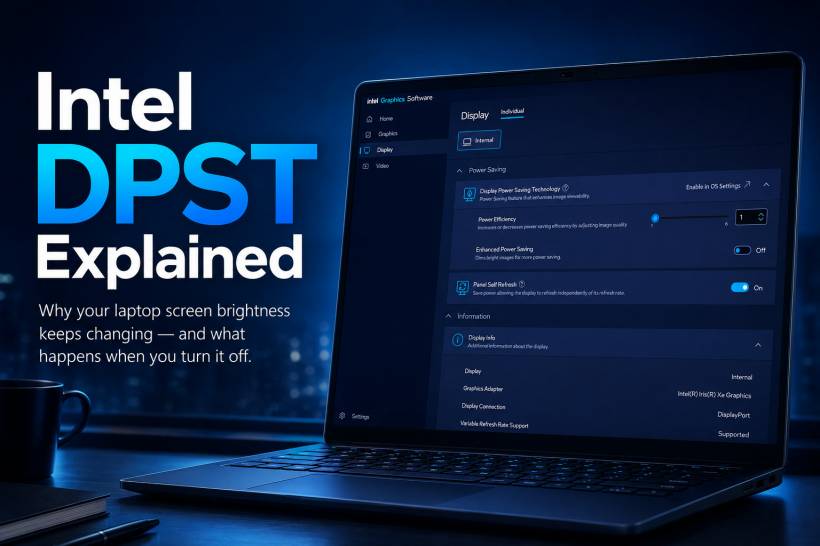
DPST is designed to help extend battery life by reducing the amount of power used by the display. While the idea sounds simple, the way it works can sometimes lead to noticeable changes in brightness, contrast and colour accuracy.
What Intel DPST Actually Does
A laptop display uses a backlight to illuminate the screen. The brighter that backlight is, the more battery power it consumes.
Intel DPST attempts to lower this power usage automatically while the laptop is running on battery. Instead of simply reducing brightness in the same way you would with the Windows brightness slider, DPST makes two adjustments at the same time:
• It lowers the physical display backlight to reduce power consumption
• It digitally adjusts contrast, colour intensity and image brightness to make the screen appear closer to its original brightness
In theory, this allows the system to use less power without making the display look significantly dimmer. It is particularly useful when showing darker content, such as videos, dark-themed apps or black-heavy webpages.
However, the visual result is not always perfect. Depending on the display panel and driver settings, users may notice that colours look different, shadows become less detailed or the screen seems to "shift" when moving between apps.
Why the Screen Can Look Like It Is Breathing or Flickering
The most noticeable DPST effect often happens when switching between light and dark content.
For example, opening a bright browser page may cause the backlight to increase. Moving to a dark code editor, video player or dark-themed app may then prompt DPST to lower the backlight and compensate through digital contrast adjustments.
This can create a subtle but distracting breathing effect, where the screen appears to brighten and dim on its own. It is not always a hardware fault. In many cases, it is simply the display driver actively trying to save power.
For users who spend a lot of time switching between white documents, dark applications, photos and videos, the constant adjustment can become frustrating.
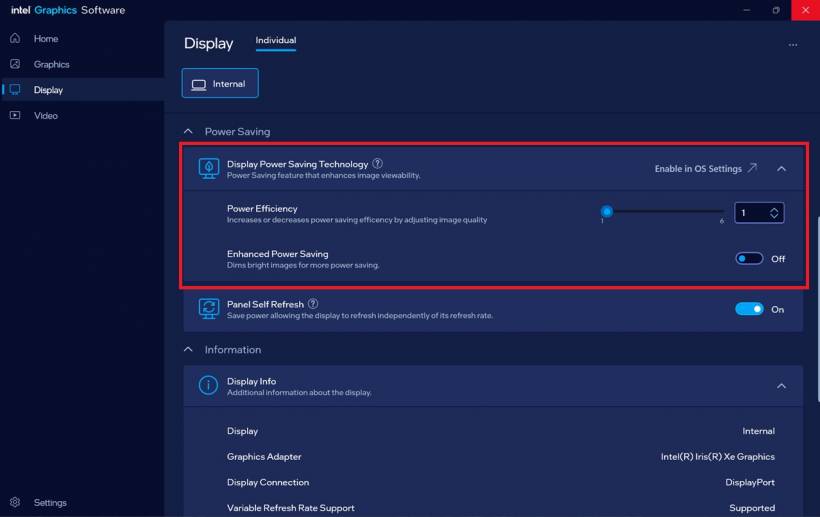
What the DPST Scale Setting Means
The Intel Graphics Command Center may show a scale ranging from Level 1 to Level 6. This setting controls how aggressively DPST changes the display image in order to reduce backlight power consumption.
Level 1: Better Image Quality, Lower Battery Savings
At the lower end of the scale, DPST behaves more gently. The system makes only small adjustments when it detects darker content.
Colours and contrast usually remain more consistent, and the display is less likely to show obvious shifts between different windows. The trade-off is that the battery-saving benefit is limited.
This setting is generally more suitable for users who want a stable display experience but still prefer to keep some level of automatic power optimisation enabled.
Level 6: Maximum Power Saving, More Noticeable Changes
At the highest setting, DPST becomes much more aggressive. The backlight can be reduced more quickly when darker content appears, while digital contrast adjustments become stronger to compensate.
This may help reduce display power draw, but it can also affect image quality. Dark scenes may lose detail, colour gradients can look less natural, and fine visual elements may appear washed out or overly contrasted.
Higher settings are more likely to produce the noticeable brightness shifts that some users describe as flickering or breathing.
What Happens When You Disable DPST
Disabling DPST stops the system from dynamically changing the backlight and image processing based on what is currently displayed.
Once disabled, the brightness level you select in Windows should remain more consistent whether you are reading a white document, writing code in a dark editor, watching a film or editing an image.
This can be especially useful for:
• Graphic design and photo editing
• Video editing and colour-sensitive work
• Coding with dark themes
• Reading or writing for long periods
• Users who dislike automatic brightness and contrast changes
The display will behave more predictably because the laptop is no longer trying to optimise image content in the background.
The Battery Life Trade-Off
The downside of disabling DPST is that the display may consume slightly more power when darker content is shown.
The actual impact varies depending on the laptop model, display panel, brightness level, battery condition and the type of work being done. A laptop screen is only one part of the overall power draw, alongside the processor, graphics hardware, storage, wireless connection and background applications.
For many users, the reduction in battery runtime may be minor compared with the benefit of having stable brightness and more consistent colour reproduction.
Should You Keep Intel DPST Enabled?
There is no single answer for everyone.
Keeping DPST enabled may make sense when battery life is the priority, especially during travel or long days away from a charger. Lower settings can offer a reasonable balance between efficiency and visual quality.
Disabling it is often the better choice for users who value consistent brightness, accurate colours and reliable contrast. This is particularly true for designers, photographers, developers, video editors and anyone who finds the display changes distracting.
Final Thoughts
Intel DPST is not necessarily a bad feature. It was created to help laptops stretch battery life by reducing display power use in the background.
However, the same automatic adjustments can make a screen feel inconsistent, especially when moving between light and dark applications. For casual use, a lower DPST level may provide a reasonable compromise. For colour-sensitive work or a more stable viewing experience, turning it off can make the laptop display feel much more natural and predictable.











Comments 0