

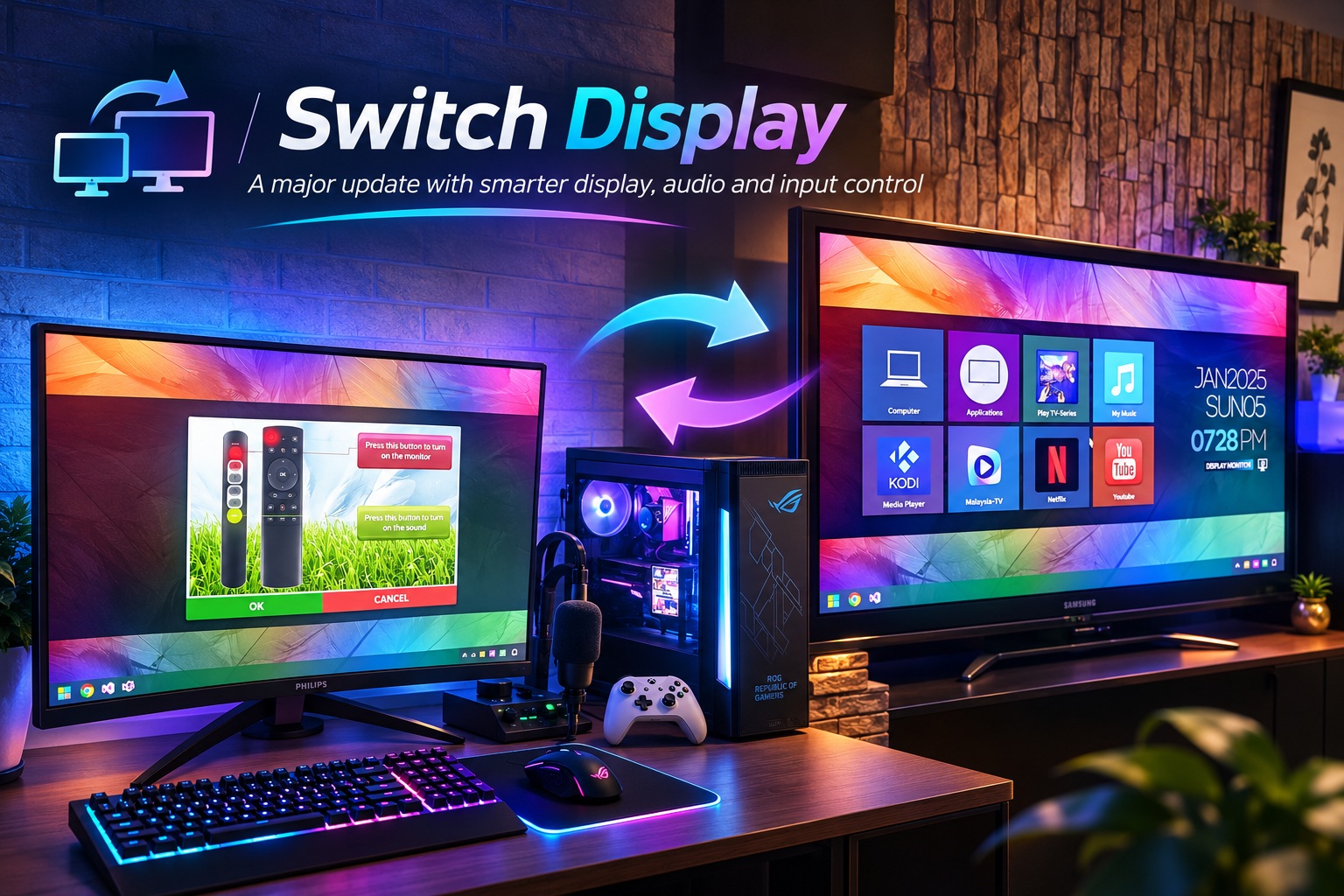
When I first developed my Switch Display application back in January 2025, the idea was pretty simple. I wanted an easier way to switch between my gaming monitor and television without having to navigate through Windows display settings, change audio outputs manually, or repeatedly adjust everything whenever I wanted to move from gaming to watching movies. What started as a small personal C# application gradually became one of those utilities that I genuinely appreciate having on my computer, especially when switching between different entertainment setups.
For those unfamiliar with my original setup, I have a 32-inch high-refresh-rate gaming monitor connected to Logitech Z625 THX speakers, alongside a 40-inch Samsung TV paired with a Xiaomi Soundbar. Both serve different purposes, and I prefer having the proper display and audio configuration for each. The original Switch Display application already helped automate much of this process, including changing audio outputs and adjusting Rainmeter layouts to suit the selected screen. However, after using it for quite some time, I noticed a few things that could be improved, particularly when dealing with different display resolutions, refresh rates and input devices.
So, I've recently updated Switch Display with several practical improvements. This isn't a complete rewrite of the application, but rather a collection of features and compatibility fixes that make it more flexible, reliable and convenient to use.
A New Settings Page for Better Display Control
One of the biggest changes is the introduction of a dedicated settings page where users can configure their preferred display devices. Previously, the application was primarily designed around my own hardware configuration, which worked perfectly well for my personal setup but wasn't particularly flexible when dealing with other monitors or televisions.
With the new version, users can select which display they want to use and specify its exact screen resolution and refresh rate. This is especially useful for anyone who owns multiple displays with different specifications. For example, you might have a gaming monitor capable of running at 144Hz or 165Hz, while your television works best at 60Hz. Instead of relying on whatever display settings Windows happens to select, you can now configure the appropriate values directly through Switch Display.
I find this particularly helpful because switching displays shouldn't mean sacrificing the correct resolution or refresh rate. A high-refresh-rate gaming monitor should run at its intended frequency, while a television should use a compatible display mode that delivers a stable viewing experience. Having these settings available in the application gives users much greater control over how their displays behave during switching.
Proper Audio Output Selection
Another important improvement is the ability to select the preferred audio output device directly from the new settings page. This might sound like a relatively minor feature, but anyone who regularly switches between speakers, soundbars, headphones or HDMI audio devices will understand why it matters.
In my case, when I'm gaming on my main monitor, I naturally want the sound coming through my Logitech Z625 speakers. When I switch over to my Samsung TV to watch a movie, I prefer the audio to come through my Xiaomi Soundbar. Windows doesn't always select the audio device I want, especially when multiple playback devices are connected simultaneously.
The updated application allows users to choose the appropriate audio output rather than depending on a predetermined configuration. This makes Switch Display more adaptable to different hardware arrangements and avoids the inconvenience of switching displays successfully, only to discover that the sound is still coming from the wrong speakers.
New Keyboard and Mouse Locking Support
This is probably one of the more interesting additions to the application, particularly for users who have multiple sets of keyboards and mice connected to the same computer.
I've added support for locking the primary keyboard and mouse while allowing a different keyboard and mouse to remain active. The idea is to provide better control over which input devices can be used, especially when working with separate desktop and entertainment arrangements.
Imagine having your main keyboard and mouse positioned at your computer desk, while another set is available near your television. When using the television, you might not want accidental input from your primary keyboard or mouse interfering with whatever you're doing. With the new locking functionality, you can restrict the primary devices while continuing to operate the computer using the alternative input devices.
This is something that traditional Windows display switching doesn't really address because changing your monitor doesn't automatically change how your input devices behave. By including keyboard and mouse control within Switch Display, I'm gradually making the application more suitable for situations where one computer is shared between different physical setups.
Of course, users should make sure their alternative keyboard and mouse are working correctly before enabling the locking functionality. The last thing anyone wants is to disable their primary input devices without having another way to control the computer.
Improved Compatibility with a Two-Second Switching Delay
Sometimes, the smallest changes can make a surprisingly noticeable difference. One issue I encountered during regular use involved switching between displays that operated at different refresh rates.
For example, moving from a high-refresh-rate gaming monitor to a television running at 60Hz isn't always an instantaneous process. Depending on the graphics card, display connection and monitor or television, Windows may need a little time to negotiate and apply the new display mode. Occasionally, this transition can take a second or two, and attempting to execute subsequent switching operations too quickly can lead to inconsistent behaviour.
To address this, I've introduced a two-second delay into the switching process. This provides a short settling period when the application changes display configurations, particularly when moving between different refresh rates.
Yes, it means the switching operation might take slightly longer than before, but I'd much rather have a reliable transition than save a second and occasionally encounter an incorrect display configuration. The delay is intended to improve compatibility across different hardware combinations, although the actual switching behaviour still depends on the connected devices and Windows display handling.
Making Switch Display More Flexible Beyond My Own Setup
When I first created Switch Display, I wasn't necessarily thinking about developing a utility for a wide variety of computer configurations. I simply wanted something that would solve my own problem without requiring unnecessary software or complicated procedures.
However, as I continued improving the application, it became increasingly obvious that different users have very different display arrangements. Some people use two monitors with different resolutions, others connect their computers to a large television, and some have dedicated gaming, productivity or home entertainment setups that require specific hardware configurations.
The new settings page is an important step towards making Switch Display more flexible. Rather than forcing users to rely on the hardware configuration I originally programmed into the application, the updated version offers more control over display selection, resolution, refresh rate and audio output.
The additional keyboard and mouse locking feature also expands what the application can do beyond simply switching screens. It introduces an extra level of input-device management that may be particularly useful for users who operate their computers from different locations within the same room or home.
Keeping Things Simple While Improving Reliability
One thing I always try to maintain when developing my own applications is simplicity. I don't particularly enjoy software that requires users to navigate through countless menus just to accomplish something that should take a few seconds. Switch Display was originally created to eliminate repetitive Windows configuration tasks, and I want to preserve that same philosophy as the application evolves.
The newer version introduces additional configuration options, but those settings are there to give users greater control rather than complicate the basic switching experience. The goal remains the same: make it easier to move between different displays, use the appropriate audio devices and manage the connected hardware without constantly adjusting everything manually.
I'm also paying more attention to compatibility and stability as I continue developing the application. Different monitors, televisions and graphics cards don't always behave identically, so even something as straightforward as changing the refresh rate can introduce unexpected behaviour. Small refinements, such as the two-second switching delay, are part of making the application more dependable during everyday use.
Final Thoughts
Looking back at the original Switch Display application I developed in January 2025, I'm pleased with how this little project has evolved. What began as a simple solution for switching between my gaming monitor and television has gradually become a more capable utility with configurable display settings, proper audio output selection, keyboard and mouse locking, and improved compatibility when changing display modes.
I don't consider these updates revolutionary, nor do I think they need to be. Sometimes, good software development is simply about identifying the little inconveniences we encounter every day and finding practical ways to eliminate them. A few seconds saved here, a couple of unnecessary clicks removed there, and a more reliable switching process can make a real difference when using the same application regularly.
For me, Switch Display continues to serve exactly the purpose I originally intended: allowing me to enjoy my gaming and home entertainment setups without constantly worrying about Windows display configurations. With these latest improvements, it's now better equipped to handle different hardware arrangements while remaining straightforward and practical to use.
And as usual with my personal software projects, I'll continue refining it whenever I discover something that can be made a little easier, smarter or more reliable.











Comments 0