

Yesterday, I updated the Intel Graphics Command Center app on my Surface Pro, expecting the usual driver-side improvements, fixes, or minor interface changes. Instead, I ended up with a strange display scaling issue that made my screen appear smaller and centered, almost as if Windows had decided to place the entire desktop inside a smaller box.
At first glance, it looked like the display was not stretching properly anymore. The resolution was still selectable, Windows itself was still usable, and the Surface Pro was not broken. But the scaling behavior had clearly changed after the update. The screen no longer filled the display the way it did before, which made the whole experience feel awkward, especially when I already had a resolution setup that worked nicely for my daily use.
Why I Was Not Using the Native Resolution
For my Surface Pro, I usually do not run the display at its full native resolution. Instead, I downscale it to 1920 x 1280 because that resolution gives me a very good balance between image quality and performance.
The display still looks sharp enough for normal work, browsing, writing, and testing web pages, but it also feels lighter on the system compared to pushing the full native resolution all the time. On a device like the Surface Pro, where performance, thermals, and battery life all matter, using a slightly lower resolution can make the device feel smoother without making the display look too blurry.
That setup had been working fine for me until the Intel Graphics Command Center update. After the update, the resolution itself was still there, but the scaling behavior was no longer correct. Instead of stretching neatly to fit the screen, the display became small and centered.
A Common Issue for Non-Native Resolution Users
After doing some searching, I found that this is not exactly a new or isolated issue. It seems to be a common problem among Intel HD Graphics users, especially those who use custom or non-native resolutions.
The issue is usually related to scaling mode. When a display is not running at its recommended or native resolution, the graphics driver needs to decide how the image should fit the physical screen. It can keep the aspect ratio, center the image, stretch it, or apply GPU scaling. If a driver update resets or changes how that scaling is handled, the result can be exactly what I saw: a smaller image sitting in the middle of the screen.
This is especially noticeable when using resolutions that are lower than the panel's native resolution. The system may treat the selected resolution as something that should be displayed without proper stretching, instead of scaling it to fill the full display area.
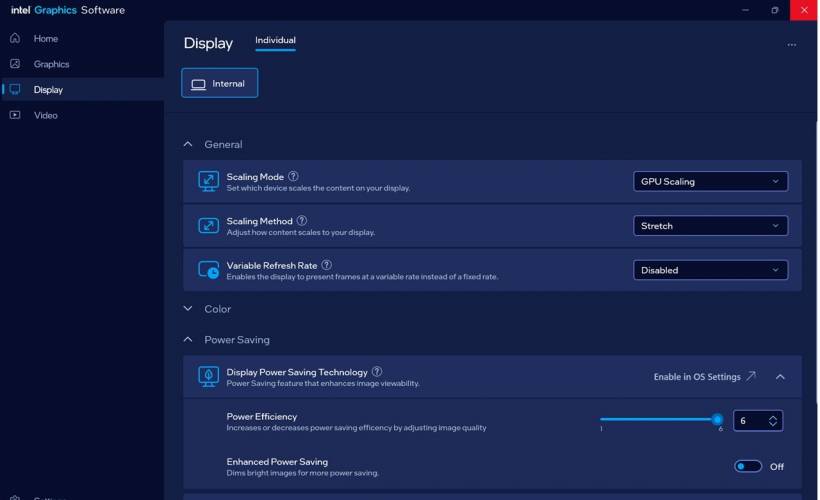
The Intel Graphics Command Center Setting That Matters
Inside Intel Graphics Command Center, the important section is under Display. From there, the scaling settings control how the selected resolution is shown on the screen.
In my case, the key setting was the Scaling Method. It needed to be set properly so that the lower resolution could fill the display instead of appearing centered. The available options can vary depending on the device, driver version, and display type, but the important one for this issue is usually Stretch or a similar stretched scaling option.
When scaling is not applied correctly, the desktop or game may appear smaller, with empty space around it. This is similar to what some users experience in games when they run older 4:3 resolutions and suddenly get black bars instead of a stretched full-screen image.
Intel's Recommended Workaround
Intel's own guideline for a similar stretched resolution issue suggests changing the resolution first, then setting the scaling mode to stretched. The idea is to force Intel Graphics Command Center to reapply the scaling behavior while the display is running at a non-recommended resolution.
The general process is simple. Open Intel Graphics Command Center, go to Display, then under the General tab, choose a resolution that is different from the recommended resolution. After that, go to the scaling option and select Stretched. Once the scaling is applied correctly, the display or game should stretch properly again.
Intel's guideline is mainly written for games such as Counter-Strike: Global Offensive, where users may run a 4:3 resolution like 800 x 600 and expect it to stretch across a widescreen display. However, the same basic logic applies to normal desktop resolution scaling as well. If the selected resolution is not native, the graphics driver still needs to know whether to center it, preserve aspect ratio, or stretch it.
How It Relates to My Surface Pro Setup
For my Surface Pro, the situation was not about gaming. It was about my everyday resolution preference. I use 1920 x 1280 because it gives me a good balance between clarity and performance, and I prefer that setup over the native resolution for daily work.
After the Intel Graphics Command Center update, the scaling setting appeared to stop behaving the way it previously did. The display was still technically working, but the image was no longer filling the screen correctly. By revisiting the Intel Graphics Command Center display settings and checking the scaling mode, the issue made more sense.
It was not really a Windows desktop problem. It was more likely the graphics control app or driver resetting, changing, or failing to preserve the previous scaling behavior after the update.
Why Driver and Graphics App Updates Can Cause This
Graphics updates often do more than just improve performance. They can also reset display profiles, refresh scaling options, change how custom resolutions are handled, or modify default behavior for internal and external displays.
That is why issues like this can appear suddenly after an update, even when nothing else has changed. The user may not have changed the resolution, the Windows display settings may still look normal, and the hardware may be perfectly fine. But if the graphics driver changes how scaling is applied, the visual result can be very obvious.
This is one of those annoying update problems where the device is not broken, but the previous "comfortable" setup gets disturbed.
What I Learned From This Issue
The main lesson is that anyone using a non-native resolution should check the graphics scaling settings after updating Intel Graphics Command Center or the Intel graphics driver.
For users who run their display at the recommended resolution, this issue may never appear. But for users like me who intentionally use a lower resolution for better performance, scaling becomes very important. If the scaling method changes from stretched to centered, the display will immediately feel wrong.
It is also worth remembering that Windows display settings and Intel Graphics Command Center settings are connected, but they are not always the same thing. Windows may show that the selected resolution is correct, while Intel's scaling behavior may still be the part causing the problem.
Final Thoughts
This was a small but frustrating issue because my Surface Pro display setup had already been tuned to how I like it. The 1920 x 1280 resolution gives me a nice balance of sharpness and performance, so seeing the screen suddenly shrink into the center after an Intel Graphics Command Center update was definitely unexpected.
Thankfully, the issue appears to be related to scaling rather than an actual display fault. For anyone facing the same problem after an Intel graphics update, especially when using a non-native resolution, the first place to check is Intel Graphics Command Center under Display settings. Make sure the resolution and scaling method are applied correctly, and try setting the scaling method to Stretch after selecting a non-recommended resolution. Sometimes the fix is not about changing the resolution itself, but simply reminding the graphics driver how the screen should be scaled.











Comments