

Microsoft is once again encouraging users to move to the new Outlook for Windows, and this time the company is highlighting more than 15 productivity features that it says make the new app more useful and ready for everyday work.
On paper, the list sounds promising. The new Outlook now includes features such as pinned emails, snooze, sweep, scheduled sending, calendar filters, improved sharing, profile-style customisation, and shortcut options. Microsoft is clearly trying to show that the newer Outlook experience is no longer as barebones as it once felt.
However, there is one obvious problem: many of these features have either existed in Classic Outlook for years or already have older equivalents that long-time Outlook users are familiar with.
That is why Microsoft's latest push may not be enough to convince everyone to switch, especially business users who still depend heavily on Classic Outlook's speed, depth, and reliability.
Microsoft Wants Users to Move to the New Outlook
The new Outlook for Windows is based more closely on the Outlook.com web experience. Microsoft sees it as the future of Outlook across Windows, web, and modern Microsoft 365 environments.
The idea is simple. Instead of maintaining multiple Outlook experiences that behave differently, Microsoft wants a more unified app that feels consistent across devices and platforms.
That makes sense from Microsoft's side. A single modern Outlook experience is easier to update, easier to integrate with Microsoft 365 services, and easier to maintain in the long run.
But for users, especially those who have spent years working inside Classic Outlook, the transition has not been smooth.
Classic Outlook is still widely preferred because it is faster, more mature, and packed with advanced features that many business users rely on daily. The new Outlook has improved, but for many users, it still feels like it is catching up rather than replacing something better.
The 15 Productivity Features Microsoft Is Promoting
Microsoft is now promoting a set of productivity improvements in the new Outlook. These include email management tools, calendar enhancements, personalisation options, and features designed to make switching from Classic Outlook less painful.
Some of the key features include:
• Pinning important emails
• Snoozing messages for later
• Assigning multiple categories
• Using Sweep to clean up the inbox
• Scheduling emails
• Sharing folders more easily
• Calendar filters and saved calendar views
• RSVP and meeting recap features
• Better attendee tracking
• Editing single events in recurring meetings
• Dark mode and theme customisation
• Account renaming
• Shortcut style selection
For casual users, these additions may be useful. They make the new Outlook feel more complete and closer to a proper productivity tool.
But for power users, the reaction may be different. Many will look at the list and think, "Classic Outlook already does most of this."
Pinned Emails Make Important Messages Easier to Find
One of the features Microsoft is highlighting is pinned emails.
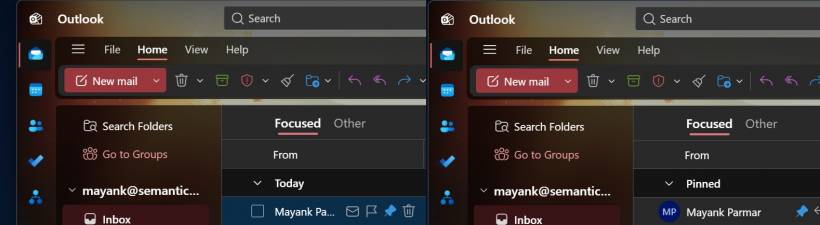
In the new Outlook, users can hover over an email or right-click it to pin it. Once pinned, the message stays near the top of the inbox so it is easier to find later. Pinned emails are grouped in a dedicated section, making them useful for messages that need quick attention.
This is helpful for people who receive a lot of email and do not want important messages to get buried under newer items.
However, Classic Outlook users already have several ways to manage important emails, including flags, categories, folders, search folders, and custom views. So while pinning is a nice feature, it may not feel revolutionary to long-time Outlook users.
Snooze Is Useful, But Not Entirely New
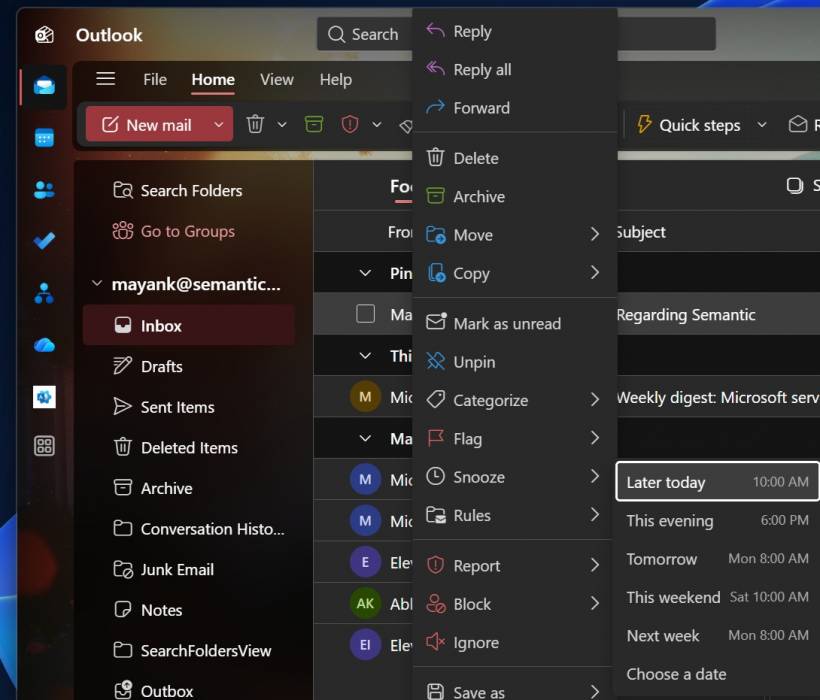
The new Outlook also includes a built-in Snooze feature. Users can right-click an email and choose when they want it to return to the inbox.
For example, if an email is important but not urgent, a user can snooze it until later in the day or another selected time. When the time arrives, the message appears again, helping the user deal with it when they are ready.
This is a useful productivity feature because it helps reduce inbox clutter without forcing users to delete, archive, or manually remember messages.
Classic Outlook does not handle snooze in exactly the same way, but users have long been able to use follow-up flags, reminders, and tasks to achieve a similar result. The new Outlook's version is more modern and easier to use, but the concept is not entirely new.
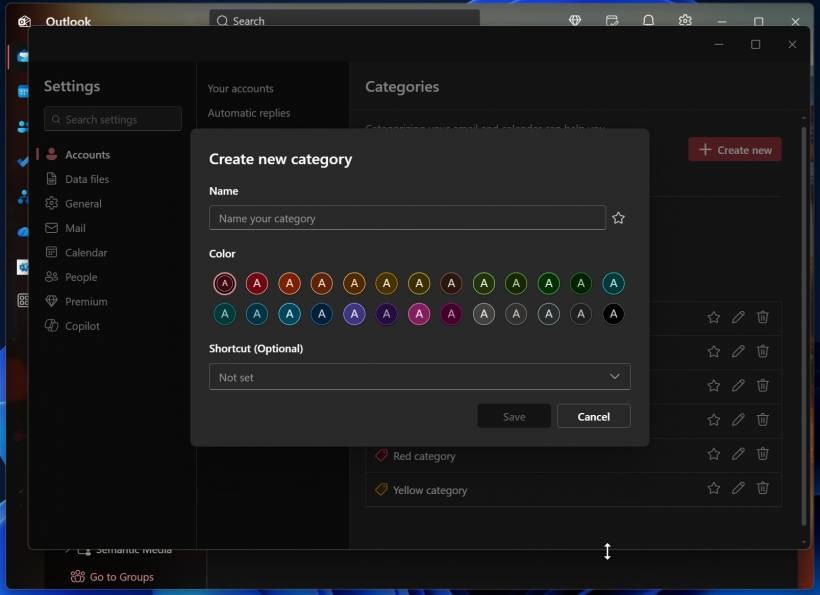
Categories Are Still a Strong Email Organisation Tool
Microsoft is also promoting multiple categories in the new Outlook.
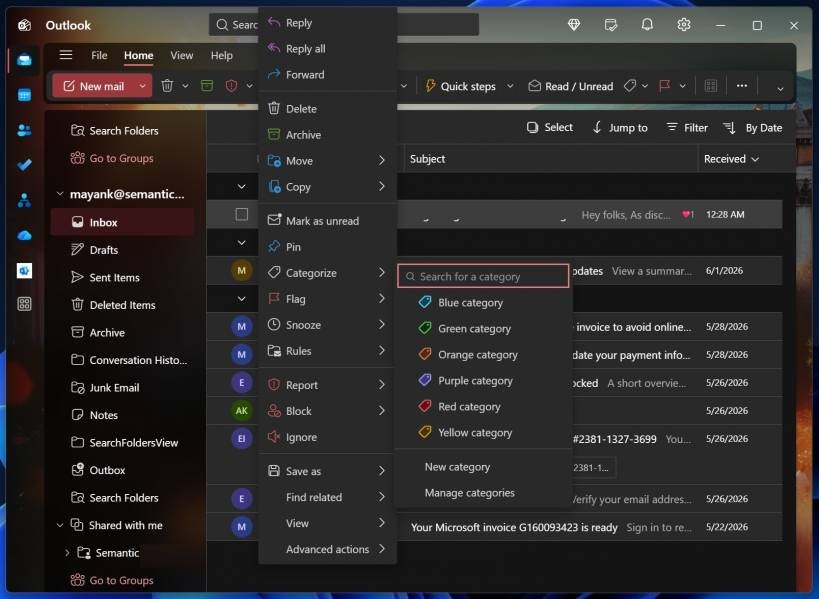
Users can right-click an email, choose Categorize, and assign one or more colour-coded categories. They can also create custom categories with names, colours, and shortcuts.
Categories are genuinely useful because they allow users to organise emails without moving them into separate folders. For example, one category could be used for meetings, another for finance, another for follow-ups, and another for personal items.
This is especially helpful for users who want visual organisation inside the inbox.
Again, though, categories are not new to Outlook. Classic Outlook users have relied on colour categories for many years. The new Outlook may present them in a cleaner interface, but it is not introducing a completely new way of working.
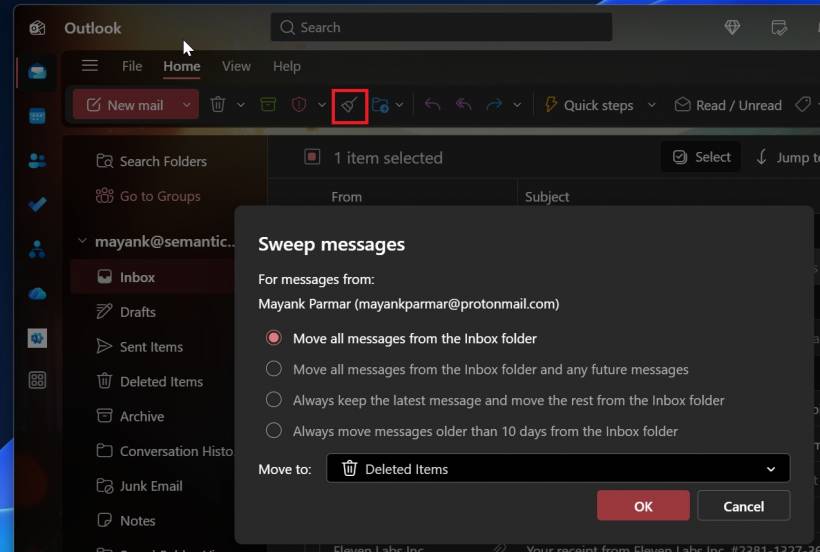
Sweep Helps Clean Up Repetitive Emails
Another feature Microsoft is highlighting is Sweep.
Sweep allows users to create quick rules for managing emails from specific senders. For example, users can move all current and future emails from a sender into a chosen folder, keep only the latest message, or automatically move older messages out of the inbox.
This can be very useful for newsletters, system notifications, promotions, or repeated updates that tend to fill up the inbox.
Sweep is one of the features that feels more closely tied to the Outlook web experience. It is simple, direct, and easier for casual users compared with creating traditional mail rules.
Classic Outlook already has powerful rules and automation features, but they can feel more technical. Sweep is more beginner-friendly, although it is not necessarily more powerful.
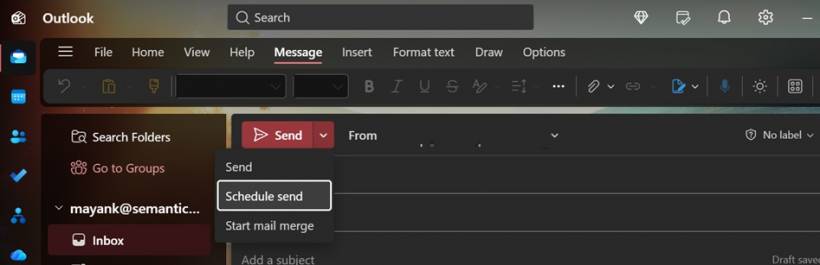
Schedule Send Is Convenient, But Expected
The new Outlook also includes Schedule Send, allowing users to prepare an email and choose when it should be sent.
This is useful for people working across time zones, users who want to avoid sending messages outside working hours, or anyone who prefers to write emails now and deliver them later.
However, scheduled sending is no longer a standout feature in 2026. Many email clients already support it, and Classic Outlook has had delayed delivery options for a long time.
So while it is good that the new Outlook supports it, this is more of a necessary feature than a major reason to switch.
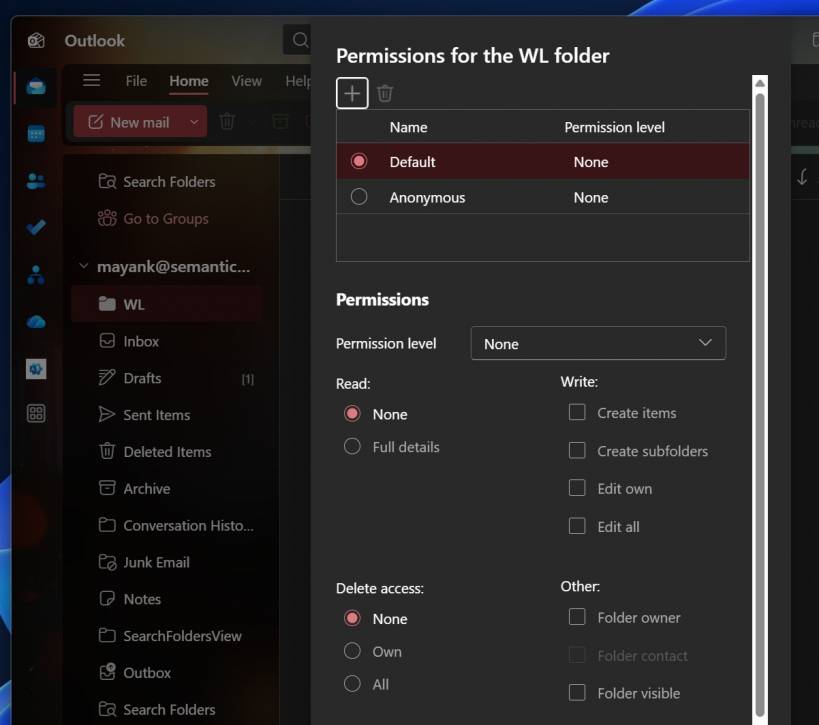
Folder Sharing Is Getting Easier
Microsoft says the new Outlook simplifies folder sharing.
In Classic Outlook, sharing folders can involve several permission steps, including parent folder visibility and access rights. That process can be confusing, especially for users who are not familiar with mailbox permission structures.
The new Outlook tries to make this easier by handling more of the required permissions automatically.
This is one area where the new app may genuinely feel more convenient for regular users. If Microsoft can reduce the friction around shared folders and mailbox collaboration, it could make the new Outlook more appealing in team environments.
Calendar Features Are Improving Too
Microsoft is also working to bring more calendar and meeting features into the new Outlook.
The app supports meeting planning, calendar management, saved calendar views, meeting filters, attendee tracking, and meeting recap access. Users can also hide calendar details to make the calendar view cleaner and edit the current event in a recurring series without affecting previous meetings.
These are practical updates, especially for users who live inside Outlook Calendar throughout the workday.
The meeting recap feature is also useful for Microsoft 365 environments where Teams recordings, transcripts, and meeting notes are part of the workflow. It gives users a way to catch up on meetings they missed or review what was discussed.
Still, Classic Outlook remains deeply familiar to business users, especially those who manage complex calendars, shared mailboxes, delegate access, room bookings, and recurring meetings.
The new Outlook is improving, but many users still feel it lacks the maturity and confidence of Classic Outlook.
Shortcut Flexibility Is Designed to Reduce Friction
One interesting addition is shortcut style selection.
Microsoft says users can choose their preferred keyboard shortcut style in Settings. This is meant to make the move from Classic Outlook or Outlook on the web feel more consistent.
For users who rely on keyboard shortcuts, this matters. Productivity is often built around muscle memory. If shortcuts suddenly change, even simple tasks can feel slower.
By allowing shortcut flexibility, Microsoft is trying to reduce one of the small but irritating barriers that can make users reject a new app.
It may not be a headline feature, but for heavy Outlook users, it can make the transition less frustrating.
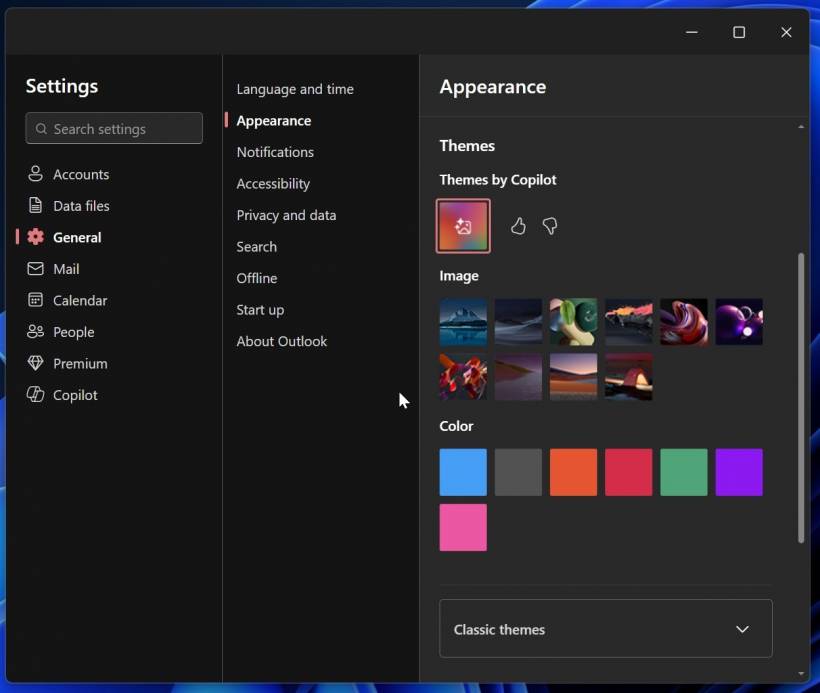
Personalisation Is Better in the New Outlook
One area where the new Outlook does feel more modern is personalisation.
Microsoft is promoting dark mode, themes, advanced settings, and the ability to rename email accounts. Compared with Classic Outlook, the new app does offer a cleaner and more flexible visual experience.
Classic Outlook has always been more functional than stylish. It is powerful, but not particularly modern-looking. The new Outlook feels closer to Microsoft's current design language and fits better with Windows 11 and web-based Microsoft 365 services.
For users who value appearance, readability, and a more modern interface, this could be a real improvement.
But personalisation alone will not convince everyone, especially if performance or missing features remain a concern.
The New Outlook Has Improved, But It Still Feels Slower to Some Users
To be fair, the new Outlook is much better than it was when Microsoft first started pushing it.
Recent updates have improved folder search, shared mailboxes, automapped calendars, non-consecutive date selection, and other missing areas. Microsoft has clearly been listening to feedback and slowly closing the gap with Classic Outlook.
But the biggest complaint remains performance.
Many users still say the new Outlook feels slower, heavier, or less responsive than Classic Outlook. Some report delays when opening emails from the notification center or switching between views. Others feel that the app still behaves too much like a web wrapper instead of a true desktop productivity application.
For users who process hundreds of emails a day, even small delays matter. Outlook is not an occasional app for many professionals. It is the centre of their workday.
That is why speed and reliability are often more important than new interface features.
Classic Outlook Still Has a Strong Following
Classic Outlook remains popular because it is familiar, powerful, and deeply integrated into business workflows.
It supports advanced mailbox handling, offline use, add-ins, complex rules, PST files, shared mailbox workflows, and many enterprise features that users have depended on for years.
The new Outlook may eventually replace it, but many users feel Microsoft is trying to move too quickly while the replacement is still incomplete.
That is why the company's latest list of productivity features may not be enough to change minds. For casual users, the new Outlook may already be good enough. For enterprise users and Outlook power users, "good enough" may not be enough.
Microsoft Has Delayed the Forced Enterprise Rollout
One of the strongest signs that the new Outlook is not fully ready for everyone is Microsoft's own rollout timeline.
The company has delayed the forced migration for enterprise customers to 2027. That delay suggests Microsoft understands that organisations need more time before the new Outlook can fully replace Classic Outlook in business environments.
This is important because enterprise users often have more complex requirements than home users. They rely on shared mailboxes, calendar delegation, compliance tools, add-ins, workflows, archiving, and advanced account setups.
If the new Outlook cannot handle those scenarios reliably, forcing a migration too early could create unnecessary disruption.
Final Thoughts
Microsoft's new Outlook is improving, and the latest set of productivity features shows that the company is serious about making it a more complete replacement for Classic Outlook.
Features such as pinned emails, snooze, sweep, scheduled sending, better calendar tools, folder sharing improvements, profile linking, themes, and shortcut customisation all make the new app more useful than before.
However, the bigger issue remains unchanged. Many of these features are not truly new to Outlook users. Classic Outlook has offered similar or more advanced capabilities for years, and it still feels faster and more reliable for many professionals.
The new Outlook may be the future, but Classic Outlook is still the present for a lot of users.
Until Microsoft fully closes the feature gap, improves performance, and proves the new app can handle demanding enterprise workflows, many users will continue to stay with Classic Outlook for as long as they can.











Comments