

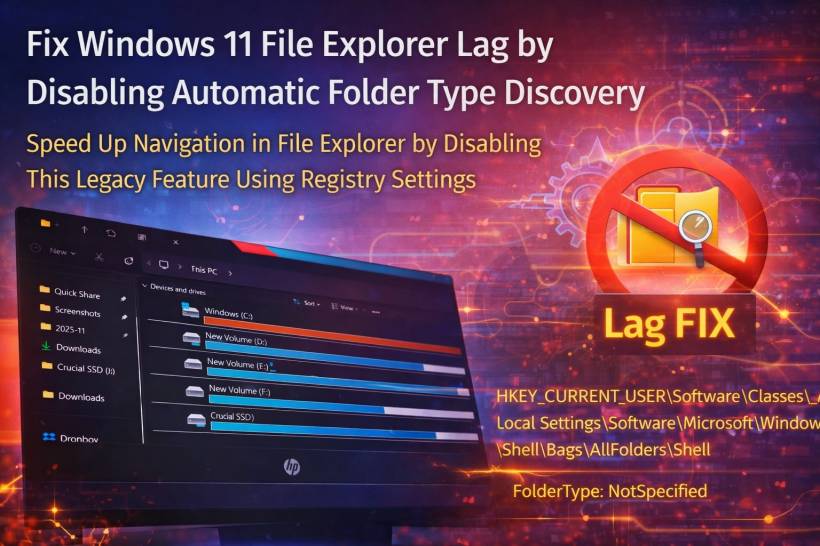
If File Explorer in Windows 11 feels slow or unresponsive, especially when you open folders packed with documents, photos, or videos, you're not imagining it. This lag has been quietly bothering Windows users for years, and the root cause turns out to be a legacy feature that dates all the way back to the Windows XP era.
The good news is that once you understand what's happening behind the scenes, the fix is surprisingly simple—and the performance improvement is immediately noticeable.
The Hidden Culprit Behind File Explorer Slowness
Windows includes a feature called Automatic Folder Type Discovery. In theory, it's meant to be helpful. Every time you open a folder, File Explorer scans its contents to decide how that folder should be displayed. If it sees mostly photos, it switches to a picture-friendly layout. If it detects music files, it adjusts the view to suit audio metadata. Documents trigger yet another layout.
While this sounds smart, it comes at a cost.
Instead of instantly listing filenames, Windows pauses to inspect file headers and content. On small folders, you might never notice. But on large directories—like Downloads, media archives, or work folders with thousands of files—this "sniffing" process introduces visible delays. Worse, Windows often forgets its own decisions and repeats the scan every time you reopen the folder, creating that familiar sticky, laggy feeling.
Why This Feature Hurts Performance More Than It Helps
The biggest problem is that this discovery process happens before File Explorer finishes rendering the folder. That means you're waiting not just for files to load, but for Windows to decide how to show them. The result is a brief freeze, incomplete redraws, or delayed thumbnail loading that makes File Explorer feel sluggish and unreliable.
For most users, this automatic guessing offers little real value—especially when performance is the trade-off.
The Simple Fix: Force a Generic Folder View
The most effective way to fix this issue is to tell Windows to stop guessing altogether. By forcing File Explorer to use a universal "Generic" view for all folders, Windows skips the discovery scan and loads folders immediately.
This is done through a small Registry change that overrides the default behaviour.
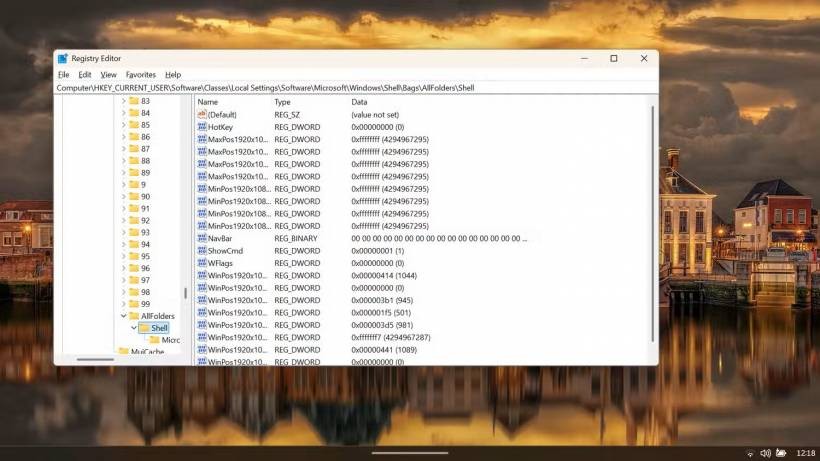
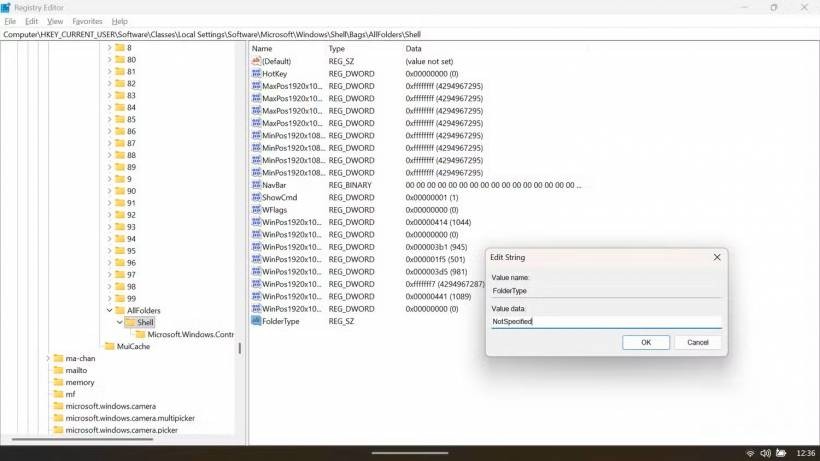
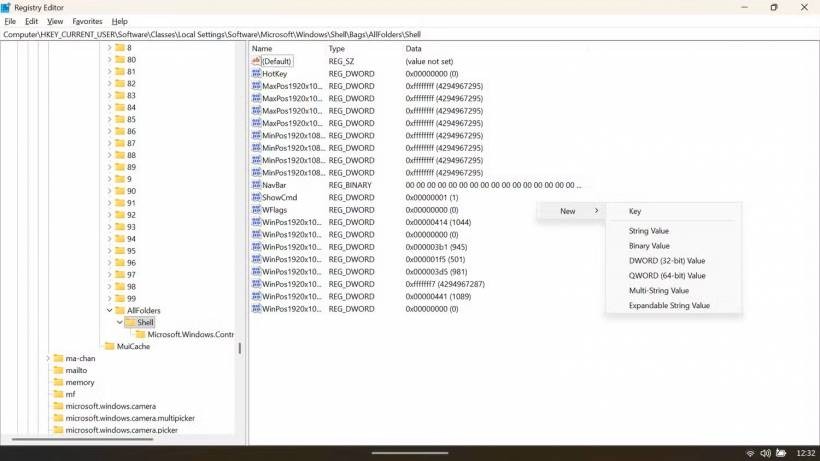
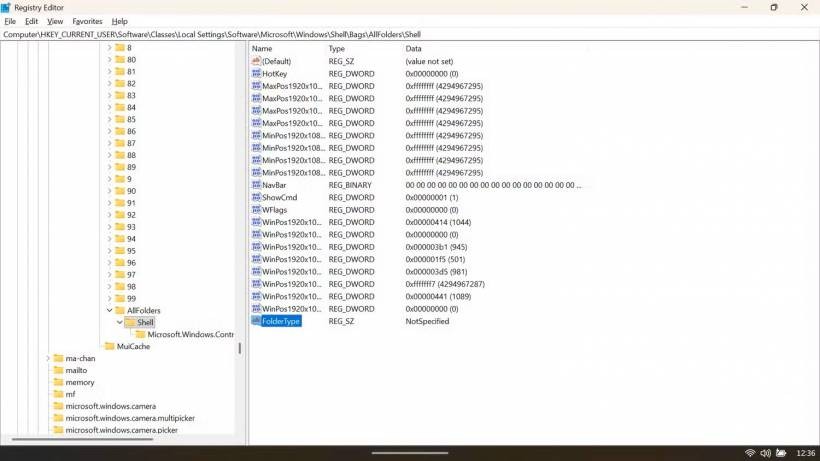
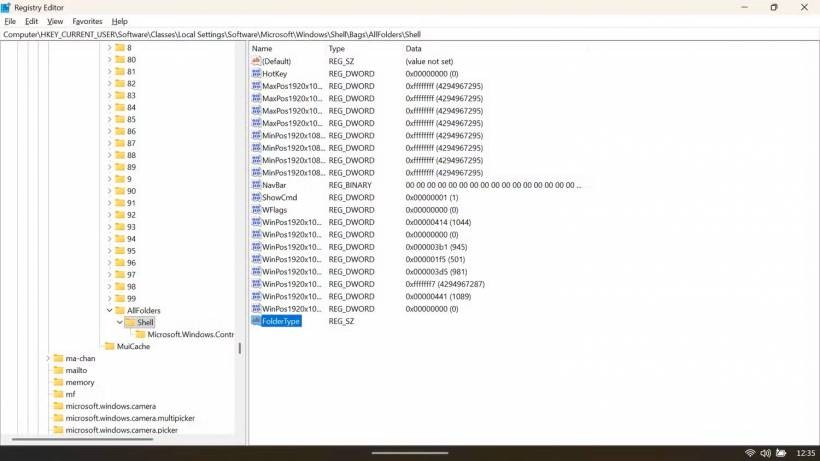
Applying the Registry Tweak Safely
Before making changes, it's always a good idea to back up the Registry. Once that's done, open the Run dialog using Win + R, type regedit, and press Enter.
Navigate to the following location:
When you're inside the Shell key, right-click in the empty area on the right, choose New, then String Value. Name it:
Double-click the new entry and set its value to:
This single setting tells Windows to stop analysing folder contents and just display files immediately using a generic layout.
Restart File Explorer to Apply the Change
There's no need to reboot your entire system. Open Task Manager, find Windows Explorer in the list of processes, right-click it, and select Restart. Your taskbar may briefly disappear, but it will return within seconds.
Once Explorer restarts, the change is active.
Faster Alternatives for Power Users
If you prefer not to manually edit the Registry, there are quicker options. Running a single command in an elevated PowerShell window can apply the same tweak instantly, followed by restarting Windows Explorer.
You can also save the setting as a .reg file and apply it with a double-click, which is useful if you want to deploy the fix on multiple machines.
Simpler Alternatives for Layman Users
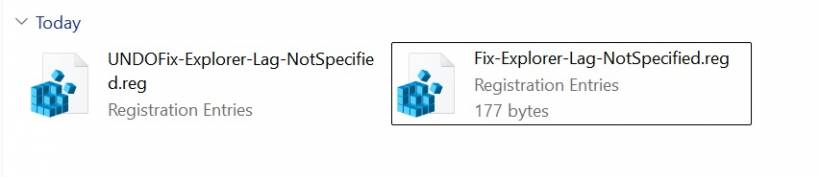
If you prefer not to stress yourself going through the registry files, just click download the registry file below, download, extract and just double click and run the Fix-Explorer-Lag-NotSpecified.reg which will basically do the same thing for you. As always, i suggest to always right click and edit and check what are being added/modified into the registry whenever you download anything from internet. Trust no one, including me and check first if what this registry file claims to do is really doing what it is supposed to do.
[HKEY_CURRENT_USER\Software\Classes\Local Settings\Software\Microsoft\Windows\Shell\Bags\AllFolders\Shell]
"FolderType"="NotSpecified"
What Changes After the Fix
After applying this tweak, all folders will use a consistent, generic view. You won't automatically get specialised layouts for music, photos, or videos anymore. For most users, this is a small sacrifice compared to the dramatic improvement in responsiveness.
Folder navigation becomes faster, scrolling feels smoother, and that annoying delay when opening large directories is gone.
Want the Old Behaviour Back?
If you ever decide you want Windows to resume automatic folder detection, simply delete the FolderType entry from the same Registry path. Windows will immediately revert to analysing folder contents and adjusting views automatically.
Final Thoughts
This tweak works so well because it removes unnecessary guesswork that modern systems simply don't need. Automatic folder discovery may have made sense decades ago, but today it often slows things down more than it helps.
If File Explorer lag has been driving you crazy in Windows 11, this small change can make the whole experience feel instantly lighter and more responsive.











Comments