

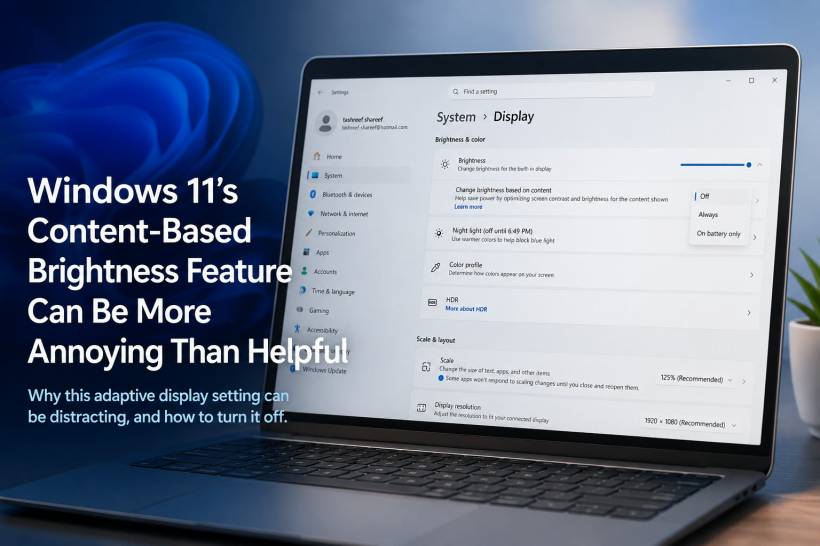
Windows 11 includes a display feature that sounds useful at first, but can quickly become irritating once you notice it. It is called content-based adaptive brightness, and its job is to automatically adjust your screen brightness depending on what is currently displayed on the screen.
The idea is simple. If darker content is shown, Windows may dim the display to save power. If brighter content appears, it may increase brightness again. On paper, this sounds like a clever battery-saving feature. In real use, however, it can make your laptop screen feel inconsistent, especially when you are switching between apps, browsing different websites, watching videos, or doing any kind of work where stable brightness matters.
Why This Feature Feels Like A Phone Idea Forced Onto A Laptop
Automatic brightness makes a lot of sense on smartphones. A phone is constantly moving with you. You may use it outdoors, inside a shopping mall, in a dark bedroom, or under bright sunlight. In that situation, adjusting screen brightness based on the surrounding light is genuinely helpful.
A laptop or desktop PC is different. Most people use it in one fixed location for longer periods. Once you set the brightness to match your room, you usually expect it to stay that way. The lighting around you may not change much, especially if you are working at a desk, in an office, or at home.
The problem with Windows 11's content-based adjustment is that it is not always reacting to the room. It is reacting to what is on the screen. That means a dark webpage, a video scene, a photo, or even switching between two applications can cause the panel brightness to shift. Once you become aware of it, the constant dimming and brightening can become distracting.
Why Content-Based Brightness Can Be A Problem
The biggest issue is consistency. When you manually set your brightness, you are choosing a level that feels comfortable for your eyes and suitable for your environment. If Windows keeps changing it based on screen content, it can feel like the display is second-guessing you.
This is especially annoying for tasks that depend on accurate or steady visuals. Photo editing, video editing, graphic design, document comparison, spreadsheet work, and even reading can become less pleasant when the brightness changes unexpectedly.
It can also make a laptop feel less polished. Instead of appearing smooth and stable, the display may seem like it is subtly pulsing or shifting. Even if the adjustment is meant to save battery, the trade-off may not be worth it for many users.
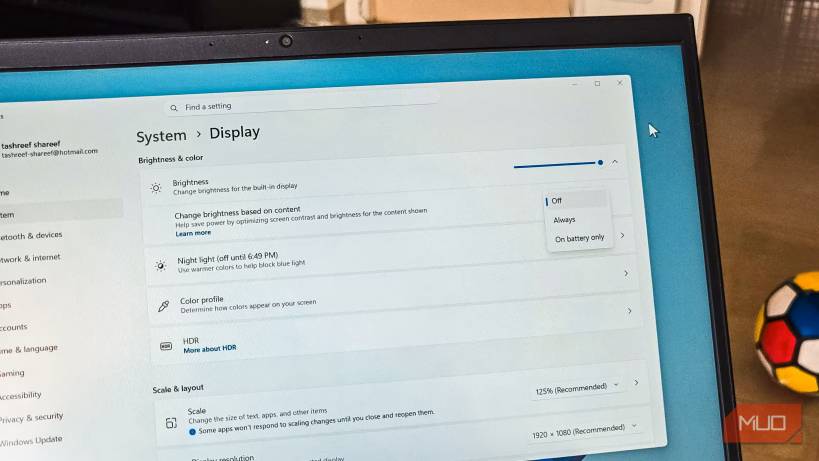
How To Turn Off Content-Based Brightness In Windows 11
Thankfully, the feature can be disabled, although Microsoft does not make it especially obvious. The setting is hidden inside the display brightness section, so many users may not realise it is the reason their screen keeps changing brightness.
To turn it off, open:
Settings > System > Display
Then go to the Brightness & color section and expand Brightness. Look for the option called:
Change brightness based on content
Open the dropdown menu beside it and choose:
Off
Once disabled, Windows should stop adjusting the brightness based on what appears on the screen. Your laptop display will stay at the brightness level you manually selected.
Depending on your device, the dropdown may also include options such as On battery only or Always. On battery only is commonly the default, which explains why some users notice the behaviour only when their laptop is unplugged.
If you do not see the setting, your laptop display may not support content adaptive brightness. In this case, there is nothing to disable, and honestly, that may be a good thing if you prefer a stable display.
Use Proper Automatic Brightness Instead
Turning off content-based brightness does not mean automatic brightness is always bad. The better version is ambient light-based brightness, which uses a real light sensor to detect the brightness of your surroundings.
This is the same general idea used by smartphones. If your room is bright, the display becomes brighter. If your environment is darker, the screen dims. That makes far more sense because it responds to the actual lighting around you, not whether your browser tab happens to be dark or bright.
Some higher-end laptops and external monitors include ambient light sensors. If your device has one, that type of automatic brightness can be genuinely useful. It adjusts based on your environment, while keeping the display behaviour more logical.
Better Ways To Save Battery On Windows 11
If your main goal is longer battery life, there are better options than letting Windows constantly change screen brightness based on content.
A simple manual brightness reduction usually saves more power and feels more predictable. Lowering the display brightness even slightly can make a noticeable difference, especially on laptops with bright panels.
Windows 11 also includes Energy recommendations, which can be found under:
This section gives practical suggestions such as using a more efficient power mode, reducing refresh rate, adjusting sleep timers, and applying other battery-saving changes. These settings are usually more useful because they improve battery life without making the screen behave unpredictably.
You can also check Battery usage in Settings to see which apps are consuming power in the background. Closing or limiting those apps may help more than relying on content-based dimming.
Other useful steps include enabling dark mode, reducing refresh rate to 60Hz when on battery, closing unnecessary background apps, and using Battery Saver when needed.
Final Thoughts
Windows 11's content-based adaptive brightness is one of those features that sounds smarter than it feels in daily use. While it may save a small amount of power, it can also make the screen feel inconsistent, especially when switching between dark and bright content.
For users who care about stable brightness, visual accuracy, or simply a less distracting experience, turning it off is probably the better choice. If automatic brightness is needed, ambient light-based adjustment makes much more sense because it reacts to the actual room lighting.
In the end, battery saving should not come at the cost of an annoying display experience. A manually controlled brightness level, combined with proper Windows power settings, is usually a cleaner and more reliable way to get better battery life without letting the screen constantly change on its own.











Comments 0