

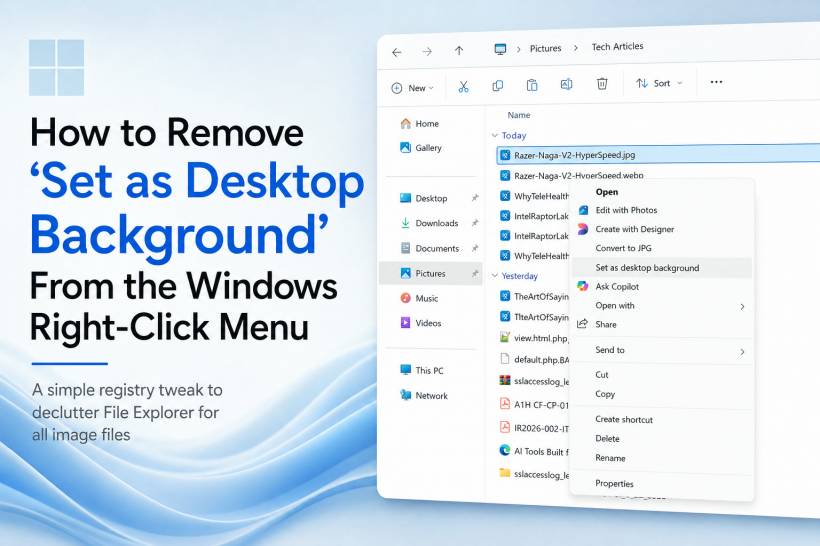
Windows context menus are useful until they start feeling crowded. Right-clicking an image can bring up a long list of actions, from opening it in an app to editing, sharing, converting, or setting it as your wallpaper.
For many people, "Set as desktop background" is one of those options that simply does not need to be there. You may already have a preferred wallpaper, use a rotating background setup, or just want a cleaner File Explorer menu when managing images for work, websites, or design projects.
The good news is that Windows lets you hide this option without uninstalling anything or breaking your ability to change wallpapers later.
What This Change Actually Does
The registry tweak below does not remove Windows wallpaper support. You can still change your desktop background through Windows Settings, personalise themes, or use any wallpaper application you normally rely on.
It only hides the "Set as desktop background" command from the right-click menu for image files.
That means your File Explorer menu becomes a little cleaner, while the wallpaper feature itself remains available in the background.
Why the Context Menu Has So Many Entries
Windows builds context menus from several places. Some entries come directly from Windows, while others are added by installed apps such as image editors, cloud-storage tools, PDF software, AI tools, and design applications.
The "Set as desktop background" entry is associated with image file handling in Windows. Rather than deleting the command entirely, it is safer to mark it as hidden from the normal right-click menu.
This approach is reversible, does not require deleting system registry keys, and affects only the current Windows user.
The Registry File to Hide the Option
Open Notepad and paste the following:
; Hides "Set as desktop background" for image files for the current Windows user.
; No administrator rights required.
[HKEY_CURRENT_USER\Software\Classes\SystemFileAssociations\image\shell\setdesktopwallpaper]
"ProgrammaticAccessOnly"=""
Save the file with a name such as:
hide-set-as-desktop-background.regWhen saving in Notepad, change Save as type to All Files. This prevents Windows from saving it as a .txt file by mistake.
After saving, double-click the .reg file and approve the confirmation prompts.
Refreshing File Explorer
The change may appear immediately, but File Explorer can sometimes keep the old menu in memory.
The easiest ways to refresh it are:
Once refreshed, right-click an image file again. The "Set as desktop background" option should no longer appear.
Will This Affect JPG, PNG, WEBP, and Other Image Files?
In most cases, yes. The registry entry targets Windows' shared image file association layer rather than a single extension such as .jpg or .png.
That makes it more convenient than creating separate registry entries for every image format on your computer. It is especially useful for people who work with many types of images, including JPG, JPEG, PNG, GIF, BMP, WEBP, TIFF, and similar files.
However, some third-party apps or unusual image codecs may create their own format-specific context menu entries. If the option still appears for one particular image format, that format may have its own separate registry association.
For normal image files handled by Windows Explorer, the generic image association method is usually enough.
How to Restore It Later
Changing your mind is simple. Create another registry file using the code below:
; Restores "Set as desktop background" for image files for the current Windows user.
[HKEY_CURRENT_USER\Software\Classes\SystemFileAssociations\image\shell\setdesktopwallpaper]
"ProgrammaticAccessOnly"=-
Save it as:
restore-set-as-desktop-background.regDouble-click it, accept the prompts, then restart File Explorer or sign out and back in.
The =- line removes only the registry value that hides the command. It does not delete the complete image association or alter your default image viewer.
A Small Change That Makes Windows Feel Tidier
This is a minor tweak, but it can make File Explorer feel more focused, especially when you right-click images frequently.
A cleaner context menu means fewer distractions and less scrolling through commands you never use. It is also a better approach than aggressively deleting Windows registry keys, because the original feature remains intact and can be restored in seconds.
Download The Registry Files
To make this easier, download the ready-made registry file, then double-click it and select Yes when Windows asks permission to add the change to your registry. Once it has been imported, close all open File Explorer windows and open a new one to check the image right-click menu. If the "Set as desktop background" option is still visible, restart your computer to fully refresh Windows Explorer.
Final Thoughts
Windows gives applications plenty of opportunities to add items to the right-click menu, but it does not always provide a simple setting to remove the ones you do not need. Hiding "Set as desktop background" through a small per-user registry change is a practical way to keep your image context menu clean without affecting the wallpaper tools you may still use elsewhere.











Comments 0