

Picking a UI/UX design tool sounds like a boring checkbox decision… right up until your project grows, your team expands, and suddenly your "small file" turns into a living universe of components, prototypes, and developer questions.
Figma, Adobe XD, and Sketch have all been major players for years. They also come with very different personalities: one is built for collaboration-first, one feels like home if you live in Adobe-land, and one is a Mac-native classic with a loyal plugin ecosystem. The "best" tool depends less on hype and more on how you work.
The quick vibe check
Before we go feature-by-feature, here's the simplest way to think about them:
Interface and project organization Figma's workspace
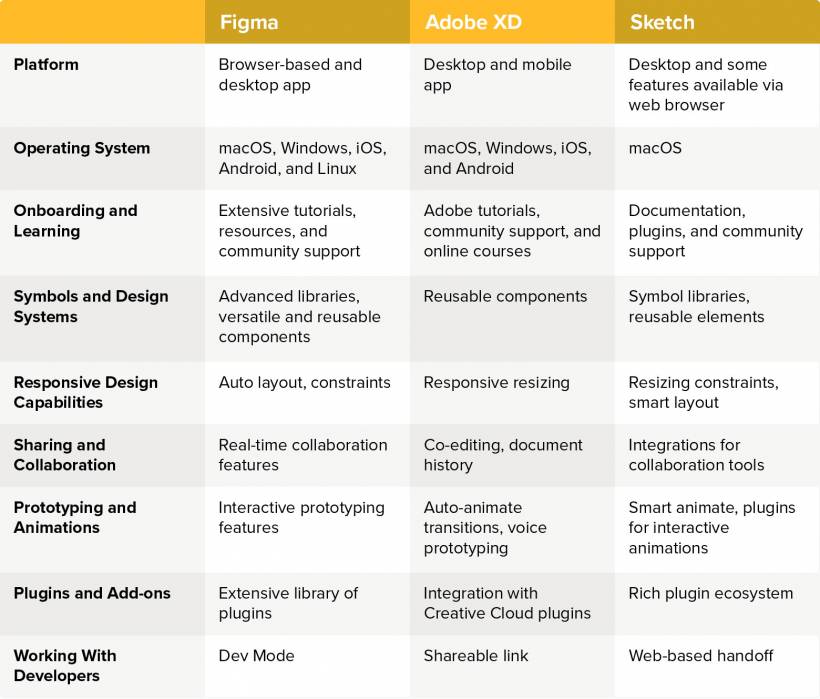
Figma is centered around a canvas with panels for layers, properties, and assets. You can run it entirely in the browser, which is a huge deal if your team uses mixed devices or you collaborate with clients who don't want to install anything.
Recent UI changes have leaned toward making the interface feel cleaner and more guided, especially in the properties panel, where controls are easier to understand and the workspace is more flexible.
Adobe XD's layout
If you're already comfortable in Photoshop or Illustrator, XD feels familiar fast. It has the classic Adobe-style toolbar and panels, and it uses artboards as the main way to organize screens.
The catch is that file organization can feel more limited for big projects because you don't get the same "multi-page" structure the way Sketch does. You can still keep things tidy, but you'll rely more on artboard duplication, grouping, and careful naming.
Sketch's approach
Sketch gives you artboards for screens and pages for separating flows, sections, or versions—so big projects can be easier to compartmentalize. It also gives designers control over which panels to show/hide, which helps keep the UI clean.
It's macOS-only, though, so if your team has Windows users, that's a practical deal-breaker for some workflows."
Components, symbols, and design systems Figma: components plus "system thinking"
Figma is built for reusable design at scale. Components, styles, and variables make it very strong for maintaining consistency across large files. If you're building a design system, Figma is the tool that makes the "system" feel like the default mode of working.
Adobe XD: components plus Repeat Grid
XD does reusable components well, and its Repeat Grid is still one of its most convenient features for fast UI building. If you're designing lists, galleries, cards, menus, anything with repeating elements—Repeat Grid can save a lot of setup time.
Sketch: symbols and overrides that still feel great
Sketch made its name with strong vector tools and symbols. Symbols behave like master components: change the original and it updates everywhere. Overrides let you tweak specific instances without breaking the system.
For dashboard-style UIs (cards, widgets, repeated modules), Sketch symbols can be a massive time saver because the "update once, apply everywhere" loop is fast and reliable.
Developer handoff Figma: Dev Mode as a built-in workflow
Figma's Dev Mode is one of the cleanest handoff experiences: inspect spacing, view specs, export assets, and reference platform styling. It reduces back-and-forth because devs can answer many questions directly from the file.
Adobe XD: shareable specs and export options
XD's handoff is built around share links where developers can inspect measurements, fonts, and colors. It also exports cleanly to common formats, and it integrates with tools like Zeplin-style handoff workflows if your team already uses them.
Sketch: inspect in browser, extend with tools
Sketch supports inspection and sharing, and teams often combine it with plugins or collaboration tools to strengthen handoff and version control.
So… which one should you choose? Choose Figma if:
You collaborate heavily, want the smoothest real-time teamwork, and rely on a strong design system workflow. It's also the easiest "cross-platform" choice.
Responsive design and layout flexibility Figma: Auto Layout and constraints
Figma's Auto Layout is one of the biggest reasons teams stick with it. Once you set it up properly (padding, spacing, alignment rules), it becomes incredibly reusable. It's especially good for structured UI like dashboards, tables, sidebars, and components that need to stretch or shrink across breakpoints.
Constraints add another layer, controlling how elements behave when frames resize.
Adobe XD: Responsive Resize
XD has responsive resizing, and it can be helpful for straightforward layouts. The limitation is that it doesn't always "guess right" on complex designs, so you may still do manual adjustment work when layouts get tricky.
Sketch: improving, but not born responsive
Sketch wasn't originally designed around responsive behavior, but it has improved with constraints and Smart Layout features that help elements reflow when content changes. It's better than it used to be, but if responsive layout is the core of your workflow, Figma tends to feel more natural.
Collaboration and sharing Figma: real-time by default
Figma's biggest advantage is how effortlessly it supports teams. Multiple people can edit at once, comments are built in, and sharing a link is usually all you need. Everything stays current automatically, which is perfect for fast-moving projects.
Adobe XD: share links and co-editing
XD supports shareable review links and real-time collaboration features. If you're working inside a Creative Cloud environment, asset sharing through Adobe's ecosystem can also help keep branding consistent across apps.
Sketch: collaborative, but with a few quirks
Sketch supports shared workspaces and real-time collaboration, plus reviewer-friendly inspection in the browser. The downside some teams feel is that updates for non-editors may require manual publishing steps, which can slow the "always up to date" flow compared to Figma.
Prototyping and animation Figma: getting stronger every year
Figma's prototyping started simple, but it's grown into something capable enough for realistic flows. Smart Animate helps smooth transitions by animating differences between frames, which is great for mobile testing and stakeholder demos.

Adobe XD: Auto Animate and voice prototyping
Auto Animate is one of XD's strongest features for motion-like transitions without heavy effort. Duplicate an artboard, change the state, link it, and XD handles the in-between animation.
XD also stands out with native Voice Prototyping, which is useful if you're designing voice flows or want to demo speech-based interaction without external tools.
Sketch: prototyping plus extensions
Sketch has improved its built-in prototyping and can be extended further using plugins and external tools. If you already work in a plugin-heavy environment, Sketch can become extremely flexible—but some of the power depends on what you install.
Plugins, extensions, and AI direction
All three have plugin ecosystems, but their momentum differs.
Choose Adobe XD if:
You're already deep in Adobe Creative Cloud and want something that feels immediately familiar, especially if Auto Animate or voice prototyping fits your project needs.
Choose Sketch if:
You're Mac-based, prefer a native desktop workflow, love symbols/overrides, and want a mature UI-focused tool with a strong plugin culture.
Final thoughts
These tools all get the job done—but they shine in different environments. If your workflow is team-heavy and fast-moving, Figma usually wins on sheer practicality. If your world already revolves around Creative Cloud, XD can still feel comfortable and surprisingly powerful in prototypes. And if you're in a Mac-first design culture that values a clean, UI-centric workflow, Sketch still has plenty of reasons to stay in the lineup.
If you tell me your setup (solo vs team, Windows/Mac mix, and whether you prioritize prototyping or design systems), I can recommend the best fit with a simple "pick this because…" summary.











Comments 0