

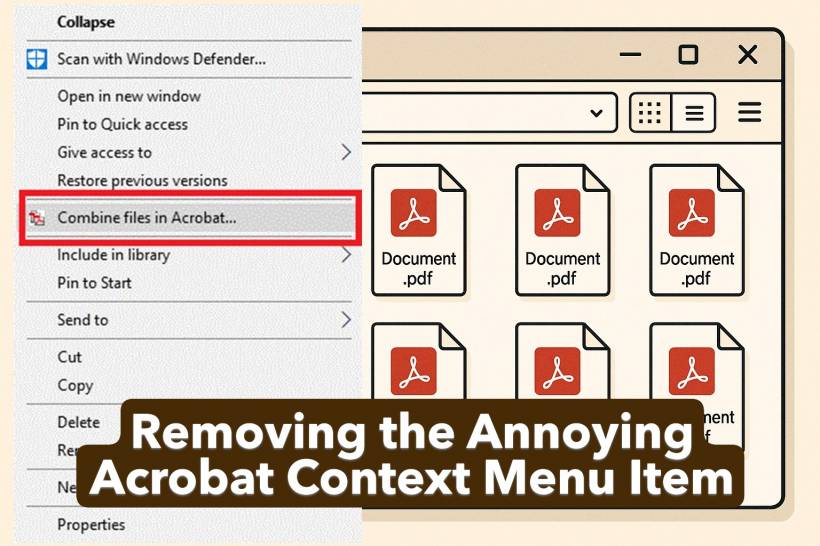
If you've ever right-clicked a file in Windows and noticed an endless list of options—half of which you'll never use—you're not alone. One of the biggest offenders is the Adobe Acrobat context menu item that appears even if you rarely use Acrobat to open PDFs. Let's explore why it shows up, why it's annoying, and how to safely remove it.
Why Does Acrobat Add a Context Menu Item?
When you install Adobe Acrobat or Reader, it integrates deeply into the Windows shell. This integration lets Acrobat add right-click menu entries like "Combine Files in Acrobat" or "Convert to PDF."
While these shortcuts can be convenient for some, they come with a price — slower right-click performance and an unnecessarily cluttered context menu. For many users, these options are hardly ever used and simply make the File Explorer look messy.
The Problem with Context Menu Overload
Your Windows context menu is meant to provide quick access to frequent actions like Open, Rename, or Send to. When third-party applications such as Adobe, WinRAR, or Dropbox pile on extra options, the list can quickly get out of control.
Each of these entries may load background components every time you right-click a file, slightly slowing down File Explorer and making it feel less responsive. Over time, this clutter adds up.
How to Remove the Adobe Acrobat Context Menu Entry
There are two simple ways to remove the Acrobat context menu item — either by using the ready-made downloadable registry files or by manually editing the Windows Registry.
Option 1: The Easy Way (Download and Run)
If you don't want to manually edit your registry, I've prepared ready-to-use .reg files that handle everything for you.
Downloads:
- Download from the link above.
- Once downloaded, double-click the file. Extract using your ZIP archieve program.
- Then select "RemoveAcrobatCombineFileContext.reg" and double click the file.
- When prompted by Windows, click Yes to confirm the registry change.
- Close any open File Explorer windows or restart Explorer for the change to take effect.
- If you want to restore back, just double click on the "AddAcrobatCombineFileContext.reg" which restores back the context menu instead
That's it — no technical steps, no typing, and no need to open the Registry Editor.
Option 2: The Manual Way (For Advanced Users)
If you prefer to make the change manually, here's how you can do it:
Press Win + R, type regedit, and hit Enter.
Navigate to: HKEY_CLASSES_ROOT\*\shellex\ContextMenuHandlers\Adobe.Acrobat.ContextMenu
Double-click (Default) in the right panel.
Change its value to: --
Click OK, then close the Registry Editor.
Restart File Explorer to apply the change.
To restore it, repeat the steps above but set the value back to:
Why This Works
The ContextMenuHandlers key in Windows tells Explorer which extensions appear when you right-click a file. By setting the value to --, you're effectively disabling the Adobe Acrobat entry without deleting it. That means you can restore it anytime — safely and easily.
Enjoy a Cleaner Right-Click Menu
Once you've removed unnecessary context menu items like Adobe Acrobat's, you'll notice your right-click menu opens faster and looks tidier. It's a small tweak that can make your Windows experience smoother and more enjoyable.
Final Thoughts
Adobe Acrobat is a great PDF tool, but not everyone wants it appearing in every right-click menu. Removing its context entry helps you maintain a cleaner and faster File Explorer — without uninstalling Acrobat itself.
Whether you take the quick download-and-run approach or go the manual route, this tweak is safe, reversible, and refreshingly effective.











Comments