

If you've ever built a web project and thought, "Why does everything work perfectly on my computer but not on someone else's?", then Docker is about to become your new best friend. Over the past few years, Docker has quietly become one of the most important tools in modern web development because it solves exactly that problem: environment inconsistency.
This guide walks you through what Docker is, why developers love it, and how you can start using it even if you've never touched containers before.
What Docker Actually Does (In Simple Terms)
Think of Docker as a way to package your web app — not just the code, but the entire environment it needs to run. That means your PHP version, your MySQL server, your extensions, your settings, even your Linux configuration can all be wrapped neatly into a "container."
Instead of installing a bunch of software on your actual machine, Docker gives you small, isolated environments where everything your project needs already exists. It's cleaner, safer, and far more predictable.
When a project runs in a Docker container, it doesn't matter whether your laptop uses Windows, macOS, or Linux — the code will behave exactly the same.
Why Web Developers Swear by Docker
One of the biggest reasons developers adopt Docker is consistency. Instead of fixing problems that happen only on certain machines, Docker guarantees that everyone uses identical environments.
Developers also appreciate that Docker replaces complex installation steps with simple configuration files. A full stack that includes a web server, database, caching server, and background worker can be launched in seconds with a single command. For beginners, this is far less intimidating than manually setting up Apache, MySQL, PHP, Node.js, and all the dependencies one by one.
Another major advantage is clean separation. Every project gets its own environment, so you don't need to worry about different PHP versions clashing or Node modules contaminating each other. The container holds everything needed for one project, and your computer remains free from the mess.
Understanding the Core Files: Dockerfile and Docker Compose
Most Docker-based projects rely on two simple text files.
The first is the Dockerfile. This describes how your application should be built — for example, what PHP version to use, which extensions to install, and what command should run when the container starts.
The second is docker-compose.yml, which is basically the master layout of your environment. Instead of installing MySQL or Nginx manually, you define them as "services." Docker Compose then launches all of them together, wired and configured automatically.
Once these files exist, spinning up your environment usually looks like this:
In under a minute, your app, your database, and all supporting services will be running inside containers.
Setting Up Your First Docker Web Development Environment
Let's walk through a very simple example: a PHP website running on Apache with a MySQL database. This setup mirrors the kind of environment you would usually build with WAMP or XAMPP, but cleaner and isolated.
Start by creating a folder for your project:
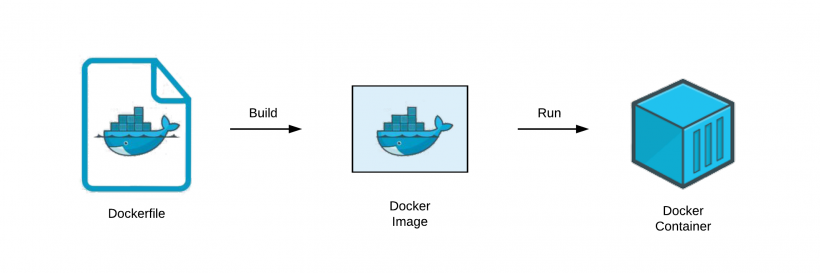
Inside that folder, create a Dockerfile:
COPY . /var/www/html
EXPOSE 80
This tells Docker to use the official PHP 8.2 with Apache image and serve your project files.
Next, create a docker-compose.yml file:
web:
build: .
ports:
- "8080:80"
volumes:
- .:/var/www/html
depends_on:
- db
db:
image: mysql:8
environment:
MYSQL_ROOT_PASSWORD: root123
Once those are in place, open a terminal inside your project folder and run:
In a few seconds, you'll have a running PHP server on http://localhost:8080 and a MySQL database running behind it. You didn't install PHP, Apache, or MySQL on your computer — everything is inside containers.
You can now edit your PHP files normally, and the site updates instantly.
Managing Data: What Happens to Your Database?
By default, containers are temporary. If they're deleted, the data inside disappears too. To avoid that, Docker lets you create a "volume" — a separate storage space that survives container restarts.
You simply add one line in docker-compose.yml:
mysql_data:
Then tell the MySQL service to use it. Even if the database container is deleted, your tables and data remain safe. For beginners, this is an important detail because it means you never accidentally wipe your database when restarting the environment.
How Docker Fits Into Real Web Development
Once you get used to Docker, your workflow becomes noticeably easier. You write your code on your local machine as usual, and Docker handles the environment quietly in the background. If you want to collaborate with someone else, they don't need to install anything except Docker. A simple "compose up" command rebuilds the same environment instantly on their computer.
Deployments also become more reliable. The exact same container you used during development can be deployed to production. This means fewer unexpected errors, fewer configuration differences, and far less time wasted on debugging server setups.
Some Challenges to Expect as a Beginner
Like any new tool, Docker has a learning curve. You'll need to understand basic commands, how containers communicate, and how to troubleshoot when something doesn't start. If you're on Windows, Docker might use more RAM or CPU than you expect. But once you get over the initial hump, most developers find that Docker saves them countless hours in the long run.
Final Thoughts: Why Docker Is Worth Learning
Docker isn't just a trend — it has fundamentally changed how developers build and maintain applications. It eliminates environment inconsistencies, simplifies collaboration, and ensures your projects behave the same everywhere.
For beginners, Docker might look intimidating at first, but once you realize that it frees you from installation headaches forever, the benefits become crystal clear. Whether you're building small hobby websites or large multi-service systems, Docker gives you a stable, predictable foundation to work on.











Comments 0