


You know that feeling when you just want to right-click a file and do one simple thing... and Windows decides to show you a whole buffet of options you never asked for? That was me (and a lot of other VLC users) staring at the context menu entries called "Add to VLC" and "Play with VLC" that kept multiplying like they were trying to start their own little empire.
At first glance, it looks like a normal Windows context menu feature. You install VLC, it adds a couple of handy shortcuts, and everyone goes home happy. But for many people, VLC doesn't just add one or two entries. It adds them again and again across tons of file associations. You end up finding what feels like hundreds of registry keys, all under variations like HKEY_CLASSES_ROOT\VLC..., each with their own shell\AddToPlaylistVLC and shell\PlayWithVLC. So even if you delete a few, you quickly realise you're basically playing whack-a-mole, except the mole has a clone factory.
That's the part that really irritates people. It's not that VLC adds context menu items. It's that it spreads them across a huge list of file types, which makes cleanup way more painful than it should be. And to make things more fun, VLC settings don't always provide a reliable "turn it off" switch for everyone, even though users keep complaining about the mess. So you're stuck between two bad options: live with a cluttered right-click menu, or manually delete an endless chain of registry entries.
If you're the kind of person who likes a clean system, that mess isn't just cosmetic. It slows you down, makes the menu noisy, and turns a simple right-click into an annoying scroll session. Even worse, the manual deletion approach can be risky if you don't know exactly what you're removing. The Windows Registry isn't a place where you want to go on an angry deleting spree. One wrong key and you can break file associations or mess up how Windows opens media files.
The best lesson from this whole thing is pretty simple: software integration is great when it's tidy and reversible, but it becomes a problem when it's "everywhere" and hard to undo. Apps should respect that context menus are shared space. If something adds itself in dozens or hundreds of places, it should also offer a clean, reliable way to remove itself with one click. Otherwise, you end up with frustrated users doing risky maintenance work just to get their right-click menu back under control.
<#
Remove-VLCContextMenu-Hardened.ps1

Purpose:
  Deletes ONLY these subkeys (if present):
    HKCR\VLC*\shell\AddToPlaylistVLC
    HKCR\VLC*\shell\PlayWithVLC

Safety:
  - Exports HKCR\VLC* to a .reg backup first
  - Strictly limits scope to HKEY_CLASSES_ROOT\VLC*
  - Logs all actions
  - Supports -WhatIf and -RestartExplorer switches

Usage examples:
  Dry run (no deletion, shows what would happen):
    .\Remove-VLCContextMenu-Hardened.ps1 -WhatIf

  Real run + restart Explorer at end:
    .\Remove-VLCContextMenu-Hardened.ps1 -RestartExplorer

If PowerShell blocks scripts for this session:
  Set-ExecutionPolicy -Scope Process Bypass -Force
#>

[CmdletBinding(SupportsShouldProcess = $true, ConfirmImpact = 'Medium')]
param(
    [switch]$RestartExplorer
)

$ErrorActionPreference = "Stop"

# Targets
$targets = @("AddToPlaylistVLC", "PlayWithVLC")

# Logging
$timestamp = Get-Date -Format "yyyyMMdd-HHmmss"
$desktop   = [Environment]::GetFolderPath("Desktop")
$workDir   = Join-Path $desktop "VLC-ContextMenu-Removal"
New-Item -ItemType Directory -Path $workDir -Force | Out-Null

$logFile   = Join-Path $workDir "RemoveVLCContextMenu_$timestamp.log"
Start-Transcript -Path $logFile -Append | Out-Null

try {
    Write-Host "Working folder: $workDir"
    Write-Host "Log file: $logFile"
    Write-Host ""

    # Backup (export HKCR\VLC*)
    $backupFile = Join-Path $workDir "HKCR_VLC_Backup_$timestamp.reg"
    Write-Host "Exporting backup to: $backupFile"
    cmd /c "reg export HKCR\VLC* `"$backupFile`" /y" | Out-Null
    if (-not (Test-Path $backupFile)) {
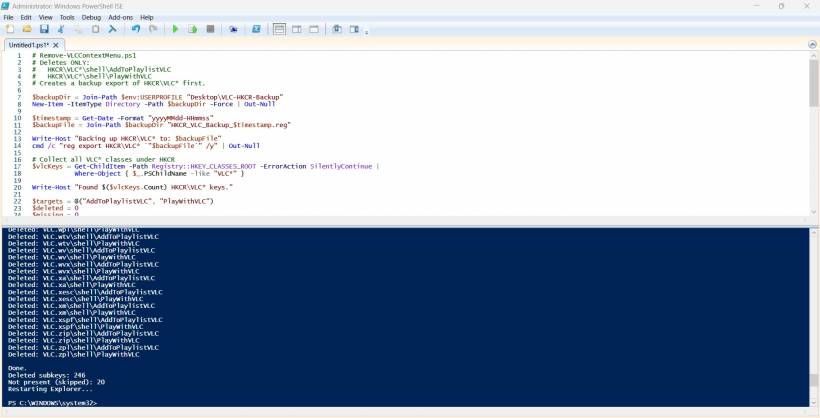
So what i did what run this powershell script, just copy paste above to an elevated powershell with admin rights, and get it all automated cleared. You can download the powershell script below as well as an alternative.
Final thoughts
VLC is still one of the best media players out there, but this context menu issue is one of those "small things" that can drive people absolutely crazy. When your system starts feeling messy and out of your control, it stops being convenient and starts being stressful. And honestly, nobody installs a media player expecting it to leave behind a registry cleanup project.











Comments