


A quick way to think about this course - If you have ever watched a short video, clicked through an interactive website, played a game, or even sat through a presentation that mixed text, pictures, and sound, you have already "used" multimedia. CBMT2103 basically takes that everyday experience and breaks it down into parts you can understand, plan, and build.
The module frames multimedia as a combination of multiple media elements working together, typically with some level of user interaction. In other words, multimedia is not just "many types of media," but a coordinated experience where media components are integrated to communicate something effectively.
What I like about the flow of the PDF is that it does not jump straight into fancy tools. It starts with what multimedia is, why it matters, where it is used, and then gradually moves into the practical building blocks: hardware, text, graphics, animation, sound, and video.
Topic 1: What "multimedia" actually means Multimedia is more than "mixing media"
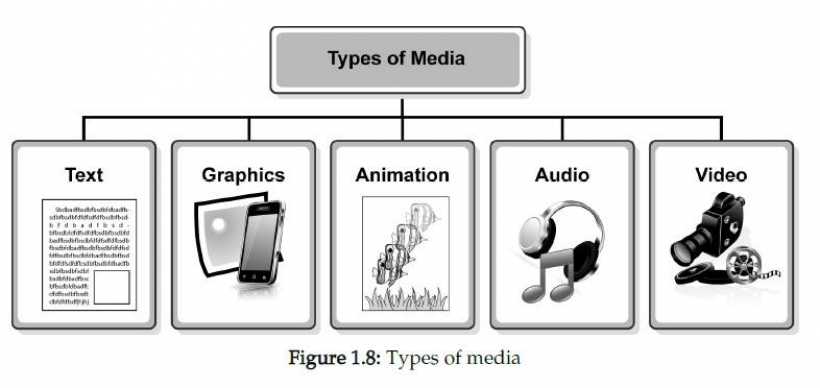
The PDF describes multimedia in a very grounded way: it is built from multiple media elements (like text, graphics, animation, audio, and video) that are combined into one presentation or application. That sounds simple, but it matters because each media type has its own strengths and weaknesses. Text is precise, graphics show structure, animation explains motion, audio adds mood and clarity, and video captures realism. The "multimedia" part is choosing and combining them so the message becomes clearer than any single medium could manage alone.
The "interactive" part is a big deal
A major theme early on is that multimedia usually shines when users can control something: pace, order, navigation, or what to open next. The course highlights features such as interactivity, navigation, and hyperlinks, plus the idea that multimedia should be easy to use and easy to understand.
The module explains interactivity as the user's ability to control the flow of the presentation, rather than being forced to consume it in one fixed sequence. Navigation is tied to the idea that multimedia often supports non-linear exploration, letting the user move around information rather than reading it "page by page.". Hyperlinks are described as the connectors that make this non-linear movement possible, linking one part of the content to another so the user can jump between sections or "nodes." If you have ever clicked a menu in a kiosk, tapped a button in an e-learning module, or scrubbed a video timeline, you already know what the module is getting at: good multimedia is not only about content, but about control.
The five building blocks you keep coming back to
The course repeatedly returns to five key media components: text, graphics, animation, audio, and video. This becomes your mental checklist. Any multimedia product you design can be "mapped" onto these elements. You might not use all five every time, but the course wants you to understand each one well enough to choose wisely.
Topic 2: Where multimedia shows up in real life Practical applications, not just theory
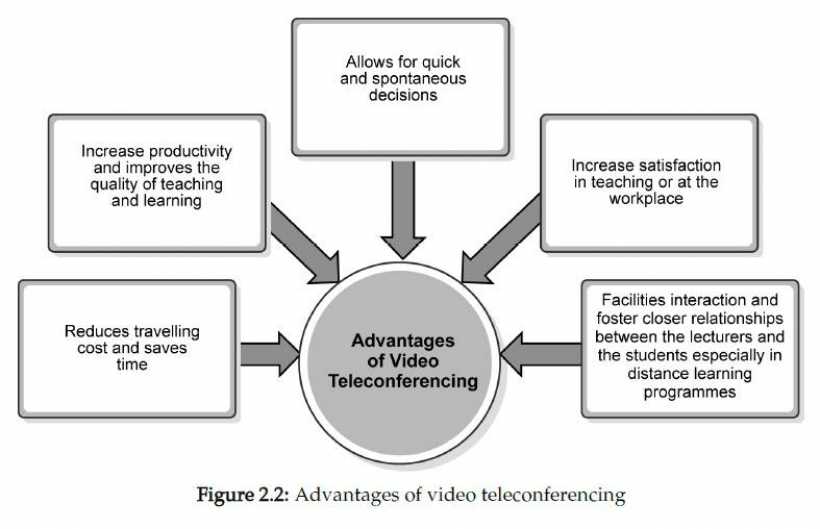
The PDF lists several applications of multimedia technology, such as video teleconferencing, multimedia delivered through e-mail, reference sources, edutainment, infotainment, advertising, purchasing, and digital libraries. Here is the interesting part: the list is not just random examples. It is basically showing how multimedia supports three big goals.
Malaysia focus: the Multimedia Super Corridor (MSC)
One of the most locally-relevant parts of the module is its focus on Malaysia's Multimedia Super Corridor (MSC). The PDF describes it as a major national initiative connected to developing Malaysia's capabilities in multimedia and ICT, including a corridor stretching across key areas (with Cyberjaya and Putrajaya being central locations in that plan).
The course also describes the idea of companies applying for MSC status and links that with incentives meant to encourage growth in multimedia-related industries. Flagship applications: where the vision becomes real
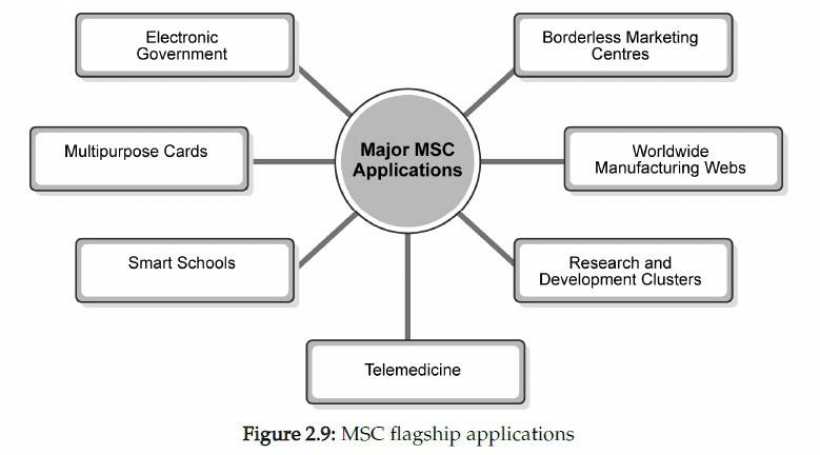
The MSC section highlights "flagship applications," which are essentially big, high-impact national projects meant to demonstrate and accelerate multimedia adoption. The PDF lists examples such as Electronic Government, Multipurpose Cards, Smart Schools, Telemedicine, Research and Development Clusters, Worldwide Manufacturing Webs, and Borderless Marketing Centres.
Even if you have not studied those projects in detail, you can see the point: multimedia is not only entertainment. It is also public services, education, healthcare, and industry modernization.
Topic 3: The hardware side of multimedia Why hardware matters more than people think
A common beginner mistake is to think multimedia is "just software." The module pushes back on that by focusing on multimedia computer hardware and standards. The reason is simple: multimedia is heavy. Audio and especially video can consume large storage, processing power, and bandwidth.
The PDF discusses standardisation in multimedia computer systems, because compatibility matters when hardware and software must work together smoothly.
Basic hardware you need to understand
The course outlines basic multimedia hardware components such as the microprocessor, main memory, CD-ROM/DVD, video capture card, sound card, and modem (among other supporting pieces). The big idea here is not "memorise a parts list." The real idea is to understand roles:
Choosing multimedia hardware is about matching needs
The module also provides guidelines for choosing multimedia computers, which is basically the course reminding you that "best" depends on what you are building. If you are making a text-heavy e-learning module, you will prioritise display clarity, input devices, and stable performance. If you are working with video editing, you care about storage speed, CPU/GPU capabilities, and video processing support.
Topic 4: Development and the future of multimedia technology What pushed multimedia forward
The PDF discusses how multimedia technology developed and points to factors such as reducing costs, improved storage (including DVD), software development, and the growth of the Internet, alongside increasing computer usage.
When you put those together, you get a simple story: multimedia became practical when it became affordable, storable, editable, and shareable.
Mobile and wearable directions
The course also connects multimedia's future to mobile multimedia computing and wearable computing. Even though the PDF was written in a different technology era than today's latest devices, the direction still makes sense. Multimedia is moving closer to the user: smaller screens, portable access, and interfaces built around daily life rather than desktop workflows.
Challenges are part of the landscape
The module also talks about challenges in multimedia development. In practice, these challenges usually revolve around performance limits, storage constraints, compatibility, user experience design, and content management. In other words, multimedia is exciting, but it is also demanding. Topic 5: Text in multimedia Text looks "simple," but it can make or break a project. The module states plainly that multimedia would not be complete without text. That is important because many people underestimate text. They treat it like decoration or an afterthought. But text does a job that visuals often cannot: it names things precisely, gives instructions, clarifies meaning, and supports search and navigation. Guidelines: how to use text without ruining your design
The PDF provides guidelines for text in multimedia presentations, including keeping text minimal, choosing suitable typefaces, maintaining consistent fonts/styles/colours, and making the overall approach readable and controlled.
A practical way to interpret this is:
Typeface categories: choosing the right personality
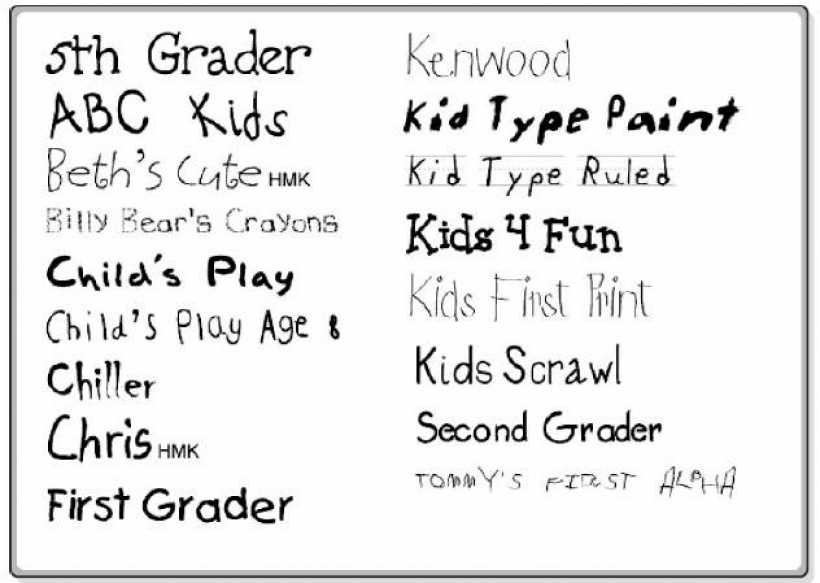
The PDF discusses typeface categories such as serif, sans serif, and decorative typefaces.
This is one of those topics that sounds "design-y" until you actually build something. Then you realise: typeface choice affects readability, trust, and tone. Serif fonts often feel traditional and formal, sans serif tends to feel modern and clean, and decorative fonts can add character but are risky for long reading or serious content.
Hypertext: text that behaves like navigation
The module also introduces hypertext, which is essentially text used as a navigational structure, allowing users to jump around content instead of reading in a straight line.
Once you see text as both content and interface, you start building multimedia differently. A heading is not just a heading; it might be a button. A keyword might be a link. A short label might be the difference between confusion and clarity.
Topic 6: Graphics in multimedia Why graphics are central
The PDF treats graphics as a core multimedia component and builds a foundation for understanding different types of graphics and how they are produced and used. Graphics are not "extra." They are often the fastest way to communicate structure: diagrams, icons, layouts, screenshots, charts, illustrations, and even background images all shape how users interpret content.
Vector vs bitmap: the difference you cannot ignore
One of the most important conceptual distinctions in multimedia is the difference between vector graphics and bitmap graphics. The module explicitly compares vector graphics and bitmap graphics
A practical way to remember it:
This matters in real projects because multimedia often needs multiple sizes: phone screens, desktop screens, projectors, print materials, and so on.
File formats and compression
The PDF covers common graphics file formats and connects them with how graphics are stored and compressed. If you have ever wondered why a GIF loads fast but looks limited, why JPEG is common for photos, or why PNG is popular for transparency, this is exactly the kind of thinking the course wants you to develop: choose the format that fits the job, not the format you happen to know. Where graphics come from
The module also discusses sources of graphics, which can include self-created images, scanned images, camera images, and downloaded resources (handled responsibly). In multimedia work, the ability to create or obtain graphics is part of production planning, not just a technical detail. Topic 7 and Topic 8: Animation and computer animation Animation is motion with purpose. The course introduces animation in multimedia and then extends it into computer animation, including both 2D and 3D concepts.
The key idea: animation is not just "moving stuff." It is used to demonstrate change, guide attention, explain processes, and make interfaces feel alive. Animation can teach (a step-by-step system), persuade (product movement), or simply entertain (games and interactive media).
Keyframes and tweening: the basic workflow
The module discusses keyframes and tweening, which are foundational ideas in animation production. Keyframes define important moments in motion. Tweening fills the frames between keyframes, creating smooth transitions. If you have ever used CSS animations, game engine timelines, or motion graphics tools, you have already met these ideas, even if the software did not call them by the same names.
2D and 3D animation: different tools, different thinking
The PDF covers 2D animation and 3D animation concepts, including modelling and rendering on the 3D side.
The deeper point is that animation choices affect cost, production time, file size, hardware requirements, and even user expectations. A simple 2D icon animation can make a UI feel polished. A full 3D animation can communicate realism but demands more processing and production effort. Where animation gets used
The course also mentions applications of computer animation, which helps connect the topic back to real-world contexts rather than treating it as "just cartoons."
Topic 9 and Topic 10: Sound, audio, and music in multimedia
Why audio changes the whole experience. Even simple multimedia becomes more engaging when audio is used properly. The module explores sound in multimedia by separating analogue and digital sound, and by discussing how sound is represented and processed digitally.
Digital sound depends on sampling
The course introduces the basic reality of digital audio: analogue sound must be converted into digital form, and that conversion depends on sampling and representation. Even without going deep into engineering, the practical lesson is clear: sampling settings influence quality and file size. Higher quality means more data, and more data means bigger files and more performance demands.
Formats and roles
In multimedia production, audio can take multiple forms: narration, background music, sound effects, interface feedback, ambient sound, and more. The course wants you to treat sound as a deliberate design component, not an afterthought.
Topic 11: Video in multimedia Video is powerful, but it is expensive in data
The module makes it clear that video is one of the most demanding multimedia elements. A short clip can require enormous storage, especially as frame rate and resolution increase. The PDF gives an example showing how quickly video size grows and uses that to justify why compression is essential.
Compression: the reason video is practical at all
The course explains that video compression is necessary because video contains more data than graphics and audio, and compression is used to reduce file size for storage and transmission. It introduces the idea of codecs (compression and decompression software) as the mechanism that makes this possible.
It also describes compression and decompression as processes: compression transforms digitised video data into a compressed form, and decompression converts it back during playback or broadcasting.
Lossless vs lossy: choosing what to sacrifice
The module describes two main compression methods: Lossless compression can be decompressed to exactly match the original, which is especially important for text and situations where accuracy matters.
Lossy compression reduces file size by eliminating some data, trading perfect accuracy for efficiency, and the course notes that this is often suitable for video because small quality loss may be hard to notice in moving images. This is one of the most practical lessons in the whole module: multimedia is often about trade-offs. If you want perfect quality, you pay with storage, bandwidth, and processing. If you want speed and compact files, you accept some quality loss.
Compression happens within frames and between frames
The PDF also introduces intraframe compression (within a single frame) and interframe compression (between frames). This is a useful mental model: video is not just "many pictures." It is many pictures that often look similar across time, so compression can take advantage of that similarity. Topic 12: Video formats and software Containers and standards: the "where do I save this?" problem. After digitising video, the course explains that you need to choose an appropriate video file format, and it highlights major options such as AVI, QuickTime, and MPEG. This is a practical reality in multimedia production. You are not only creating content. You are packaging it for platforms, users, and playback environments.
QuickTime, AVI, and MPEG in context
The module describes QuickTime as a strong cross-platform option and notes its broad support. It describes Microsoft's Video for Windows (AVI) as widely used due to Windows dominance and explains that AVI playback typically does not require additional software in Windows environments. It also discusses MPEG, including versions like MPEG-1, MPEG-2, and MPEG-4, and connects MPEG's popularity with increasing computer system capabilities.
You do not need to treat this as "memorise codecs." The real lesson is: formats exist because playback environments differ, and multimedia creators must match the format to the target environment.
Pulling it all together: how the pieces work as one system
By the time you finish the PDF, you start seeing multimedia as a system rather than a pile of media files.
If you think like that, you stop building multimedia randomly. You start building it deliberately.
A simple "beginner project" mindset (based on the module's logic)
If you want a practical takeaway from CBMT2103, it is this: treat multimedia production like planning a small product. Start by identifying your message and audience. Decide what media elements you actually need (text, graphics, audio, video, animation). Design navigation and interaction so users can control and understand the experience. Choose formats that fit your delivery environment (especially for video).Keep an eye on file sizes and performance, using compression where appropriate. When you approach multimedia this way, you are doing exactly what the PDF is training you to do: not just consume multimedia, but understand it well enough to build it responsibly.
Open University Malaysia (OUM). CBMT2103 Intro to Multimedia Technology











Comments 0