

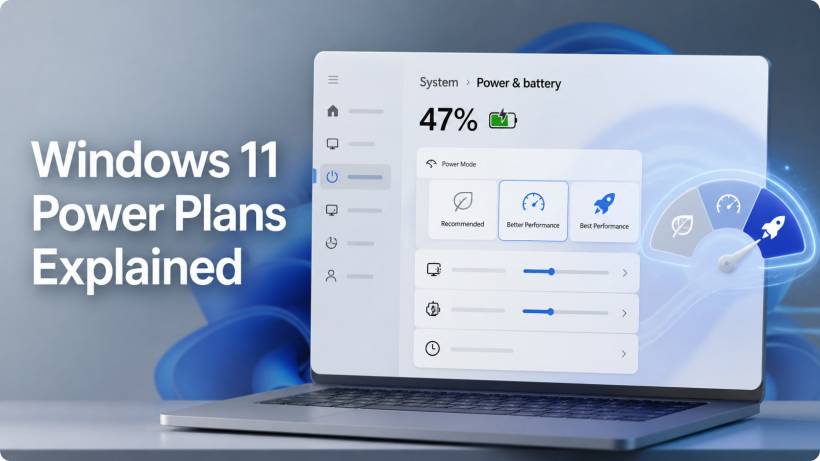
Windows 11 has made power management simpler on the surface, but slightly confusing once you start comparing the available options. In older versions of Windows, many users were used to seeing classic power plans such as Balanced, Power Saver, and High Performance inside Control Panel. In Windows 11, Microsoft has pushed most everyday users toward the newer Power mode setting under Settings > System > Power & battery.
Based on the screenshots, Windows 11 now presents power modes in a more practical way. Instead of asking users to manage detailed processor states, cooling policy, and sleep behaviour manually, it gives three clear options: Recommended, Better Performance, and Best Performance. Microsoft describes this area as the place where users can choose between better battery life, better performance, or a balanced experience depending on what they are doing.
Why Windows 11 Power Mode Matters
Power mode affects how aggressively Windows allows your device to use hardware resources. This includes CPU boosting behaviour, background activity, battery saving behaviour, and how quickly the system responds when you open apps, switch tasks, browse websites, or run heavier workloads.
This is especially important on laptops, tablets, and portable devices because performance is always a trade-off. More performance usually means more power draw, more heat, and shorter battery life. Better battery life usually means Windows has to hold back the processor, background services, and sometimes screen brightness or energy-heavy behaviour.
For desktop users, the impact may be less obvious because battery life is not a concern. However, power mode can still affect heat, fan noise, electricity usage, and how responsive the PC feels during demanding work.
Recommended or Balanced Mode
The Recommended mode is the safest default for most Windows 11 users. It is designed to give a balanced experience between performance and battery life. In practical terms, Windows allows the CPU to slow down when the system is idle and then increase performance when needed.
This means your laptop is not constantly running at high clock speeds while you are only reading a webpage, typing a document, or leaving the system idle. When you open an app or load a website, the processor can still boost when necessary, but Windows tries to avoid wasting power in the background.
Microsoft's energy recommendations also point users toward recommended or best energy efficiency settings when the goal is to reduce power consumption and maintain a good balance between efficiency and performance.
Recommended mode is ideal for everyday use such as:
• Writing documents
• Email and messaging
• Watching YouTube or Netflix
• Light office work
• School or work tasks
• General multitasking
The main advantage is battery life. Your device should run cooler, quieter, and longer compared with performance-focused modes. The downside is that some heavier tasks may feel slightly slower, especially if you are editing videos, running development tools, exporting files, gaming, or using many apps at the same time.
For most users, this is the mode I would suggest leaving enabled when running on battery.
Better Performance Mode
Better Performance is the middle ground. It gives Windows permission to be more aggressive with CPU boosting while still trying to preserve some battery life. Compared with Recommended mode, the system may feel more responsive when opening apps, switching between tasks, or doing moderate workloads.
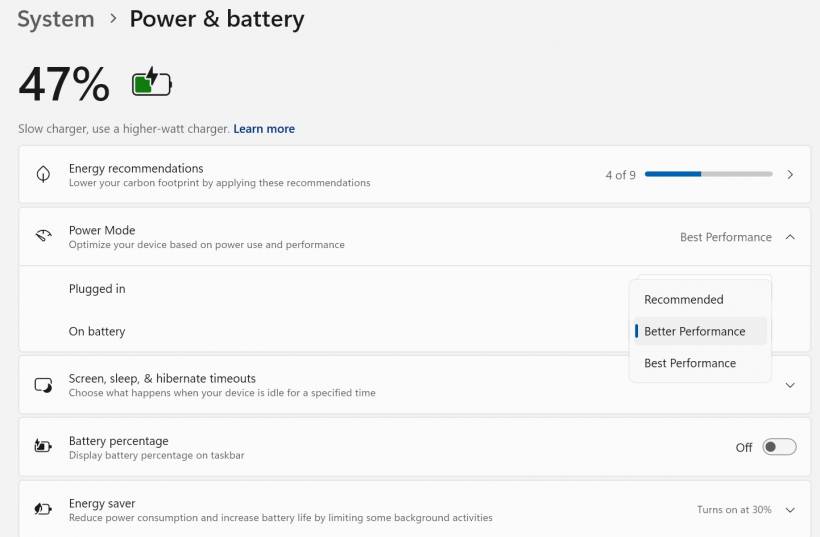
This mode is useful when you do not want the full power draw of Best Performance, but you also do not want Windows to be too conservative. In the screenshot, this mode is selected in the dropdown, which makes sense for users who want a slightly faster experience without completely sacrificing battery life.
Better Performance is suitable for:
• Multiple browser tabs
• Microsoft Office or Google Workspace
• Light photo editing
• Streaming while multitasking
• Web development
• Basic coding
• Remote desktop sessions
• Online meetings
For someone doing web development, this can be a very practical setting. Modern development work often involves browsers, local servers, code editors, database tools, design references, and maybe a few terminals running at the same time. Recommended mode can still handle this, but Better Performance may make the system feel less sluggish, especially when switching between apps.
The trade-off is battery life. It will usually consume more power than Recommended mode, and your device may become slightly warmer. However, it is still not as aggressive as Best Performance.
This is probably the best "daily work" setting if the laptop is plugged in most of the time or if the user values responsiveness more than maximum battery life.
Best Performance Mode
Best Performance is the most aggressive setting. It tells Windows to prioritize performance over energy saving. The system is more likely to keep the CPU ready to boost quickly and allow heavier background processing without as much restriction.
Microsoft also recommends selecting Best performance when power usage is not a concern and the user wants the CPU to run at higher performance when needed.
Best Performance is suitable for:
• Video editing
• Large file compression or extraction
• Software compilation
• Virtual machines
• Heavy multitasking
• 3D rendering
• Running demanding creative tools
• Performance testing
However, this mode is not magic. It does not upgrade your hardware. It simply reduces power-saving restrictions so your existing hardware can behave more aggressively. If your laptop has thermal limits, weak cooling, or is running on battery, it may still throttle under heavy load.
This mode can also cause:
• More heat
• Louder fan noise
• Higher power usage
• Shorter runtime on battery
• Possible thermal throttling on thin laptops
For laptops, I would usually recommend Best Performance only when plugged in. On battery, it can drain the device quickly and may not always produce a huge real-world performance improvement, especially if the laptop firmware still limits CPU or GPU power when unplugged.
Plugged In vs On Battery
One useful thing shown in the screenshot is that Windows 11 can separate power behaviour for Plugged in and On battery. This is the right way to manage modern laptops.
A good setup would be:
• On battery: Recommended or Better Performance
For example, if you are working at your desk with the charger connected, Better Performance is a comfortable default. If you are gaming, editing video, or compiling a large project, Best Performance makes sense. But when you unplug the laptop and work from a café, meeting room, or travel environment, Recommended mode will usually be the smarter choice.
The screenshot also shows a "Slow charger, use a higher-watt charger" message. This is worth paying attention to. If the charger is underpowered, the laptop may not receive enough power to sustain high performance and charge the battery at the same time. In that situation, using Best Performance may not help much because the system could still limit performance to protect the battery and hardware.
Energy Recommendations and Battery Percentage
The screenshot also shows Energy recommendations, which is another useful Windows 11 section. This area suggests settings that can reduce power usage, such as using a more efficient power mode, adjusting screen timeout, sleep behaviour, brightness, and other energy-saving options. Microsoft notes that these recommendations are designed to reduce power consumption and improve energy efficiency on Windows 11 devices.
Another small but useful setting shown is Battery percentage. Turning this on makes the battery level visible in the taskbar. For laptop users, this is worth enabling because the icon alone is often not precise enough. Seeing the exact percentage helps you decide when to switch power mode, lower brightness, close background apps, or plug in the charger.
Which Power Mode Should You Use?
For most users, the best setup is not to leave everything on Best Performance all the time. That sounds tempting, but it is often unnecessary. Windows 11 is already good at boosting performance when needed, especially on modern processors.
Here is a practical recommendation:
| User Type | Suggested Mode |
| Casual user | Recommended or Better Performance |
| Web developer | Better Performance when plugged in, Recommended on battery |
| Gamer | Best Performance when plugged in |
| Video editor | Best Performance when plugged in |
| Traveller | Recommended |
| Laptop user who wants less fan noise | Recommended |
| Desktop user | Better Performance or Best Performance depending on workload |
For a balanced laptop setup, I would personally use Better Performance while plugged in and Recommended while on battery. That gives you a responsive machine at your desk, but still protects battery life when mobile.
Final Thoughts
Windows 11 power modes are not just cosmetic settings. They influence how your system balances speed, heat, battery life, and background activity. The good thing is that you do not need to overthink it too much.
Use Recommended when battery life matters. Use Better Performance when you want a smoother everyday experience. Use Best Performance only when you are plugged in and doing demanding work such as gaming, video editing, compiling code, or running heavy applications.
For most people, Better Performance plugged in and Recommended on battery is the sweet spot. It gives you the best of both worlds without turning your laptop into a hot, battery-draining mini jet engine.











Comments 0