

If you've been wondering what Microsoft is lining up next for Windows 11, the latest Release Preview Channel build just gave us a pretty clear sneak peek. This is the "almost ready" stage of Insider testing, which usually means these features are close to landing on regular PCs.
And this time, it's not about a giant redesign. It's more of a quality-of-life refresh: a few Taskbar tweaks, some new emoji, and a bunch of smaller improvements sprinkled across Settings and system features.
Windows 11 updates aren't yearly anymore, they land when they're ready
Microsoft has been running Windows 11 on a "Continuous Innovation" style update approach. In simple terms: instead of saving everything for one big annual Windows release, features get pushed out in smaller drops once they're stable enough.
So when a feature set shows up in Release Preview, it usually means the rollout is near.
The headline changes: emoji and Taskbar tweaks
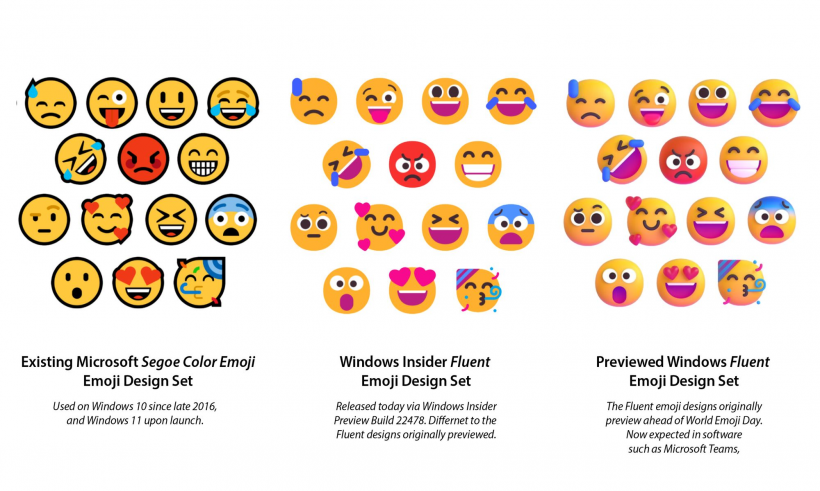
Emoji 16.0 is coming to the emoji panel
The Windows emoji picker (Win + .) is getting the Emoji 16.0 set. It's not a massive flood of new icons, but it does add a small set of fresh ones, including things like:
• harp
• shovel
If you use emoji reactions in Teams chats, emails, or just for fun, you'll notice these popping up once the update hits.
A built-in network speed test shortcut on the Taskbar
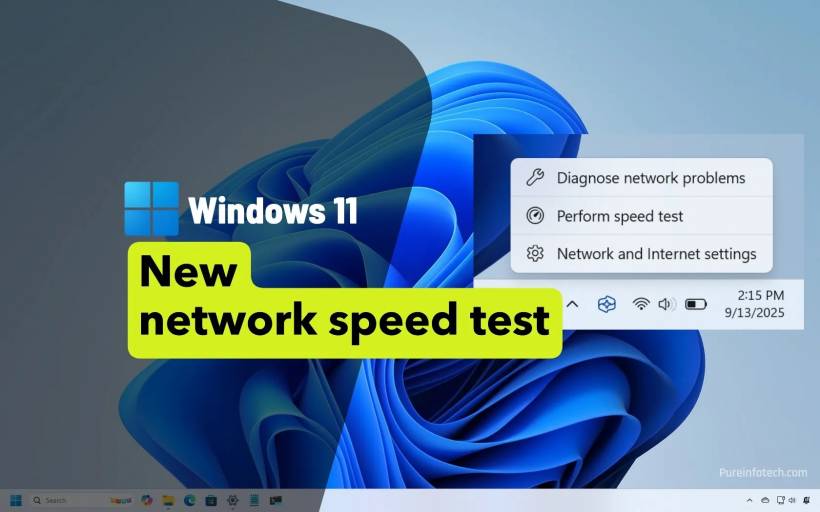
This one is honestly pretty practical. Microsoft is adding a network speed test entry you can access through the Taskbar network area.
How it works:
• Launch the speed test
• It opens in your default browser and checks connection performance (Ethernet, Wi-Fi, or cellular)
It's meant as a quick "is my connection actually slow or is it just this app?" troubleshooting shortcut.
Small but important Taskbar behavior improvement (uncombined mode)
If you use the Taskbar in uncombined mode (where every window gets its own button), Windows currently has a habit of shoving groups of windows into the overflow in a way that can feel messy.
The update changes that behavior so that:
• Only the buttons that truly don't fit get pushed over
So overflow behaves more logically, especially when you have a lot open.
Backup, recovery, and identity features getting real upgrades Better first sign-in restore for organizations
There's a new "first sign-in restore" experience becoming part of Windows Backup for Organizations. The goal is to make device refreshes and migrations less painful by restoring:
• Microsoft Store apps
This is aimed at environments like:
• Cloud PCs
• multi-user setups
In short: less "rebuild everything manually" when devices are replaced or reimaged.
Quick Machine Recovery expands automatically on some Pro PCs
Quick Machine Recovery (QMR) will now turn on automatically for Windows 11 Pro devices that are:
• not enrolled in enterprise endpoint management
So regular standalone Pro machines get the same recovery safety net that Home users already benefit from. Domain-managed / enterprise-managed devices keep QMR off unless the organization enables it.
Entra ID group/role SID resolution
This is a big "IT admin quality of life" feature: Windows can now translate Microsoft Entra ID cloud group and role SIDs into readable names. That matters for:
• local group membership
• access control scenarios
And it helps in Entra-only setups without relying on on-prem Active Directory.
Settings and built-in features are getting smarter Camera controls: pan and tilt from Settings
For supported cameras, Windows will add pan/tilt controls inside:
It'll show up in the "Basic settings" section for the selected camera.
Sysmon built into Windows (but off by default)
This one leans more technical, but it's important. Sysmon functionality is coming as a native Windows feature. Sysmon is used to collect detailed system event data that can help with security monitoring and threat detection.
Key points:
• You enable it through Windows features (or DISM/command line)
• It logs events into Windows Event Log so security tools can use it
• If you already installed Sysmon separately, Microsoft notes you should uninstall that version first before enabling the built-in one
For normal users, it won't change anything unless you intentionally turn it on. For defenders and admins, it's a powerful option to have baked in.
Widgets settings becomes a full page
Instead of opening in a small dialog, Widget settings will open as a full-page experience inside the Widgets app.
.webp wallpapers are supported
You'll be able to set .webp images as your desktop background:
• or via right-click in File Explorer
A bunch of quiet fixes that you'll probably appreciate later
This feature drop also includes many small improvements and reliability fixes, including:
• more responsive Windows Update settings page
• better login/lock screen reliability
• improved Nearby Sharing for large files
• more reliable Windows + P projecting pane
• smoother print service performance (especially under high volume printing)
• File Explorer improvements (including "Extract all" showing in more archive scenarios, and better network device display reliability)
• display performance tweaks to reduce resume-from-sleep time
• improved reliability for laptops docked with the lid closed when connecting to AC power
• assorted small visual fixes (autohide Taskbar edge cases, credential fields, print dialog)
When should you expect this to reach your PC?
Right now, these changes are in the Release Preview Channel, which typically means the general rollout is close. The expectation is that this set of features begins rolling out broadly within the next few weeks, with the rollout likely starting alongside an upcoming monthly update cycle.
Final thoughts
This upcoming Windows 11 drop feels like Microsoft leaning into the "make the daily experience less annoying" approach rather than chasing flashy headlines. The emoji update is fun, but the real value is in the Taskbar behavior tweaks, the built-in speed test shortcut, and the behind-the-scenes reliability improvements.
If your PC is already running Windows 11 smoothly, this kind of update usually makes things feel a bit more polished without disrupting your workflow. And if you're someone who lives in Settings, File Explorer, or deals with recoveries and deployments, there are some genuinely useful upgrades here.











Comments