

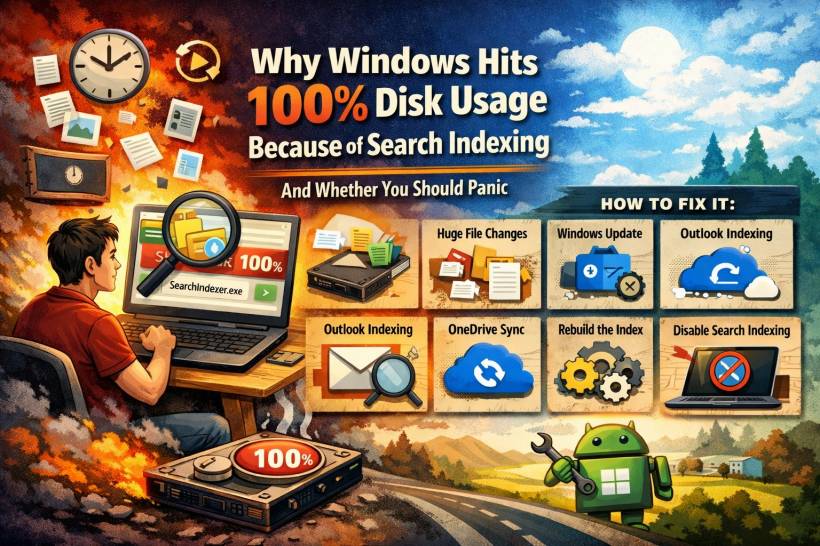
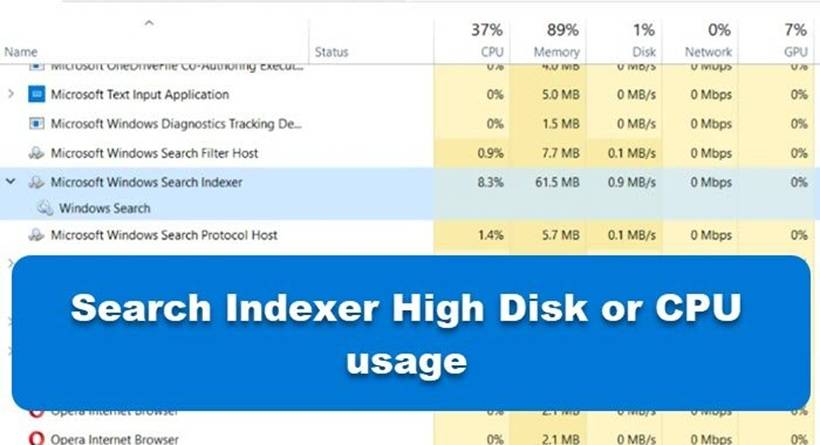
If you have ever opened Task Manager only to see your disk usage slam to 100 percent, your heart probably stopped for a second. Then you scroll down and see one familiar name hogging resources: Windows Search Indexer. Suddenly, you start wondering whether your PC is dying, your SSD is failing, or if Microsoft just wants to see you suffer.
The good news: This is one of the most common Windows behaviors. The better news: Most of the time, it is not a sign of a hardware problem. But there are things you should understand about why it happens, when you should worry, and how to get it under control.
What Exactly Is Windows Search Indexing?
Think of Windows Search Indexing as the librarian of your computer. Instead of searching your entire drive every time you look for a file, app, email, or setting, it quietly builds a searchable database behind the scenes. That is why searching the Start menu normally feels instant.
To do this, Windows constantly watches:
Windows Updates Just Installed
After an update, Windows can rescan many files. Sometimes it almost looks like your computer is working overtime for no reason. It is not; it is just rebuilding behind-the-scenes intelligence.
You Added or Modified a Lot of Files
Maybe you:
When something changes, it updates the database. Most of the time, you barely notice. But sometimes, it decides to go into beast mode.
Why Does Disk Usage Suddenly Spike to 100 Percent?
There are several perfectly normal reasons. Windows Search Indexer usually ramps up when:
Windows thinks, "Great, more stuff to catalog," and starts indexing aggressively.
OneDrive Is Syncing
This is extremely common. If your OneDrive synced thousands of files at once, indexing joins the party. Suddenly, the disk gets hammered.
Outlook Is Rebuilding Search
A large Outlook mailbox can trigger indexing like crazy. Anyone with big PST or OST files knows this pain.
The Search Index Is Corrupted
Sometimes the index gets confused, loops, or endlessly tries to rebuild.
You Enabled Enhanced Search Mode
Windows has two search modes:
Enhanced is powerful but heavy. If you turned it on once and forgot, your disk may pay the price often.
Is This Dangerous?
In most cases, no. Occasional spikes are part of Windows behavior. Modern SSDs handle indexing work easily, and Windows is designed to back off when the system needs resources.
You should only worry if:
That may indicate corruption, misconfiguration, or rarely, hardware issues.
How to Calm Down Search Indexing (Without Breaking Windows)
Here are practical steps you can take.
Step 1: Check Whether It Is Just Busy
Go to:
Settings → Privacy & Security → Search
If it says "Indexing in progress", it may be temporary. If it finishes, life usually goes back to normal.

Step 3: Limit What Windows Indexes
Go to:
Searching Windows → Advanced Indexing Options → Modify
Uncheck things you do not need indexed such as:
- Program Files
- Windows directories
- Large game folders
- Backup drives
- Massive media libraries
Keep essential folders only:
- Documents
- Desktop
- Outlook mail
- Start menu
Your PC will thank you.
Step 4: Rebuild the Search Index
If something feels broken:
Settings → Searching Windows → Advanced Indexing Options → Advanced → Rebuild
Expect temporary increased activity while it rebuilds. After that, things usually stabilize.

Step 5: Temporarily Disable Search Indexing
If you really do not use Windows Search much:
Run:
services.msc
Find:
Windows Search
Set Startup Type → Manual
Or Stop it.
Note: If you rely on Outlook search, do not disable indexing. Outlook search becomes painfully slow without it.
Step 6: Check Other Usual Suspects
Search indexer is not always alone. Also check:
- OneDrive endless syncing
- Antivirus scanning
- Windows Defender SmartScan
- Disk health
- Firmware/driver updates (especially laptops)
- Background apps
Should You Ever Disable It Completely?
If you rarely use Windows search, yes, you can. But for most people, Windows search is useful. Disabling indexing turns searching into the slow, prehistoric "scan the entire drive manually" experience.
For work users, especially Outlook users, indexing is nearly essential.
Final Thoughts
Windows hitting 100 percent disk because of Search Indexing is one of those things that feels alarming but is usually normal. It is one of those "Windows being Windows" realities. The important thing is knowing when it is just doing maintenance and when it is genuinely misbehaving.
Most of the time, adjusting indexing scope, switching back to Classic search, or rebuilding the index is enough to keep things calm. And unless it happens constantly, it is rarely something to panic about.











Comments