

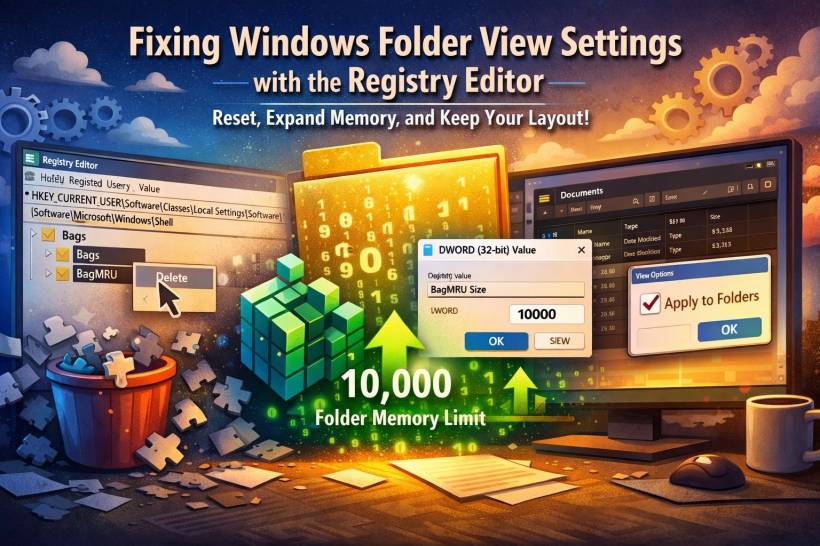
If you've ever carefully set your Documents folder to show details view, added your favorite columns, sorted things just nicely… only to return tomorrow and see everything completely reset, you're not alone. It is one of those long-standing Windows quirks that somehow still exists, especially in Windows 10 and Windows 11.
It usually happens with the Documents folder, but other folders can be affected too. And the real reason is surprisingly technical: Windows simply forgets. More accurately, its view memory becomes corrupted or full, and when it cannot store any more folder preferences, it starts discarding them.
That's where the registry fix comes in.
Why Windows "Forgets" Your View Settings in the First Place
Windows Explorer doesn't magically remember folder layouts. It stores them in something called Bags and BagMRU, which are registry entries that act like a little database of folder preferences.
Over time, a few things can go wrong:
• The Bag database gets corrupted
• Auto-detection keeps switching folder types
• Fast Startup prevents changes from saving properly
When that happens, Windows either resets folders randomly or stops remembering changes entirely. That's when even applying "Apply to Folders" doesn't help anymore.
So if changing settings in File Explorer or customizing folder properties doesn't fix it, it means the registry database is the problem.
The Registry Fix: What It Does (In Plain English)
This registry fix does three important things:
Think of it as wiping a glitchy clipboard and giving Windows a bigger and cleaner notebook to remember your preferences properly again. Once done, you'll notice Windows actually keeps your chosen view consistently.
Step-by-Step: How to Fix Folder View Memory with Registry Editor
Before anything else, the standard safety disclaimer: you are editing the Windows Registry. As always, be careful, follow steps correctly, and if you want to be extra safe, back up your registry first. That said, this is a widely used, safe fix when done correctly.
Step 1: Open the Registry Editor
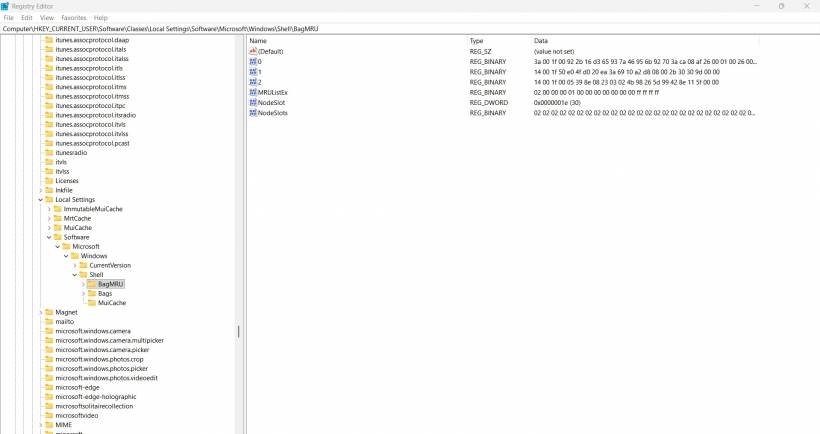
Step 2: Delete the Corrupted Folder View Cache
Navigate to this location:
Win + RRight-click each one and delete them.
This clears the old, broken view database so Windows can start clean.
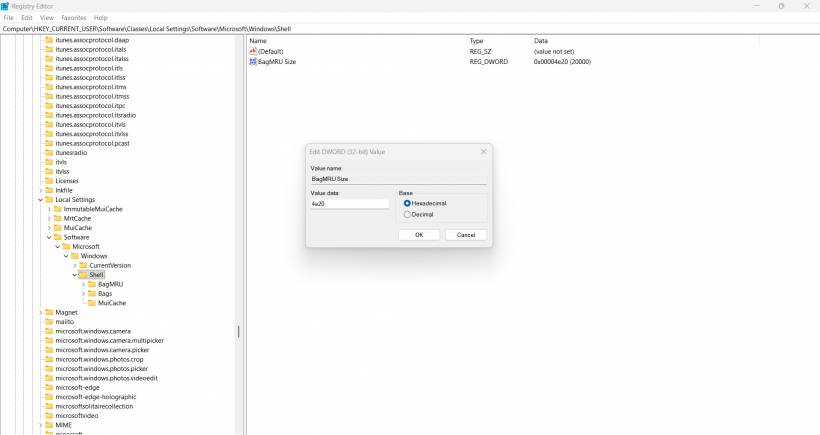
Step 3: Increase the Folder View Memory Limit
Now go to:
Right-click the right panel and create a new:
Name it:
Then open it and set the value to:
This increases the number of folders Windows can remember. Many systems default to far less, which is why settings eventually "drop off".
Step 4: Restart Your PC
Restarting forces Windows to rebuild and apply the new database properly.
After Doing This, Don't Forget One More Important Step
Once your PC restarts:
This now sticks. Unlike before.
Bonus Tip: Stop Windows from Auto-Changing Folder Types
Windows sometimes tries to "auto-detect" what type a folder is, which leads to it switching layout randomly. To stop that:
Choose Documents
"Also apply to subfolders"
Click OK.
When Does This Fix Help?
This registry fix is useful if:
• Documents keeps switching layouts
• "Apply to Folder" does not stay
• Explorer behaves inconsistently
• You have many folders and Explorer can't remember all their layouts
It's one of those fixes that feels technical but delivers a very real quality-of-life improvement.
Final Thoughts
Windows Explorer is powerful, but its habit of forgetting folder preferences drives many users crazy. Instead of endlessly re-tweaking your Documents folder or assuming something is wrong with your PC, the truth is simply that Explorer has a memory problem. Resetting and expanding that memory through the registry truly fixes the root cause.
Once done, your folders behave consistently again, your preferred layout stays, and you don't have to repeat the same settings every week.
If you want, tell me which Windows version you're using and whether it only happens to Documents or all folders. There are also a few alternate approaches depending on the situation.











Comments