

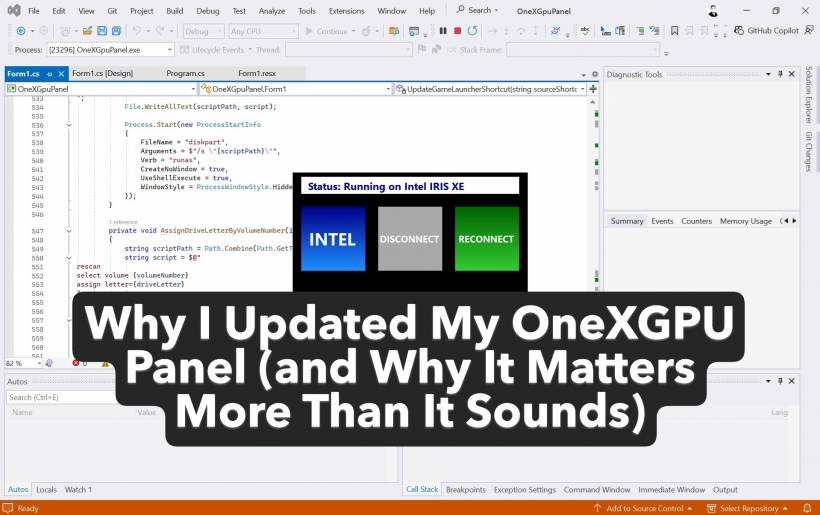
I recently spent some time refining and updating my OneXGPU Panel, and on the surface it might look like a routine software refresh. In reality, this update touches several areas that quietly make or break a smooth eGPU workflow on Windows, especially if you jump between onboard graphics and an external GPU regularly like I do.
The biggest change was migrating fully to the new Intel Graphics Software instead of the older Intel Graphics Command Center. Intel has moved things around, including installation paths, and keeping the old assumptions caused inconsistent launches and occasional "nothing happens" moments. Updating the path ensures that when I'm running purely on Intel Iris Xe, the correct control panel opens instantly, without fallback hacks or shell links.
At the same time, AMD did what AMD occasionally does: reshuffled their software structure in a newer Adrenalin release. The Radeon Software executable path changed, so the panel needed to be updated to match. Without this fix, clicking the AMD button while the eGPU is active could fail silently or launch the wrong component. Now it reliably opens and maximizes the Adrenalin UI every time.
Two Playnite Setups, Zero Conflicts
One of the most important design decisions in this setup is something that might sound excessive until you've been burned by it: I run two completely separate Playnite installations.
One Playnite lives on the internal system drive and is used when I'm running purely on Intel graphics. The other Playnite lives on the eGPU's NVMe storage and is only used when the AMD eGPU is connected. Each has its own database, cache, and configuration.
Why does this matter? Because Playnite does not like environments that suddenly lose drives, libraries, or executables. If you use a single Playnite database and your E: drive disappears mid-session, you risk corrupted metadata, broken paths, or endless "missing executable" warnings. By keeping the databases separate, each setup remains clean, predictable, and stress-free.
The updated panel now automatically swaps the desktop launcher shortcut depending on whether I disconnect or reconnect the eGPU. When I'm on Intel, the launcher points to the local Playnite. When I'm on AMD, it points to the eGPU-based Playnite. Same desktop icon, different brains behind it.
What Happens When I Disconnect the eGPU
Disconnecting an eGPU is the part most people get wrong, and it is usually why Windows ends up unstable afterward. The panel enforces a strict, repeatable sequence.
First, it cleanly shuts down anything that could still be touching the eGPU storage or GPU itself. That includes Steam, Battle.net, GestureWorks, and the Playnite instance running from the eGPU drive. This alone avoids a huge number of file lock issues.
Next, the NVMe disk inside the eGPU enclosure is taken offline at the disk level before any hardware disabling happens. This is crucial. Once the disk is offline, devcon is used to disable the NVMe device, followed by the AMD GPU itself. Only after that does the system clear the E: drive letter.
Once the hardware is safely detached, Steam is relaunched silently on the Intel side, and the desktop launcher shortcut is switched to the Intel-based Playnite. The UI updates to reflect that the system is now running on Intel Iris Xe, and only then does the blackout overlay disappear. The entire process is designed to be boring, predictable, and drama-free, which is exactly what you want here.
What Happens When I Reconnect It
Reconnecting follows the same philosophy, just in reverse.
Everything that could conflict is shut down first, including the Intel-side Playnite. The NVMe device is re-enabled, the disk is brought back online, and the E: drive letter is reassigned explicitly. Only after the storage is confirmed alive does the panel re-enable the AMD GPU.
Steam is launched again, this time ready to see the eGPU libraries. The panel then checks whether the E: drive actually exists. If it does, the UI flips back to AMD mode and the desktop launcher is updated to point at the eGPU Playnite. If it does not, the panel refuses to lie to you. It shows a clear error message and leaves the system state unchanged.
That last check might seem minor, but it prevents a lot of false-positive "connected" states that cause confusion later.
Why This Update Was Worth Doing
This update was not about adding flashy features. It was about aligning the panel with how modern Intel and AMD software actually behaves today, and about protecting data and sanity in a dual-GPU setup.
The result is a system where connecting or disconnecting the eGPU feels intentional rather than risky, Playnite never fights itself, and the graphics control panels always open the correct tool for the current hardware. Once you experience this kind of clean separation and automation, going back to manual toggling and crossed fingers feels almost unthinkable.











Comments 1